Configuring a Dataset
A dataset is required to apply data quality tests to.
Each dataset typically is matched to a table in K. This allows K to track the DQ score results per dataset.

Future enhancements to KDQ will allow for dataset scores to be assigned to different tables in K
Prerequisites
Connection configured
Atleast one Job configured
Creating a dataset
Select a workspace
On the dataset tab click on Create Dataset
Configure the Dataset details - fill in the following detailed
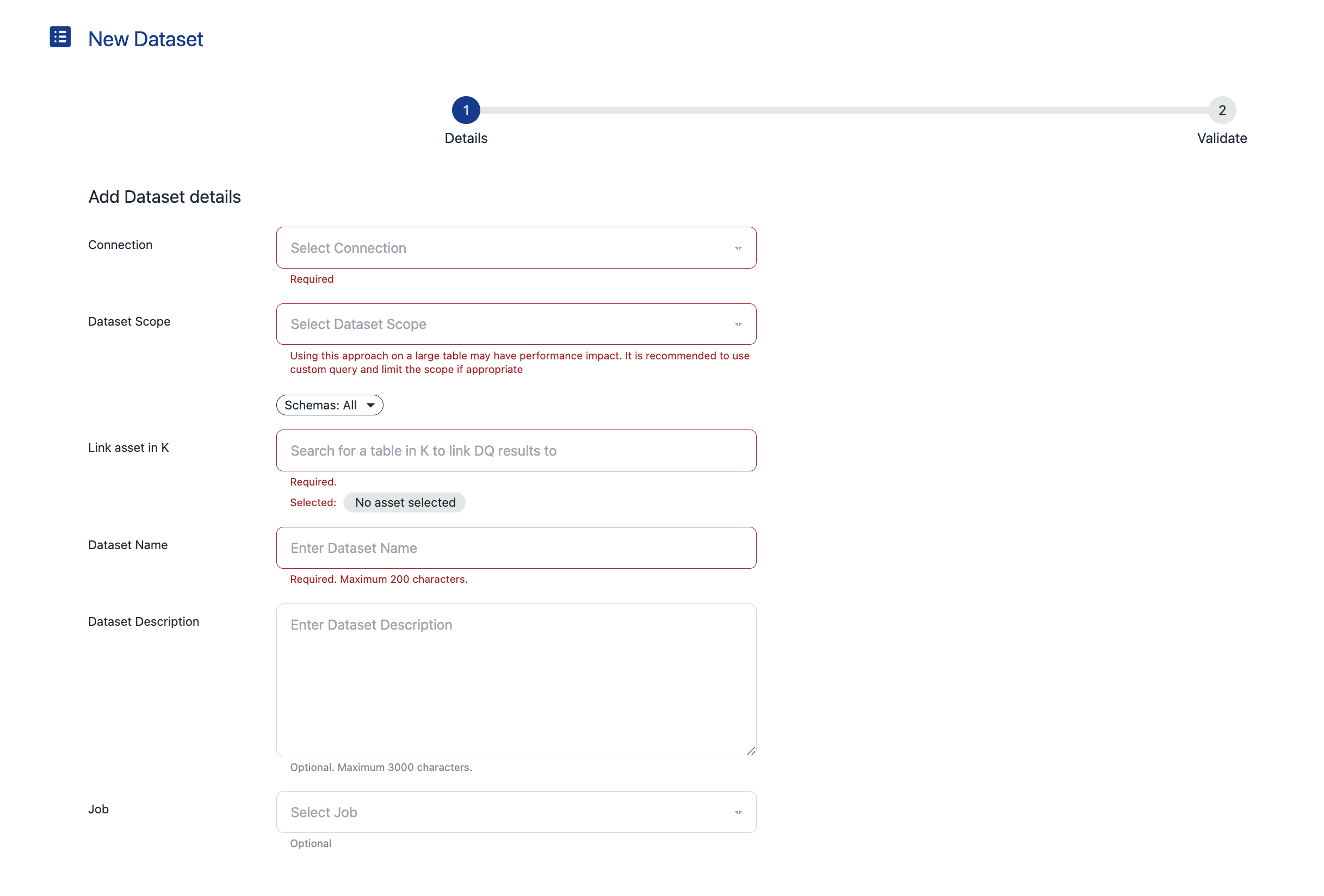
Connection - select a workspace connection to use
Dataset scope - select an option for the scope
Select all records: Tests all records in the dataset
Custom query: Customise the dataset query. Use this option to test a sample set of data (e.g.
Select * from [schema].[table] limit 1000), only new data (e.g.Select * from [schema].[table] where last_updated_at >= DATEADD(hour, -24, CURRENT_TIMESTAMP())or any other custom query that you want to use
Link asset in K - The target in K to associate the DQ results to
Dataset name - Name of this dataset
Dataset description - Description for this dataset
Job - The job to associate the Dataset and its DQ tests to
Click Next
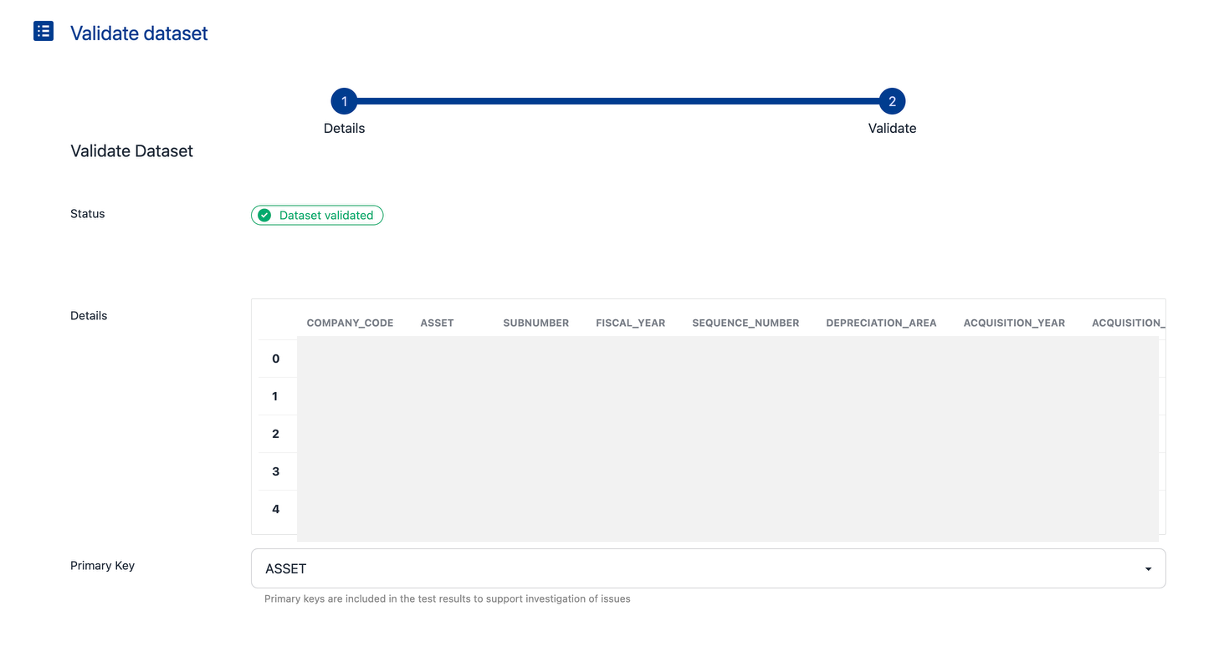
After the dataset is validated, set the Primary Key (a column in the dataset).
Click on the Primary key drop down. Select a column to use
The primary key is used to the KDQ results to advise on which records have failed the test.
Where the primary key is a composite key that is calculated at run time, you can add it as part of the query in the Dataset scope.
Note: If the key is not included in the table in K, the primary key cannot be used as a test targetClick Save