
Databricks
This page will guide you through the setup of Databricks in K using the direct connect method.
Integration details
Scope | Included | Comments |
|---|---|---|
Metadata | YES | See below for known limitations |
Lineage | YES |
|
Usage | YES | |
Sensitive Data Scanner | ALPHA |

Known limitations with this integration:
Hive catalogues are not supported currently.
Step 1) Databricks access
Ensure you have configured Unity enabled catalogue for your workspace
Enable System Schemas for access & queries
Follow the following documentation to enable the system schemas
https://docs.databricks.com/en/admin/system-tables/index.html#enable
https://kb.databricks.com/unity-catalog/find-your-metastore-id
Run the following commands to enable
CODEcurl -v -X PUT -H "Authorization: Bearer <PAT TOKEN>" "https://<YOUR WORKSPACE>.cloud.databricks.com/api/2.0/unity-catalog/metastores/<METASTORE ID>/systemschemas/access" curl -v -X PUT -H "Authorization: Bearer <PAT TOKEN>" "https://<YOUR WORKSPACE>.cloud.databricks.com/api/2.0/unity-catalog/metastores/<METASTORE ID>/systemschemas/query"
SQL Warehouse
Create or use an existing SQL Warehouse for K to use for the extraction.
Go to the SQL Warehouse page. Select the SQL Warehouse to use.
Go to the connection details
Note down the Server hostname and HTTP path
PAT Token
For the user that will be used to connect, create a PAT token to be used for authentication.
From the above record down the following to be used for the setup
Databricks account URL
e.g.
adb-<workspaceId>.<instance>.azuredatabricks.net.
PAT token
Server host name
HTTP path
Step 2) Connecting K to Databricks
Select Platform Settings in the side bar
In the pop-out side panel, under Integrations click on Sources
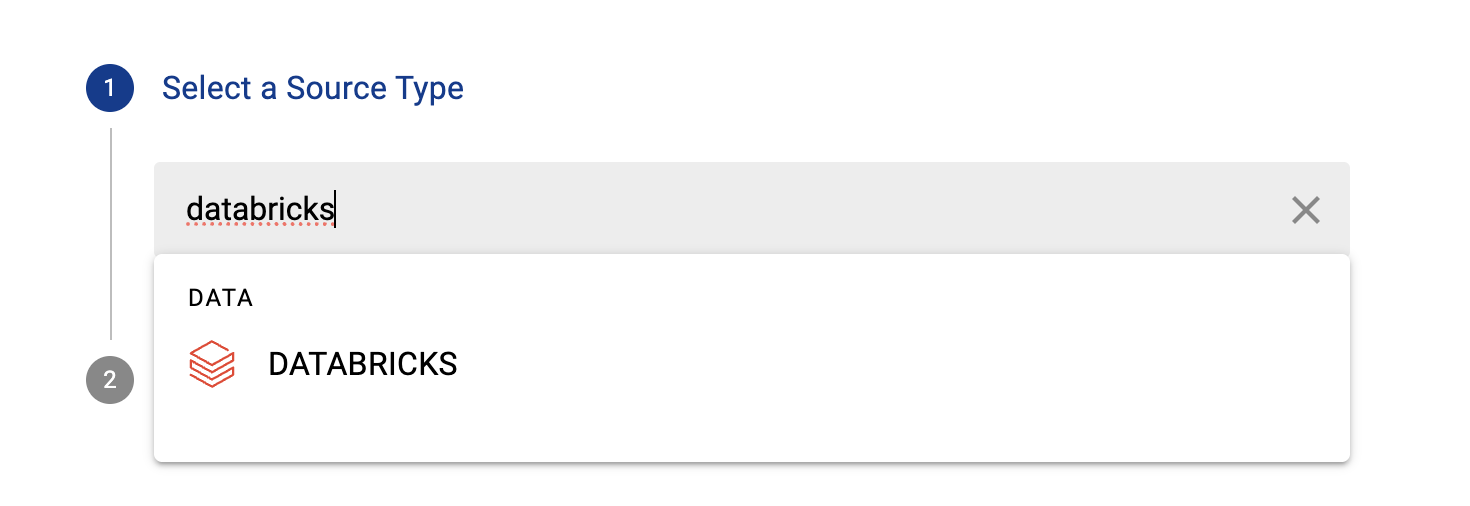
Click Add Source and select Databricks
Select Direct Connect and add your Databricks details and click Next
Fill in the Source Settings and click Next
Name: The name you wish to give your Snowflake DB in K
Host: Add your Databricks Account location. Can be seen in the URL when you log into your Databricks account.
e.g.
adb-<workspaceId>.<instance>.azuredatabricks.net.
Server Hostname: The SQL Warehouse Server hostname
e.g.
adb-<workspaceId>.<instance>.azuredatabricks.net
HTTP Path: The SQL Warehouse Http path either to a DBSQL endpoint or to a DBR interactive cluster
e.g.
/sql/1.0/warehouses/<warehouseId>
Add the Connection details and click Save & Next when connection is successful
Private key: Add the Private key for the Snowflake user
Test your connection and click Save
Step 3) Manually run an ad hoc load to test the integration
Next to your new Source, click on the Run manual load icon
Confirm how you want the source to be loaded
After the source load is triggered, a pop up bar will appear taking you to the Monitor tab in the Batch Manager page. This is the usual page you visit to view the progress of source loads
A manual source load will also require a manual run of
DAILY
GATHER_METRICS_AND_STATS
To load all metrics and indexes with the manually loaded metadata. These can be found in the Batch Manager page

Troubleshooting failed loads
If the job failed at the extraction step
Check the error. Contact KADA Support if required.
Rerun the source job
If the job failed at the load step, the landing folder failed directory will contain the file with issues.
Find the bad record and fix the file
Rerun the source job