
This page will explain how to onboard a new source to the K platform.
There are 3 classes of sources:
-
Identity Stores - These are sources such as Active Directory or LDAP to load User and Group information into K.
-
Databases - These are sources such as Oracle, Teradata, Snowflake to load metadata and logs from the database source.
-
Tools - These are sources like Tableau, Alteryx, Informatica to load metadata and logs from the tool.
This function is restricted to K Administrators.
Step 1) Add the new source
-
Select Platform Settings in the side bar
-
In the pop-out side panel, under Integrations click on Sources
-
Click Add Source

-
Select the Source Type
-
If the source you are looking for is not available, select either Generic_database or Generic_tool
-
-
Depending on the Source Type selected, different Connection Type options will appear. Sometimes there will only be one option (e.g. Load from file)
-
DIRECT CONNECT - K will be configured to pull from the source.
-
LOAD FROM FILE - K will receive files in a landing zone.
-
-
Complete the rest of the onboarding form.
-
After you add the new source, you can always go back and edit source details
-
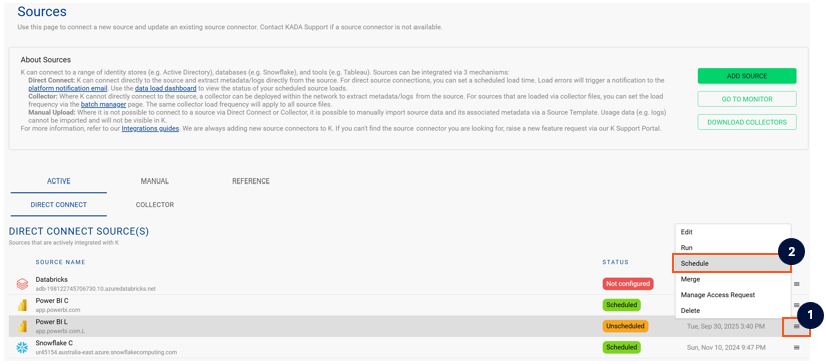
Step 2) Schedule source load
The source configuration will determine the type of schedule you can set.
-
Click on the Schedule next to your new source
-
For Source configured to LOAD FROM FILE - The admin can set a poll frequency.
-
For Source configured to DIRECT CONNECT - The Admin can set a time to run.
-
Note that scheduling a source can take up to 15 minutes to propagate the change.
Step 3) Manually run an ad hoc load to test the source
-
Select Platform Settings in the side bar
-
In the pop-out side panel, under Platform Settings click on Batch Manager
-
In Source Load click Run
-
Select the source that you just added and click Run
-
After the source is triggered, the screen will change to the Monitor tab where you can see the progress of the job.
A manual source load will also require a manual run of:
-
DAILY
-
GATHER_METRICS_AND_STATS
To load all metrics and indexes with the manually loaded metadata. These can be found in the Batch Manager page.
Troubleshooting failed loads
-
If the job failed at the extraction step:
-
Check the error. Contact KADA Support if required.
-
Rerun the source job
-
-
If the job failed at the load step, the landing folder failed directory will contain the file with issues.
-
Find the bad record and fix the file
-
Rerun the source job
-