
Sometimes it may not be possible to connect to a Source via a Collector or Direct Connect.
In this scenario, you can choose to create a Manual Source and manually upload the metadata detail via an excel bulk upload.
About Manual Sources
A manually added source is treated like any other source.
The source is represented using the Dataset object. The Dataset includes Dataset Tables and Dataset Fields that can contain the different aspects of the source.
|
K object |
Example 1: Excel File |
Example 2: Custom application database |
|---|---|---|
|
Source |
Excel Source / Origin of Excel File |
Custom application database name |
|
Dataset |
File name |
Schema name |
|
Dataset Table |
Sheet name |
Table name |
|
Dataset Field |
Column name |
Column name |
Lineage can be added from Manual sources to sources profiled using a direct connect / collector.
Step 1) Add new Manual Source
-
Select Platform Settings in the side bar
-
In the pop-out side panel, under Integrations click on Sources
-
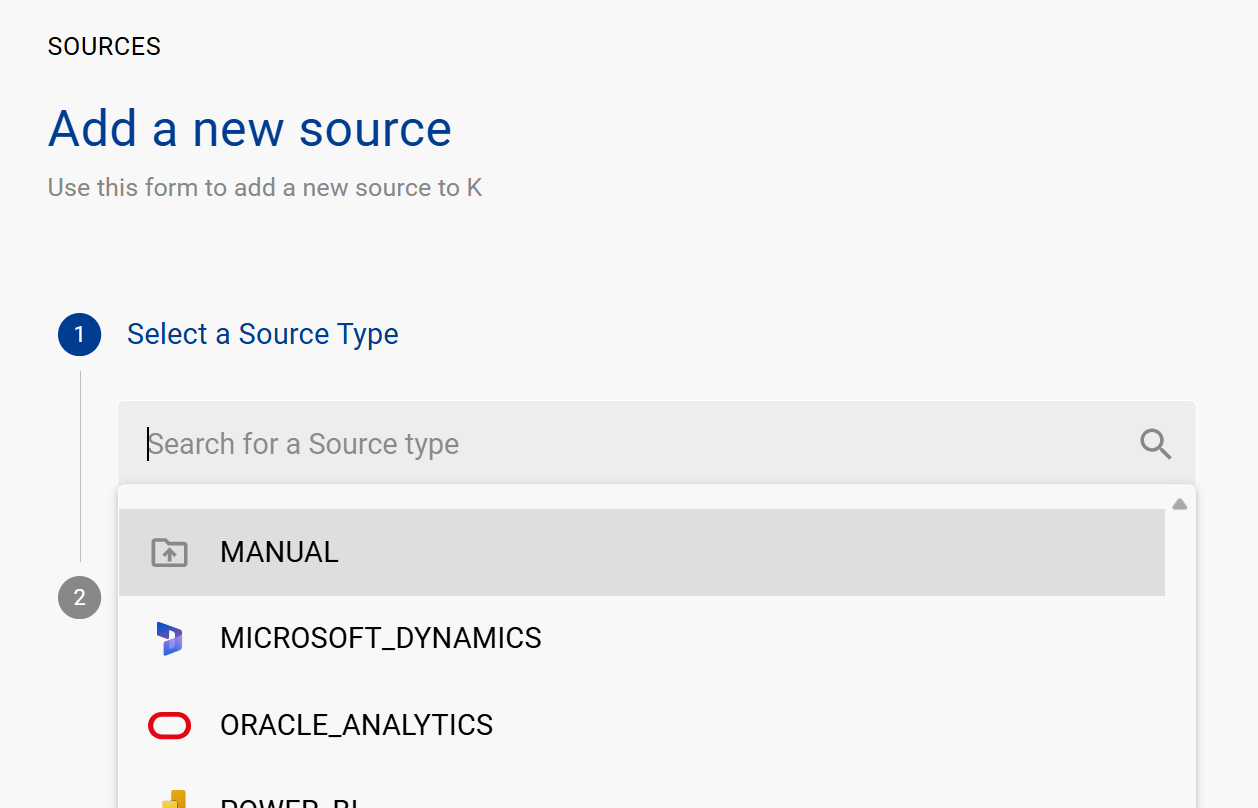
Click Add Source and select Manual
-
Complete the mandatory fields and click Save & Add Source
Step 2) Prepare manual upload source template
-
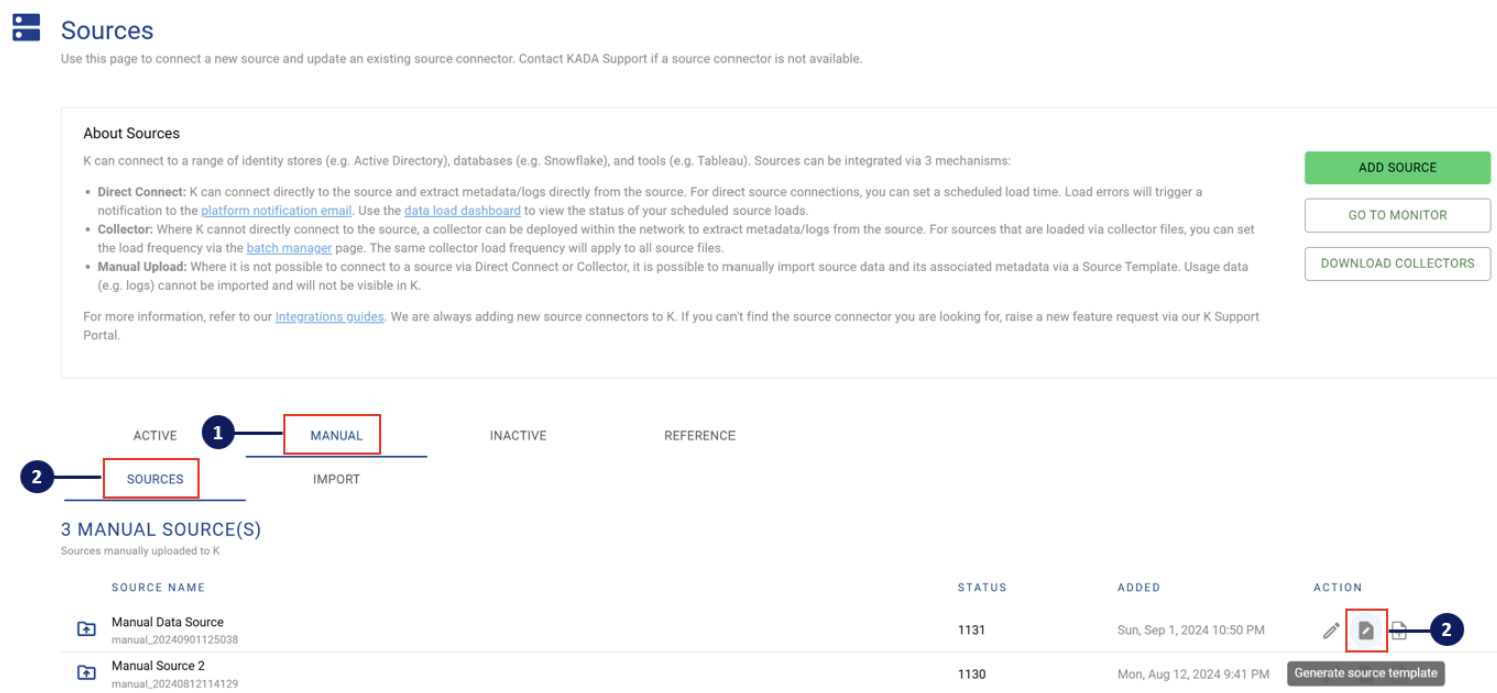
Click the Manual tab
-
Select Sources
-
Click on the Generate Source Template icon to generate and download your import template
-
Review the Guide tab in the excel template that you generated and follow the instructions
Always check and delete any blank rows. Blank rows that have been previously edited and content deleted will be treated as an 'activated' row. K will attempt to upload the blank row triggering an error and the upload job will fail.
To delete a blank row:
-
Right click on the tab click and Unprotect Sheet. There is no password
-
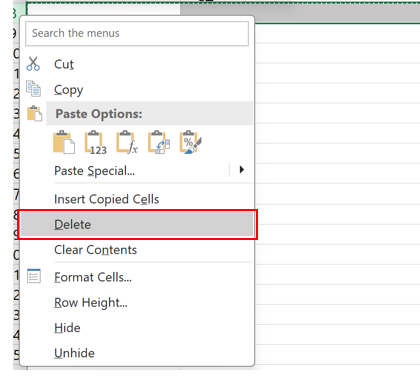
Right click on the blank row
-
Click Delete
Step 3) Upload manual source template
-
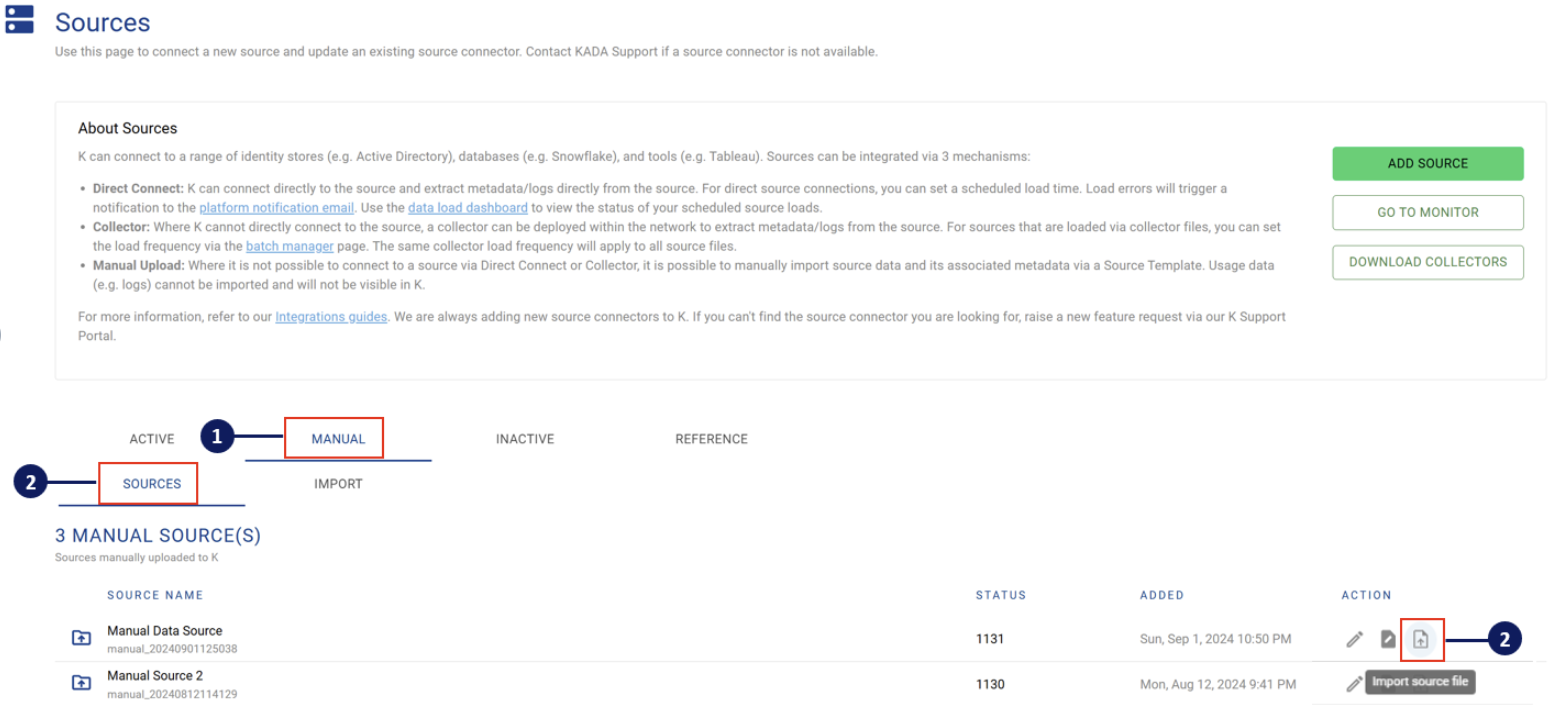
Click the Manual tab
-
Select Sources
-
Click on the Import Source File icon to import your template
-
You can view all your Manual source imports by clicking: Jobs→ Manual Source Import
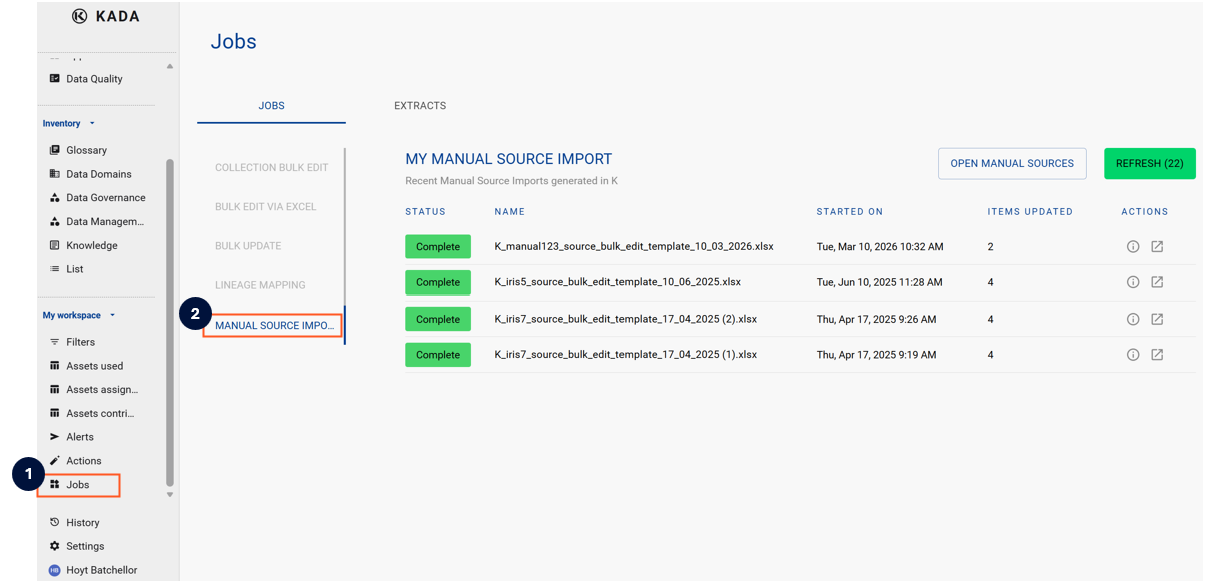
Similar to other Bulk Edit processes, changes that have been uploaded via excel will reflect immediately in the Data Asset profile page.
Search results and lineage maps may take up to 1 business day to reflect in K. If you would like K Indexing or lineage maps to be immediately updated, run the DAILY job via Batch Manager.