
Updated in Version 6.0
Once a KDQ Job has run, results are generated for each Dataset. Results are available both within KDQ (for detailed investigation) and in K (on the Data Profile Page of each linked asset).
Reviewing Results in KDQ
-
Open a Workspace and click the Results tab
-
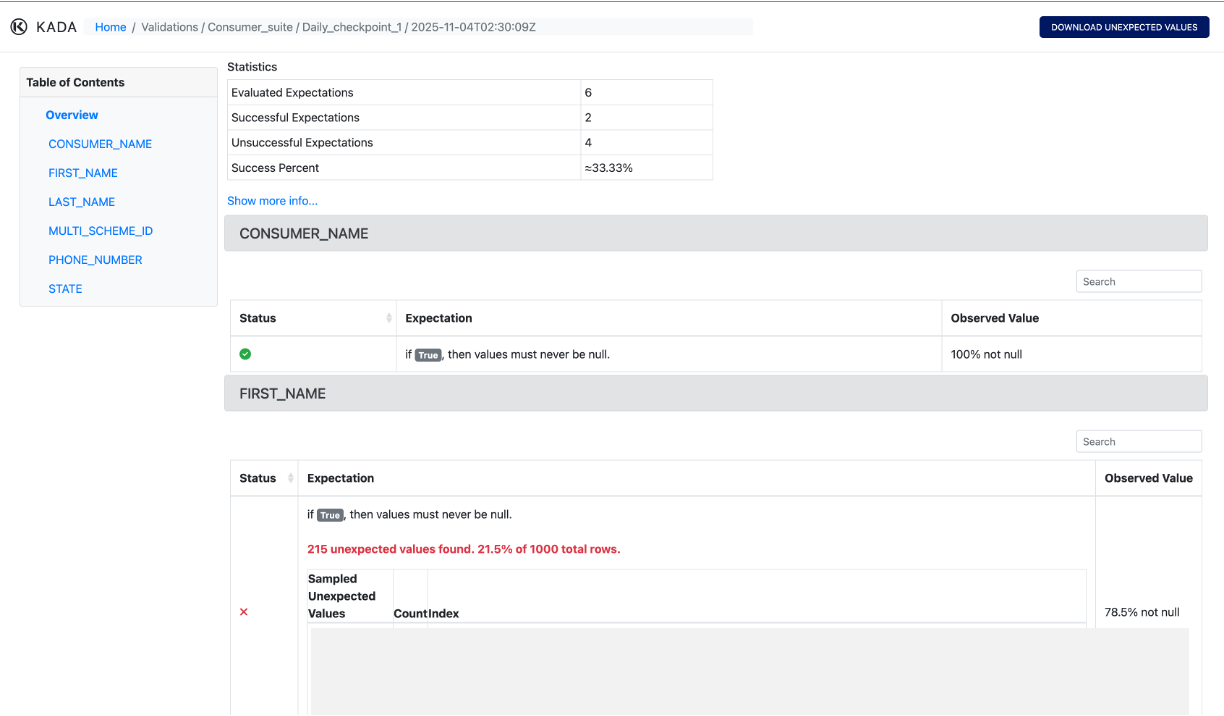
Select a Dataset run to review — each run has its own results page

-
Review the pass/fail status for each assigned DQ test
-
For any failing test, click Download unexpected values to export the failing rows for investigation
Reviewing Results in K
KDQ scores for each test are pushed to K and visible on the associated asset's Quality tab.
-
Navigate to the associated table or column in K
-
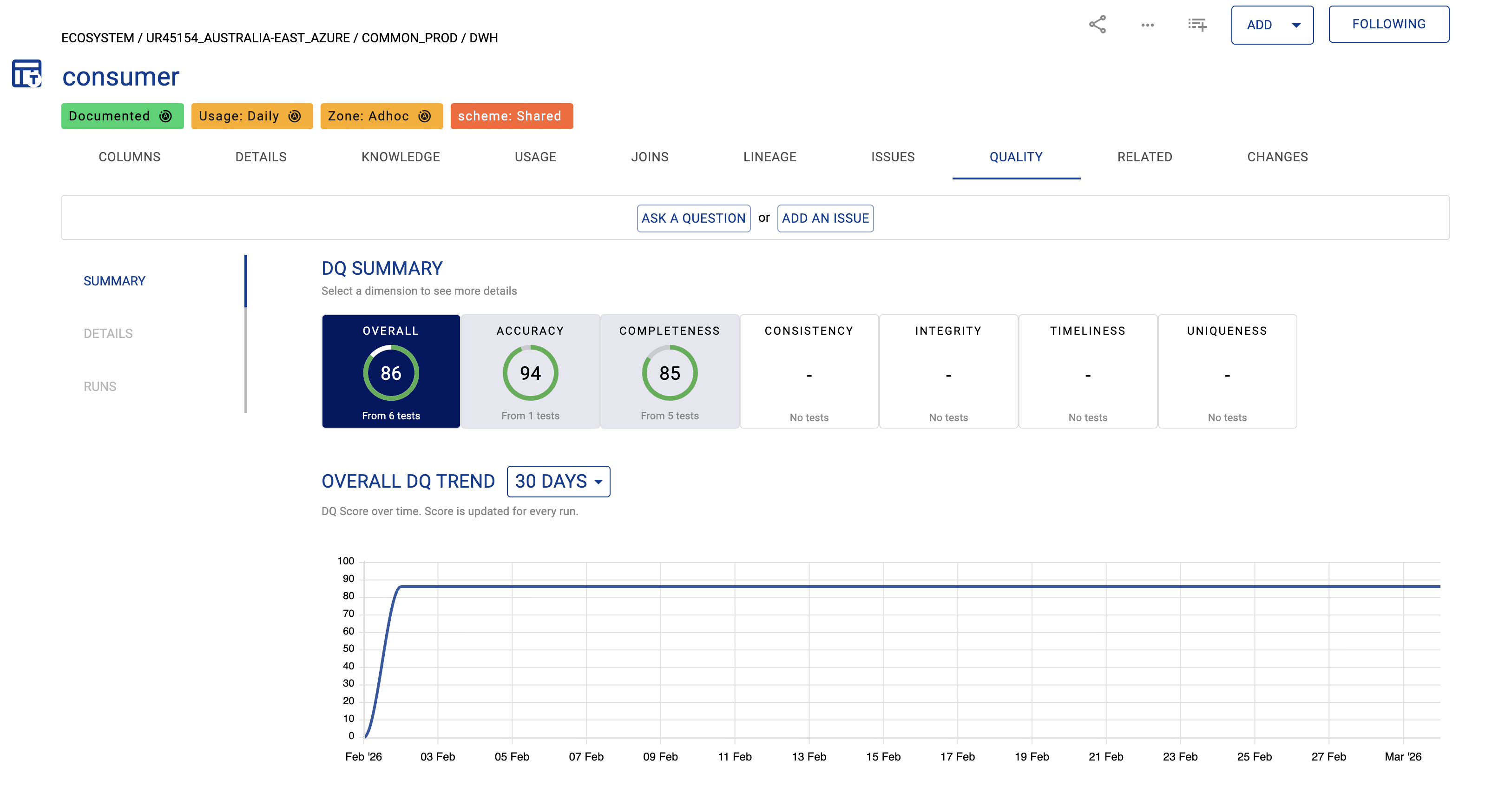
Click the Quality tab to see:
-
Overall DQ score and status
-
Pass/fail breakdown per test
-
Quality trend over time
-
-
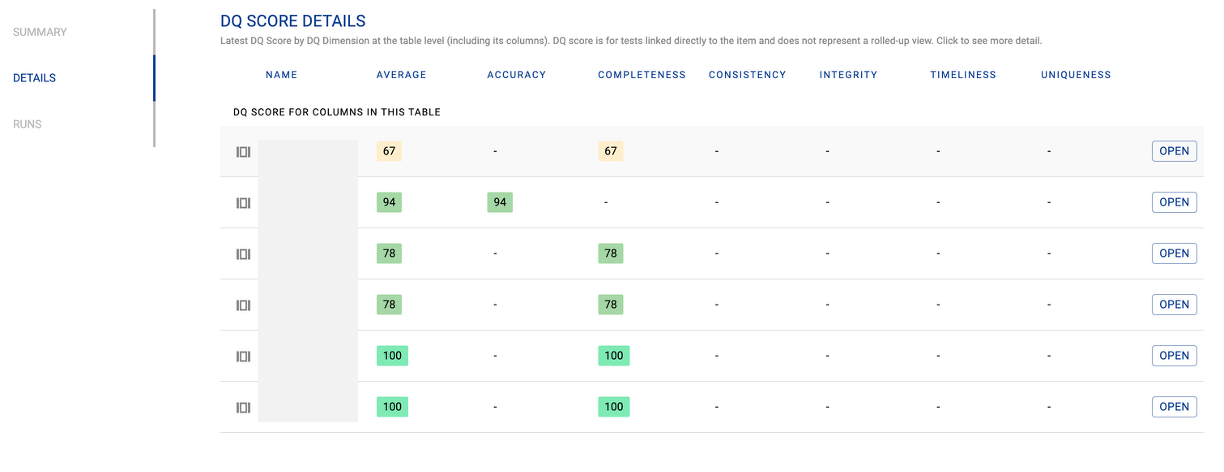
Click the Details sub-tab to see results broken down by column
-
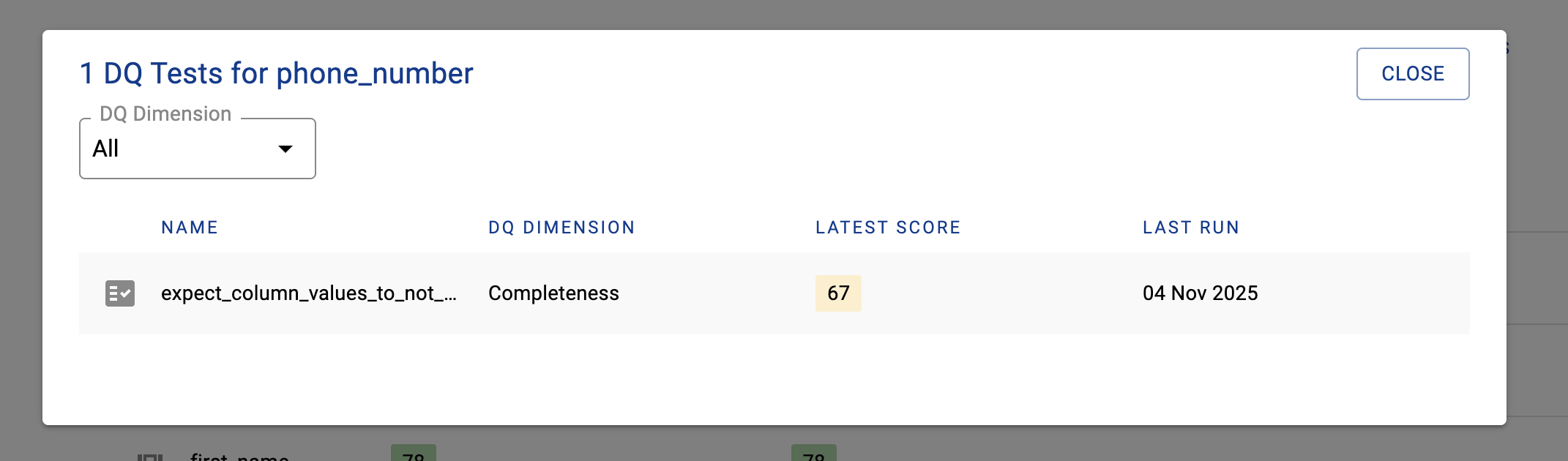
Click a column to see all tests assigned to it
-
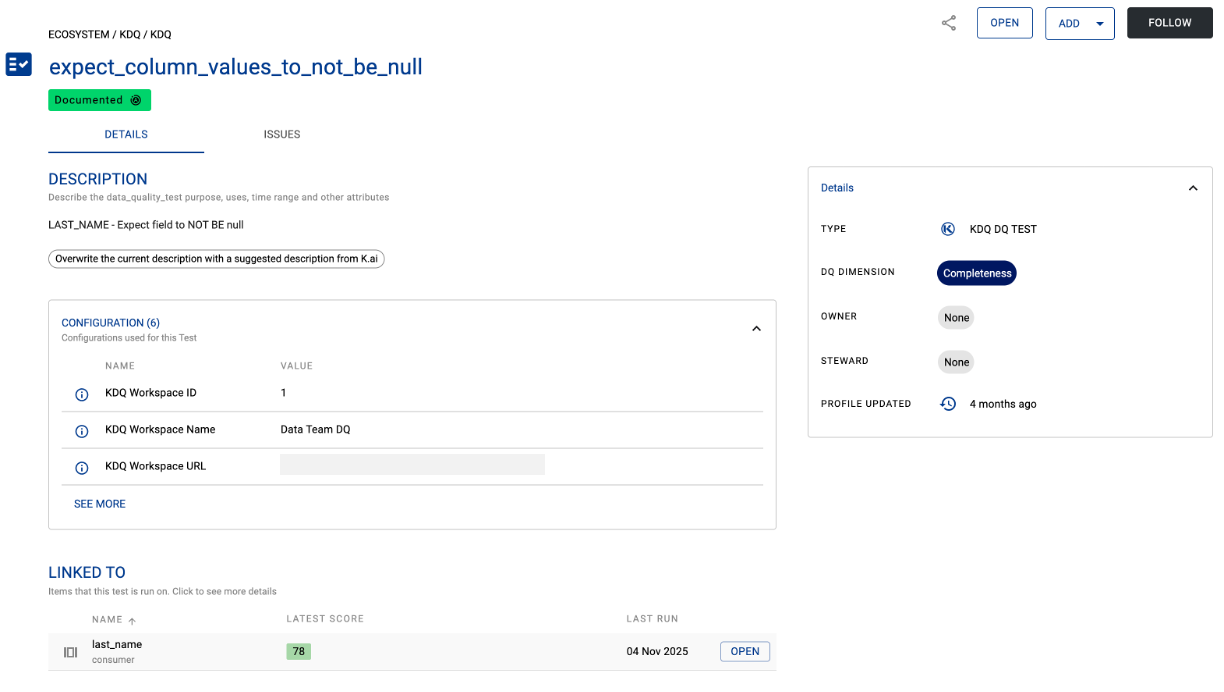
Click an individual test to view its full profile — including a link back to the KDQ Results portal via the Open button
💡 Tip: Failing checks automatically surface as Issues on the asset's Data Profile Page in K — visible to data consumers and governance managers without requiring KDQ access. See Synchronising KDQ Results to K for setup details.