
UPDATED IN VERSION 6.1
K's lineage and change management capabilities are two sides of the same coin. Lineage gives you a map of how data flows across your organisation — and change management uses that map to detect when something shifts, scope the impact, and notify the right people automatically.
This page covers:
-
Intelligent Lineage: Understand where data comes from and flows to, and how to navigate the lineage map
-
Business Lineage: A simplified, rolled-up view of an asset's upstream and downstream context, without reading the full technical lineage graph
-
Change management: Detecting changes across data assets and notifying impacted stakeholders
Intelligent Lineage
K provides context and trust to your data items by helping you understand the lineage and relationships between them. You can see where your data item sources data from, where it flows to, and how it joins to other data items.
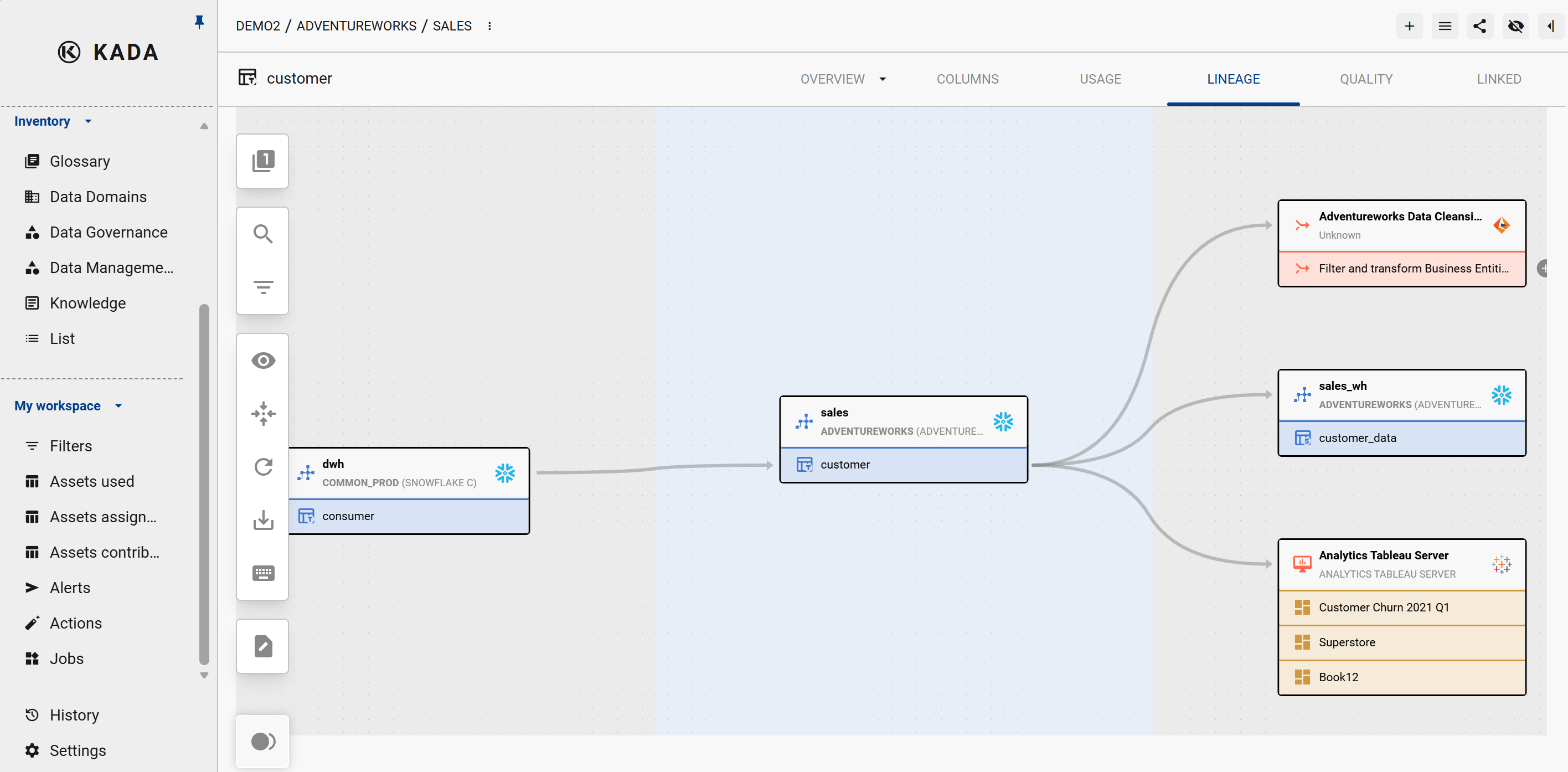
Lineage crosses different item types — from tables to reports — across different sources. K automatically generates lineage across these items. Where it can't, lineage can be manually added via the UI or API.
Object types are colour-coded on the lineage map:
-
Tables/Columns — Blue
-
Reports and Sheets — Orange
-
Datasets and Dataset Tables/Fields — Green
-
Pipelines, ML Models, and Files — Red
For more information around column-level detail, see Column level lineage.
For more information on how to navigate the map visit the Navigating the Lineage Map page.
Business Lineage
Business Lineage gives users a simplified view of an asset's upstream and downstream context, without needing to open and read the full technical lineage graph. Once configured, Terms, Warnings, Issues, and Data Quality Tests roll up to parent tables and propagate downstream automatically, and Layer and System of Record push down to a table's own columns.
Visit the Business Lineagepage for more information
Updating Lineage Manually
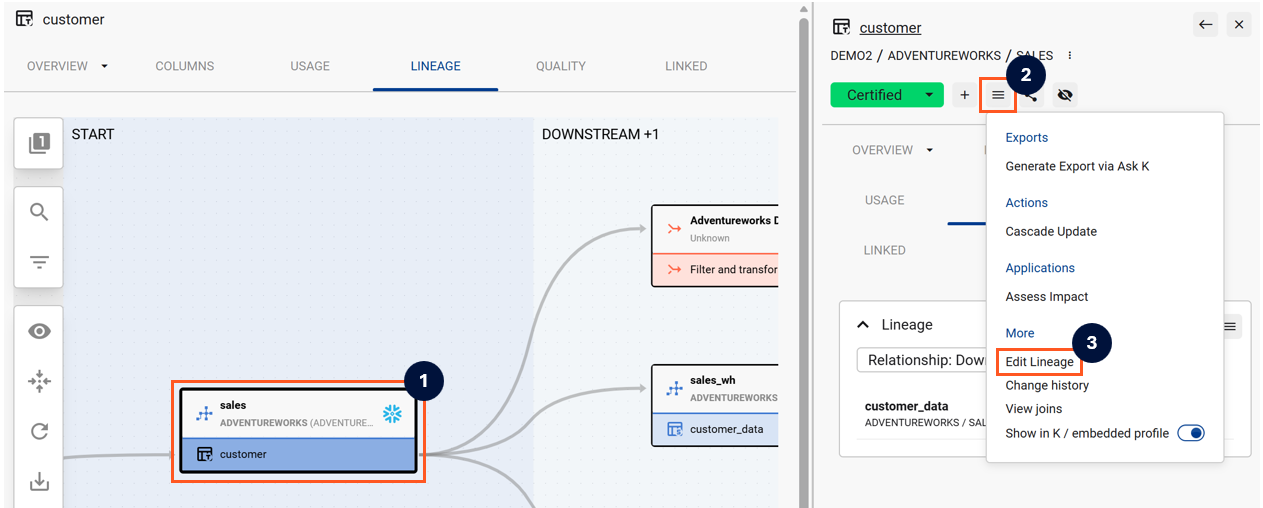
If lineage is missing for an asset, you can add it manually from the Data Profile Page.
-
Open the Lineage tab on the Data Profile Page
-
Click on the asset you want to edit — the sidebar will appear
-
Click Edit Lineage in the sidebar
-
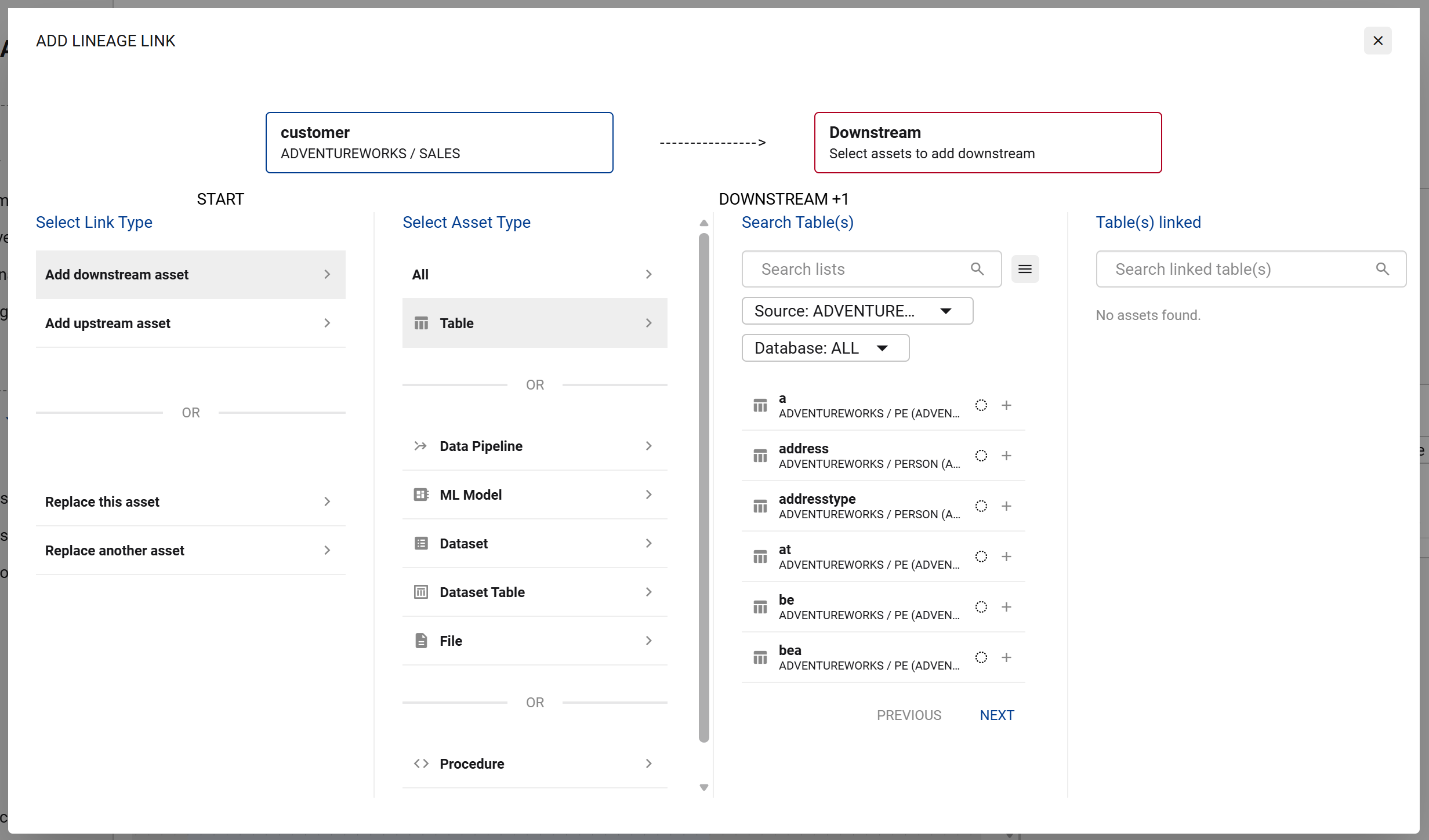
Use the form to add Upstream or Downstream assets
Change Management
Once you understand how your data flows, K puts that map to work — automatically detecting changes across the data estate, assessing their impact, and routing notifications to the right people. This closes the loop between lineage visibility and operational response.
The two features that power this are covered in detail in their own pages:
Data Change Timeline
K automatically detects structural and metadata changes to data assets and records them chronologically in each Data Profile Page's Timeline tab. This gives data owners and governance managers a clear audit trail of what changed, when, and by whom — making it straightforward to investigate incidents, audit governance decisions, and support impact assessments.
Notify Impacted Stakeholders
When a change occurs, K uses lineage and usage data to identify who is downstream of the affected asset — and automatically notifies them via K's notification system, MS Teams, Slack, or email. Notifications include a direct link to the affected asset's Data Profile Page and the relevant change event.
→ Notify Impacted Stakeholders