UPDATED IN VERSION 6.0
This page covers how to navigate, search, filter, download, and manually update K's lineage map. For an introduction to lineage and how item types are colour-coded, see the parent Intelligent Lineage & Change Management page.
About Lineage Swim Lanes
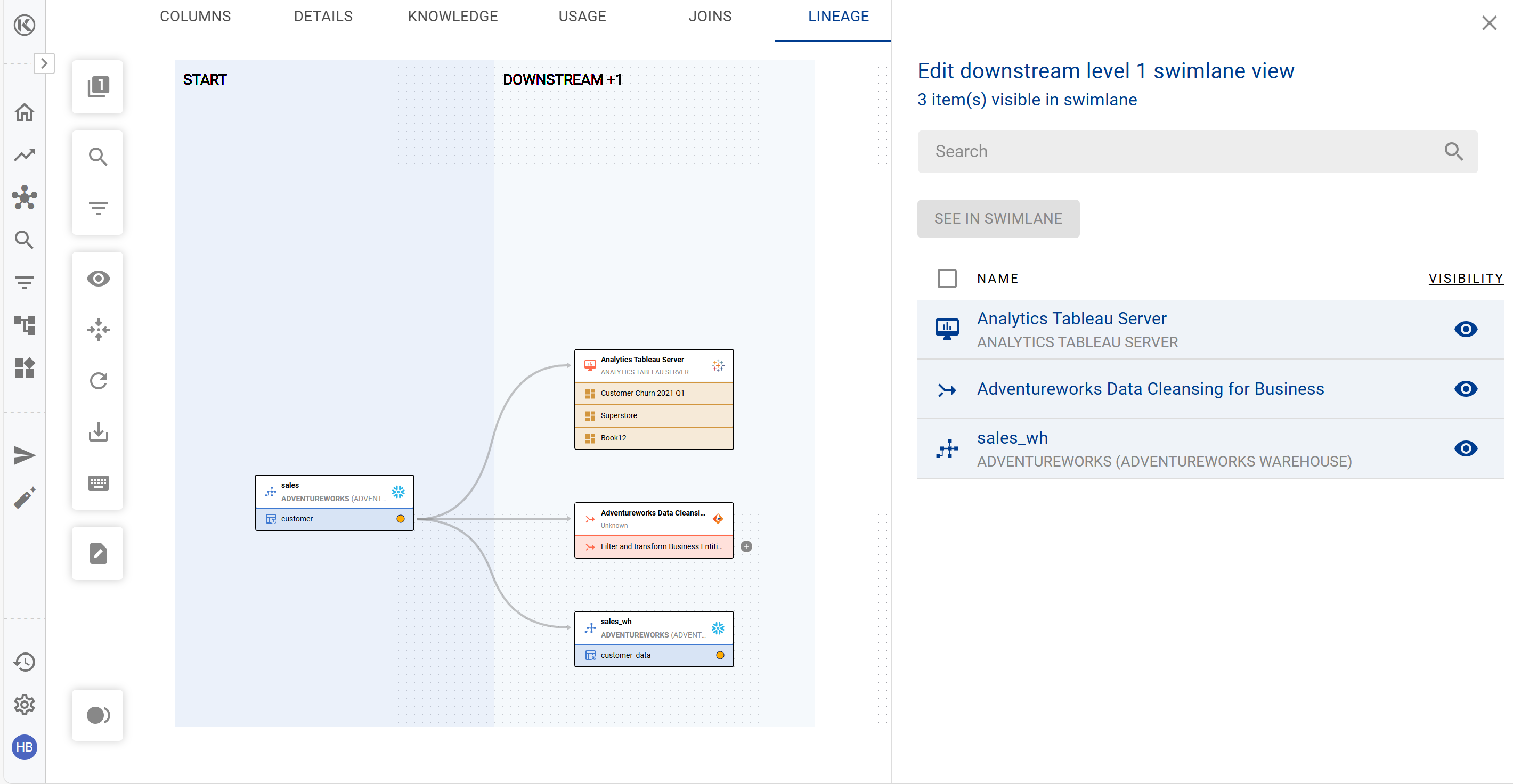
In the new Lineage Experience, the lineage map has been structured into swim lanes.
The benefits of using swim lanes include:
-
Ability to easily see all the data assets in that lineage level
-
Deep dive into each lineage level and quickly select data assets via the lineage map
-
Choose which data assets appear in the swim lane
-
Hold Alt/Option and click on the swim lane pop out panel appear. On this panel you can manually toggle what you'd like to make visible or hide
-
Navigating the Lineage Chart
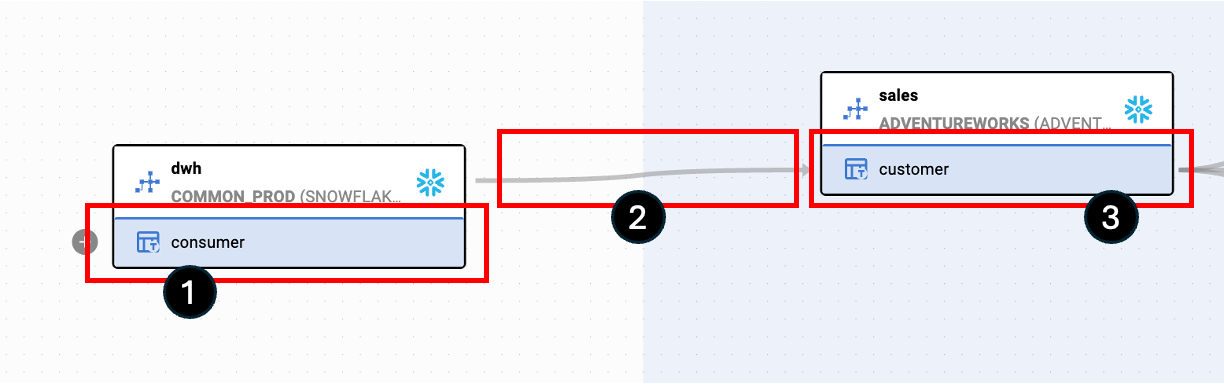
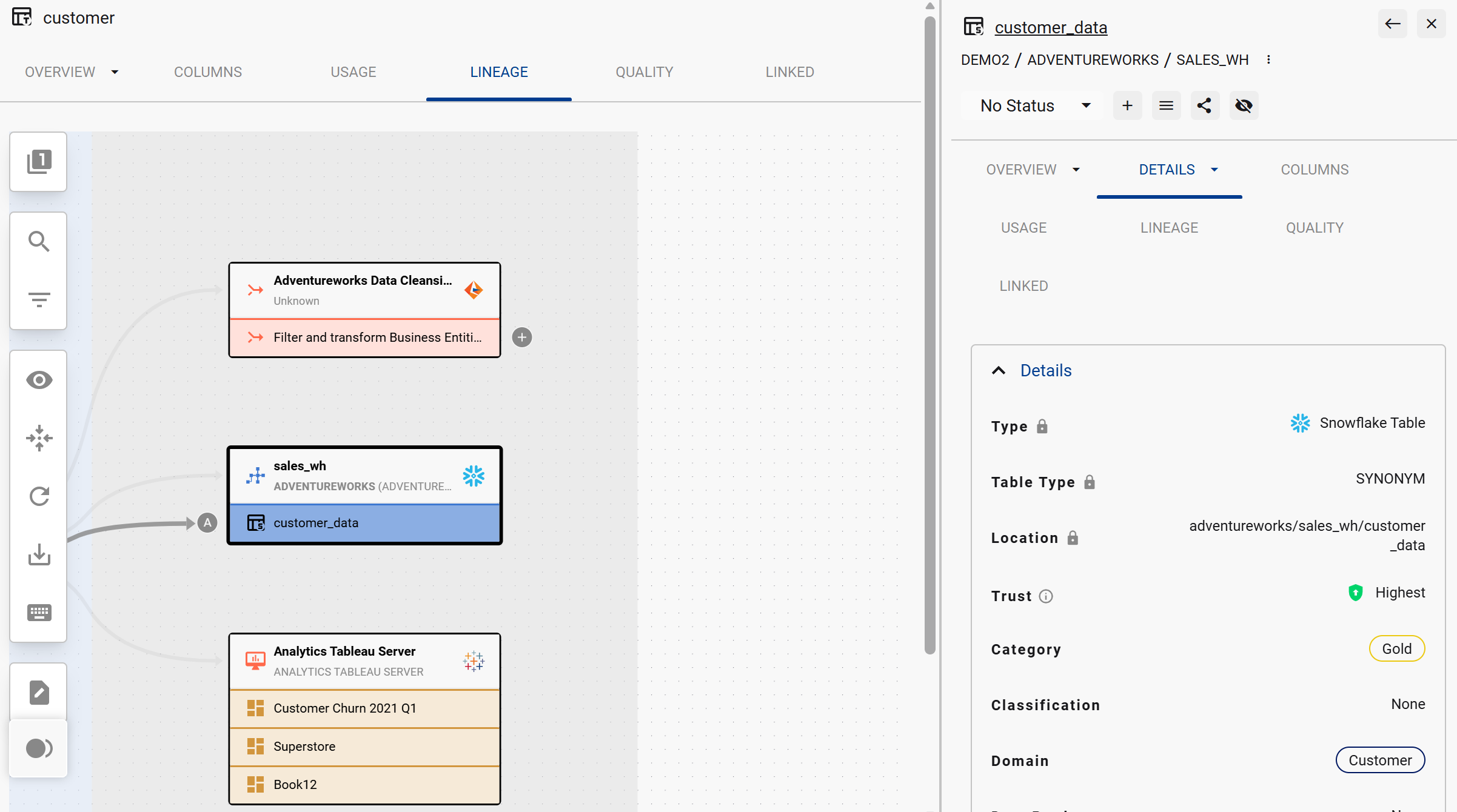
Access Lineage from any Data Profile Page by clicking the Lineage tab. The chart reads left to right — items on the left are upstream (providing data to) items on the right.
-
Items with a + sign have expandable lineage — click to expand
-
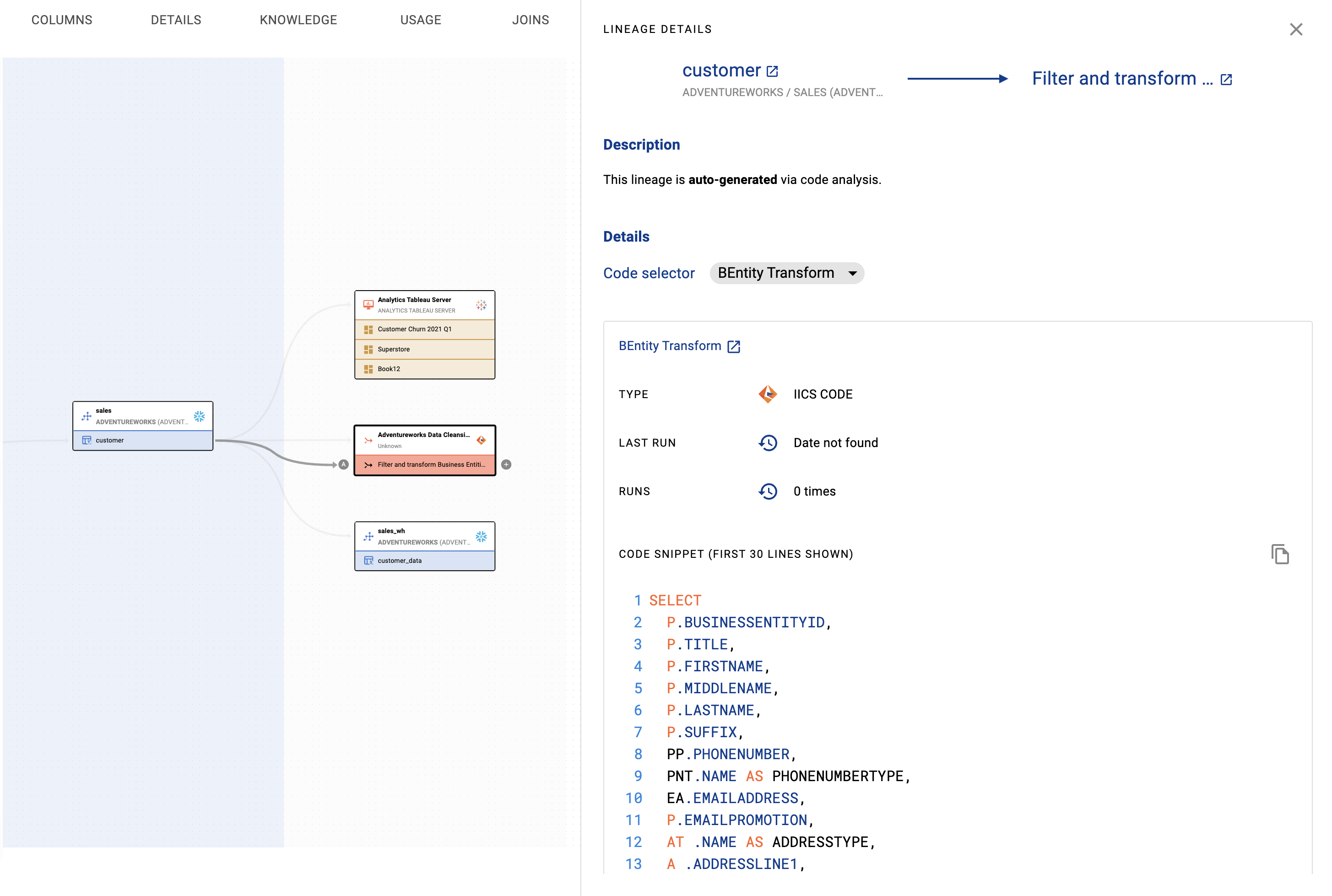
Click automated links (full lines) to see the code or pipeline connecting two items
-
The current target you are viewing is highlighted in Blue
Display Options
There are more display options in the Map view toolbar. Options include:
-
Show reference: Reference objects can be toggled to display on or off from the map
-
Show active only: You can toggle deleted items on or off from the map. Lineage for deleted items will have this toggle turned on.
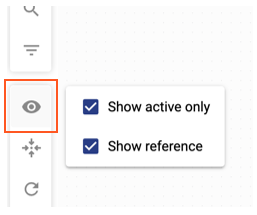
Reference objects are assets and sources detected by K that have not been onboarded to K.
Accessing More Detail
Click any item on the map to open a side panel with details — tags, collections, description, Trust Score, type, and classification. You can update information directly from this panel.
Click on a specific link (the line connecting two items) to see the code or pipeline joining them:
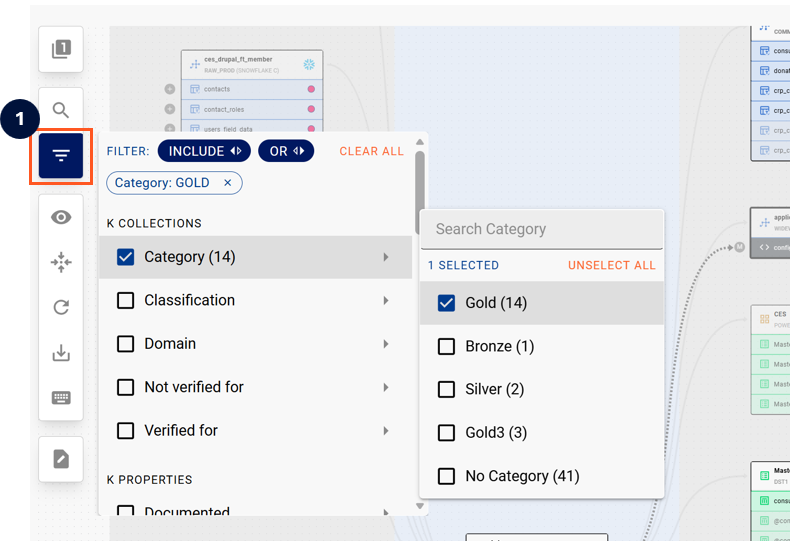
Advanced Lineage Filters
When navigating large lineage maps, use the advanced filter to selectively show only the assets you are interested in. Toggle the filter between INCLUDE / OR logic to refine results.
After you confirm your filter options, items filtered will remain visible while those not selected will appear faded.
Lineage Search
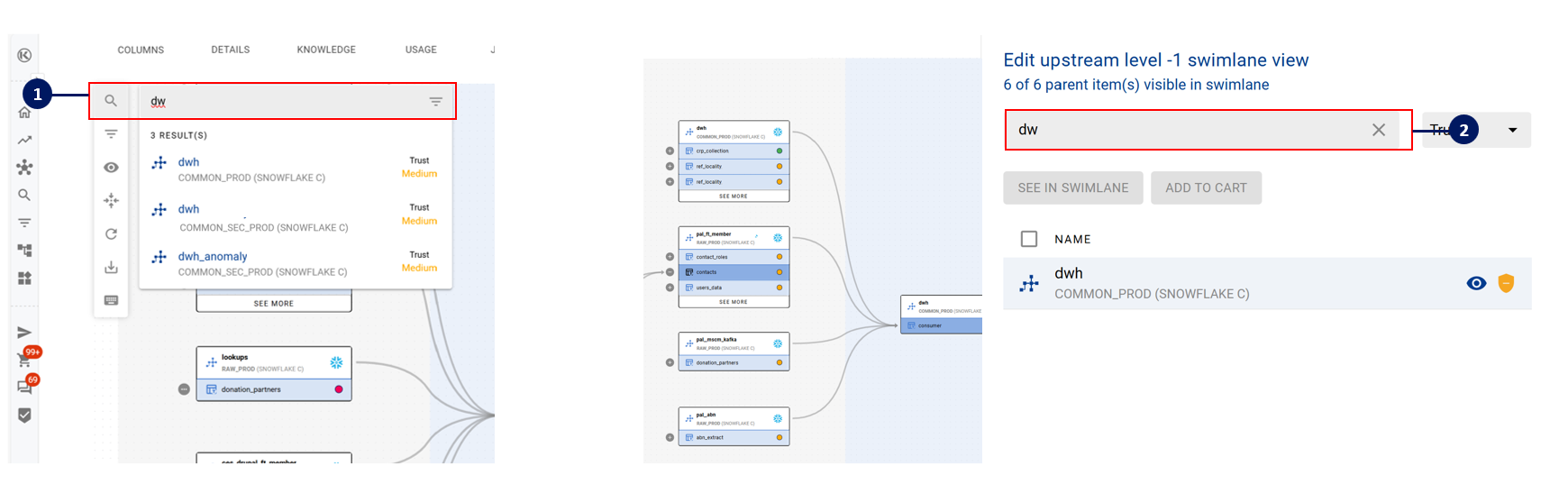
Sometimes there can be a large amount of data assets in a lineage and it can be difficult to locate a specific data asset.
There are two ways you can easily search the lineage map:
-
Search through the entire lineage map via the main search option
-
At the specific lineage level
Download and Print the Lineage Map
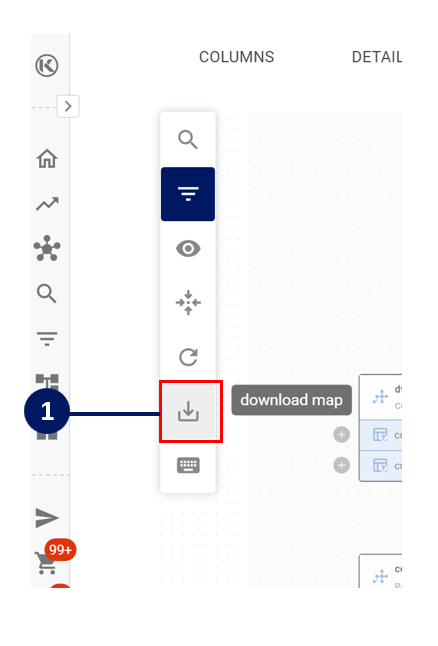
To download an image of the lineage map, click on the Download icon.
Prior to downloading the lineage map, try highlighting the key data assets you want to emphasise. For large complex lineage maps, consider highlighting the data assets that are not required to reduce visual noise.
Updating Lineage Manually
If lineage is missing for an asset, you can add it manually from the Data Profile Page.
-
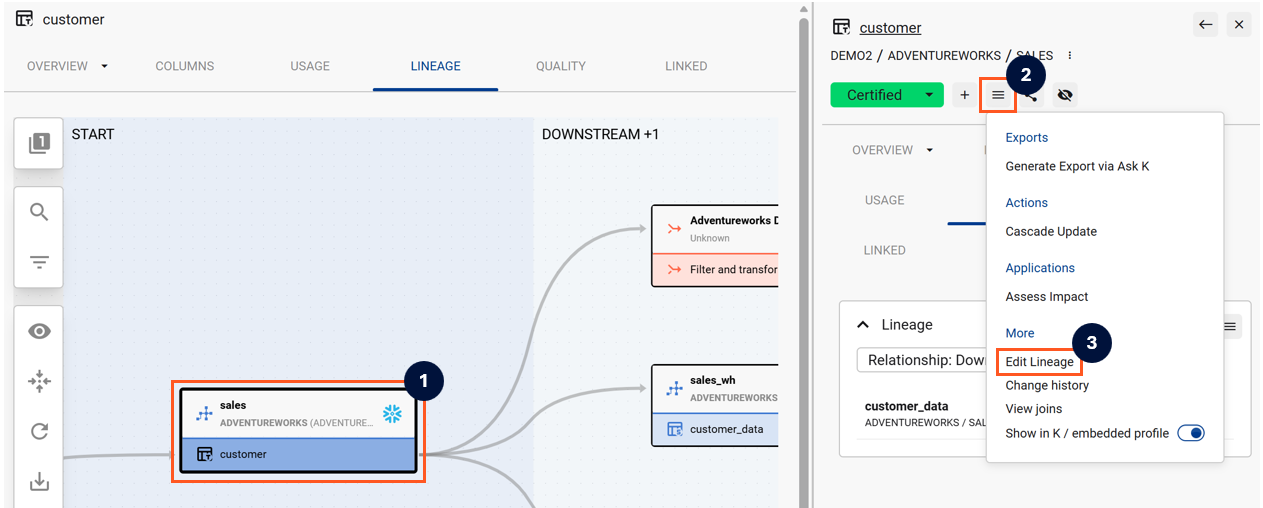
Open the Lineage tab on the Data Profile Page
-
Click on the asset you want to edit — the sidebar will appear
-
Click Edit Lineage in the sidebar
-
Use the form to add Upstream or Downstream assets