
Updated in Version 6.0
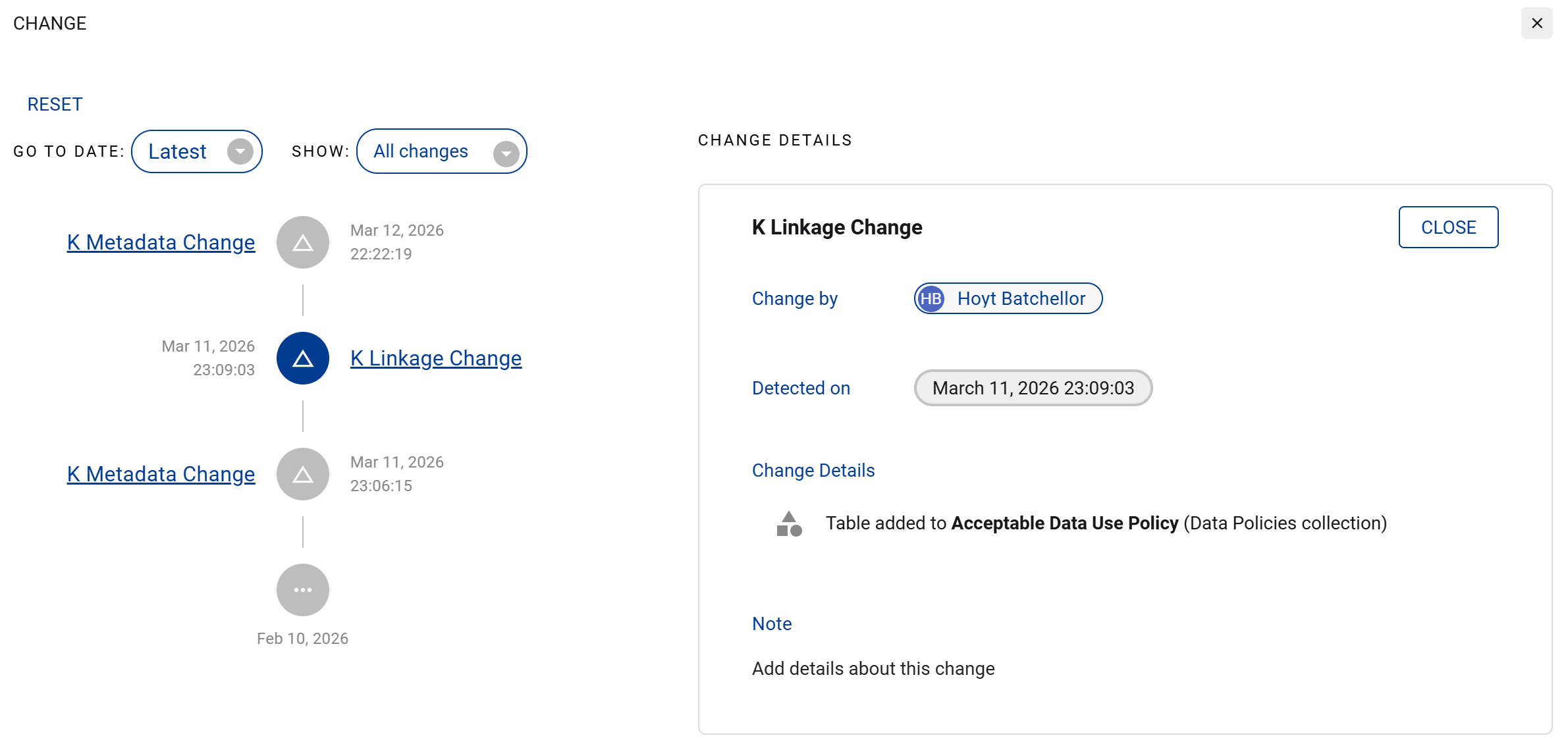
K helps you catalogue and identify changes to data assets through automated change detection. On each Data Profile Page, click on Change Historyview a chronological record of all changes detected.
K's Data Change Timeline gives data governance managers a historical view of changes across the data ecosystem — enabling them to investigate what happened, when it happened, and who made the change.
Automated Change Detection
When data and content items change in structure (such as a column being added to a Table or a sheet being added to a Report), K will catalog the change and notify impacted users automatically.
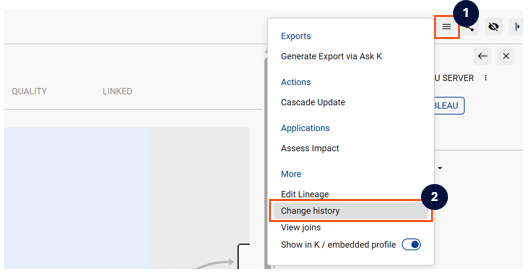
To access the Change History, click on the menu icon and then Change History.
For each change that is detected, you can click in the Note section and add details about the change to help other users understand the context of the change.
Types of Change Automatically Detected
|
Asset Type |
Changes Detected |
|---|---|
|
Table |
Table added; Column added; Column modified; Column deleted; Table deleted |
|
Column |
Column first created; Column deleted; Column type modified |
|
Report |
Report first created; Report deleted; Page added; Page deleted; Report renamed |
|
Sheet |
Sheet first created; Sheet deleted |
|
Dataset |
New Dataset Table added; Dataset Table deleted; Dataset Table modified |
|
Dataset Table |
Dataset Field added; Dataset Field deleted; Dataset Field modified |
|
Dataset Field |
Field first created; Field deleted; Type modified; Calculation modified |
|
Schema |
Table added; Table removed |
|
K Metadata |
User updates to descriptions and properties on a data profile |
|
K Linkage |
Changes to knowledge (e.g. new Decisions, Business Logic, How-To guides); additions and removals of collections, owners, stewards, tags, classifications, verified use cases, and domains |
Metadata Change Management
When you update a description, add collection links, change status, or make other profile changes, K catalogues those changes and notifies relevant users.
These appear in the Timeline tab under K metadata changes and K linkage changes.
How It's Used
The Timeline is accessible from each asset's Data Profile Page. Governance managers can use it to:
-
Investigate incidents — trace back when a schema changed or a quality issue first appeared
-
Audit governance decisions — understand when and why a tag or owner was changed
-
Support impact assessments — understand what changed upstream before a downstream issue appeared
Related