
Updated in Version 6.0
The Data Profile page is the source of knowledge for any data asset in K — whether that's a table, report, pipeline, ML model, or piece of code. It brings together automated metadata and manually curated context in one place, so any user can understand how, where, and when to use a data item without chasing down the people who built it.
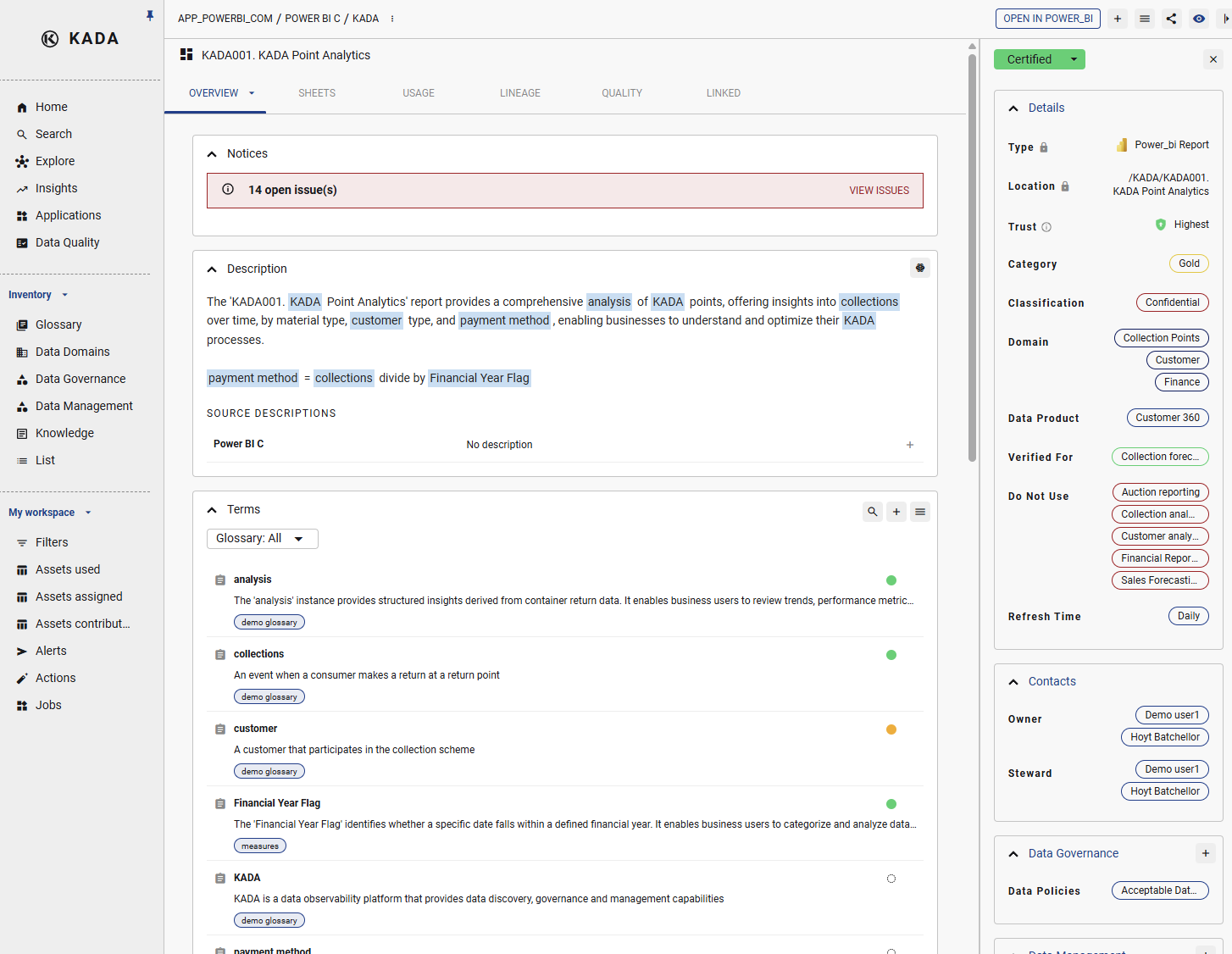
What you can do from a Data Profile Page
-
See usage insights and understand how trusted the data is via the Trust Score
-
Understand lineage — where data comes from, where it flows to, and how it joins other items
-
Assign data owners, stewards, and classifications
-
Link collections and tags to group and categorise assets
-
Capture governance attributes like access, domains, and verified use cases
-
Ask questions and capture knowledge — business logic, decisions, and known caveats about the data
-
Track changes (automated and manual) via the Change History
-
Launch applications like Impact Assessments and Cascade Update
-
Navigate to linked collaboration channels (Slack, Teams) that discuss this data item
-
Find reusable code or sheets linked to this asset
Key Tabs on the Data Profile Page
|
Tab |
What it shows |
|---|---|
|
A summary of the data asset — terms, properties, access info, and code references |
|
|
Who has been using the data asset and how usage has trended over time |
|
|
Upstream sources and downstream consumers, automatically mapped and updated |
|
|
Data issues linked to the data asset and DQ check results synced from KDQ — scores, pass/fail status, and trends |
|
|
Linked |
Other data assets that have been linked to this data asset. For example, linked collections or glossaries |
Who can see a Data Profile Page?
All K users can view Data Profile Pages for assets they have access to. The level of editing and governance actions available depends on your K role — see K User Roles for details.
The Data Profile Page is also where KDQ results appear once synced — see Synchronising KDQ Results to K for how to set this up.