
UPDATED IN VERSION 6.1
K can send alerts triggered from any saved search. They are a great way to automate reminders and prompts. For example:
-
Sharing K Alert outputs with non-K users
-
Scheduling reports to trigger BAU operational processes (Weekly scheduled extract of all data assets with open governance issues to trigger follow-up activity)
This page covers:
-
Alert types: Custom and Platform
-
Creating a Custom alert
-
Choosing a delivery channel
-
Setting the schedule
-
Managing your alerts
Alert Types
The Alerts page shows two types of alert:
|
Type |
What it's for |
Where it's created |
|---|---|---|
|
Saved Search (Custom alert) |
Triggered from any saved search you own. Covered on this page. |
Saved Search page |
|
DQ Alerts (Platform alert) |
Built-in DQ alerts: "DQ Failed Tests" and "DQ Tests requiring review". |
Data Quality Dashboard's My Alerts tab |
Creating a Custom K Alert
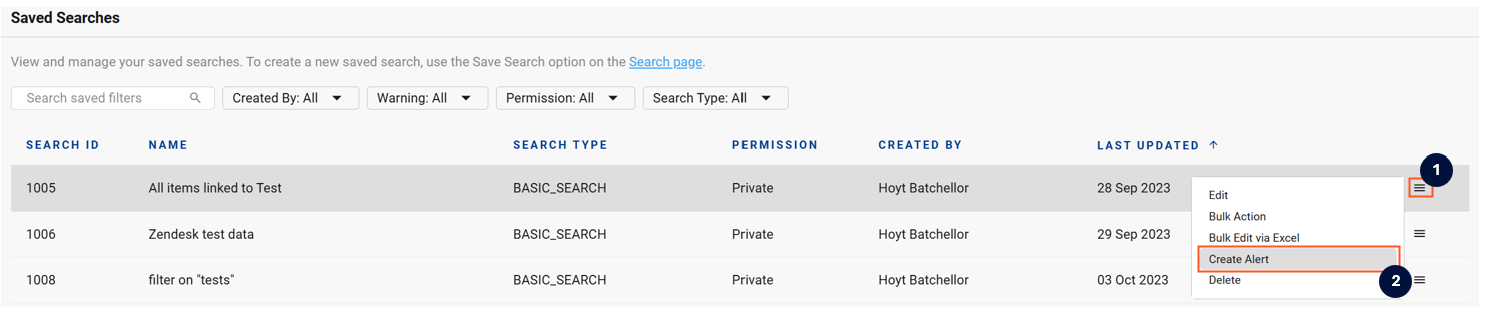
A K alert can be scheduled through the Saved Search page.
-
Open the more actions menu and click Create Alert.
-
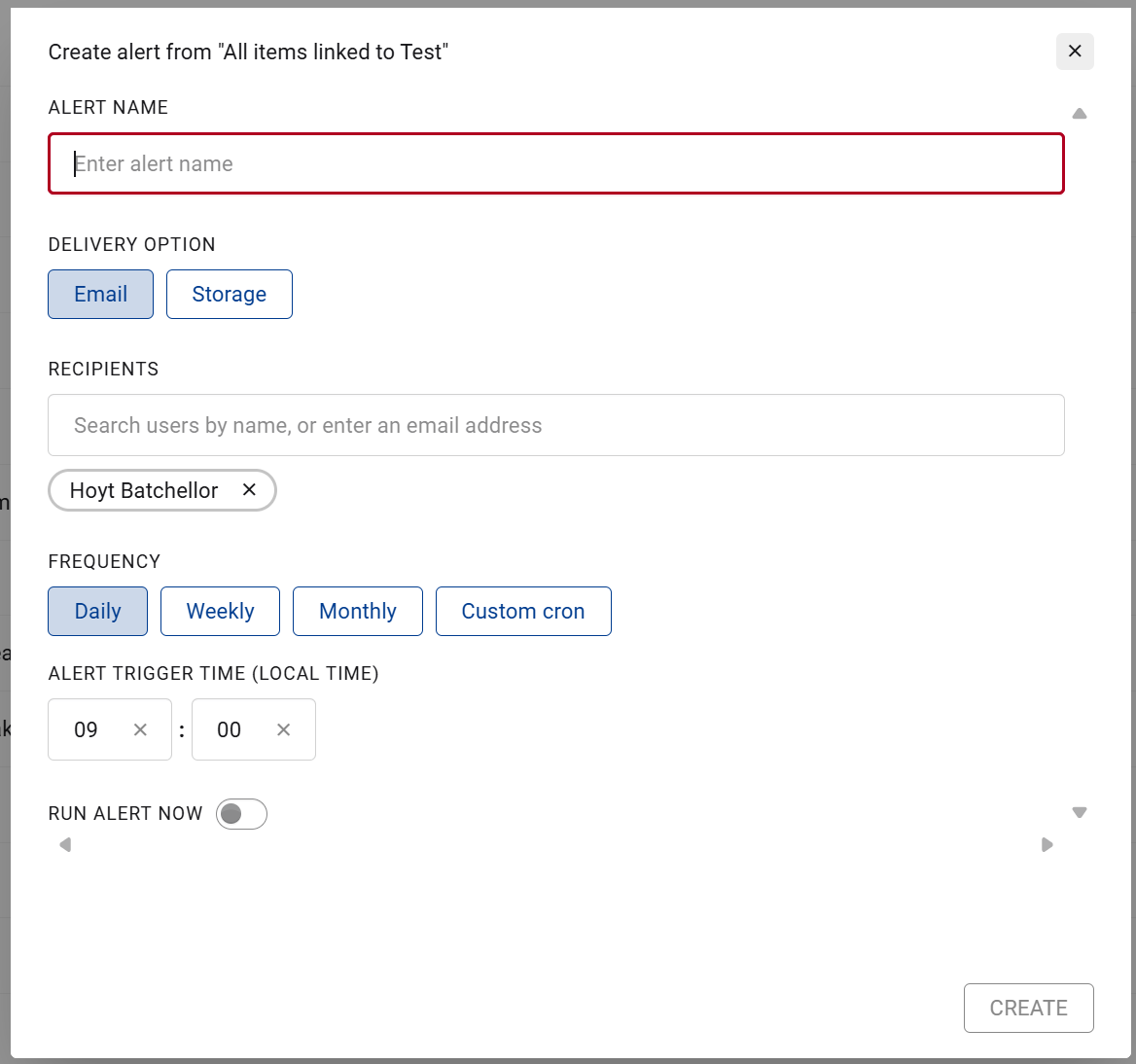
A pop-up box will appear asking you to confirm:
|
Field |
Details |
|---|---|
|
Alert name |
Required, must be unique to you |
|
Delivery option |
Email or storage, see Choosing a delivery channel below |
|
Schedule |
Daily, weekly, monthly, or custom cron, see Setting the schedule below |
|
Run alert now |
Off by default. Turn it on to initiate the alert immediately on save |
-
Click Create alert to save it. To change an existing alert later, open it from the Alerts page, it opens the same modal, pre-filled.
Choosing a delivery channel
An alert delivers to exactly one channel, email or storage. You can't send the same alert to both.
Email
-
You're added as a recipient by default.
-
Add more K users by username, or type any email address.
-
The email links back to the exact search results that triggered it.
Email delivery needs SMTP configured on the platform. If it isn't, the email option is disabled here and a banner appears on the Alerts page. See Setting up email.
Storage
Storage delivery exports the matching results as a CSV, packaged as ZIP or GZ, to a cloud storage location. It's only available to KADA Admins, Data Governance, and Data Manager roles, useful for feeding results into a downstream pipeline.
-
Select one pre-configured storage connection (S3 or Azure Blob).
-
Enter the path within that connection, e.g.
/exports/alerts/. -
Choose ZIP or GZ as the file format.
Storage connections are set up separately by a KADA Admin, under Settings > Integrations > Storage. See Alert Storage Configuration. If none exist yet, this option is disabled.
Zero-result alerts
If a scheduled run finds no matching results, nothing is sent or written, no empty email, no empty file. The alert's last run status shows as Completed (Not Sent).
Setting the schedule
|
Frequency |
What you set |
|---|---|
|
Daily |
A time of day, or "load time" |
|
Weekly |
Day of week + time |
|
Monthly |
Load day, 1st of month, or a specific day-of-week, + time |
|
Custom cron |
A cron expression. K shows the resolved next-run time once it's valid. |
Run now
Turn on Run now in the create/edit modal to fire the alert immediately, on top of its normal schedule. You can also trigger this later from the Alerts page by clicking Run now.
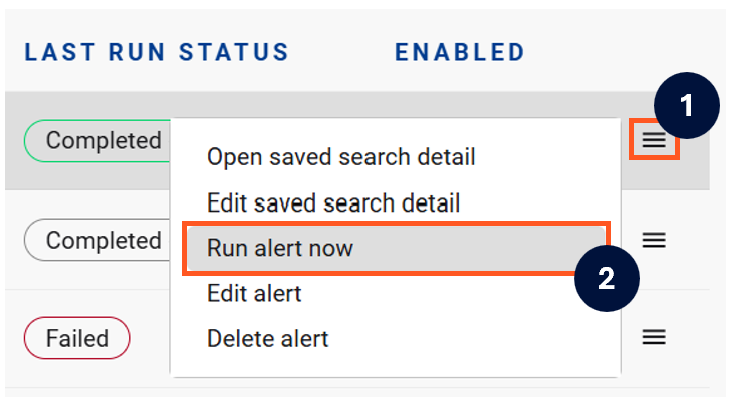
Either way, K takes you straight to that alert's run history so you can watch it complete.
You can't run an alert that's already running. K blocks the second run and shows an error until the first one finishes.
Managing your alerts
In the left navigation, open My workspace and click Alerts to see every alert you have access to.

Use the search box to find an alert by name, or filter by:
-
Last run status — all statuses, not run, running, completed (sent), completed (not sent), or failed
-
Created by — KADA Admins only: yours, or everyone's
-
Alert type — all types, DQ Failed Tests, DQ Tests requiring review, or Saved Search
-
Enabled — enabled (default), disabled, or all
You can edit or delete only the alerts you created. KADA Admins see everyone's alerts and can turn any of them on or off, but can't edit or delete an alert someone else created.
Deleting an alert also permanently deletes its run history. If the saved search behind a Custom alert is deleted, the alert and its history are removed automatically. You can't delete an alert while it's running.