UPDATED IN VERSION 6.1
All K users can create their own lists for ease of future use and sharing with others. This page will walk through:
-
Features and benefits of lists
-
How to create lists
-
How to manage lists
-
Bulk-adding tables to a list via List Builder
Features and benefits of a list
Lists can help you organise your data ecosystem.
Similar to tags, any user can create a data list or add additional items to a data list. While tags can be quick to create and easily visible on a data profile page, there are certain benefits that a data list can provide over a tag.
These include:
-
Lists that you follow appear in your K Feed, keeping you up to date on any changes/updates to any data assets in the list
-
You can create a comprehensive list by linking anything to a List, including sub lists, users, other collections or data assets. For example creating a comprehensive list of all data assets, collections and users impacted by a Project.
-
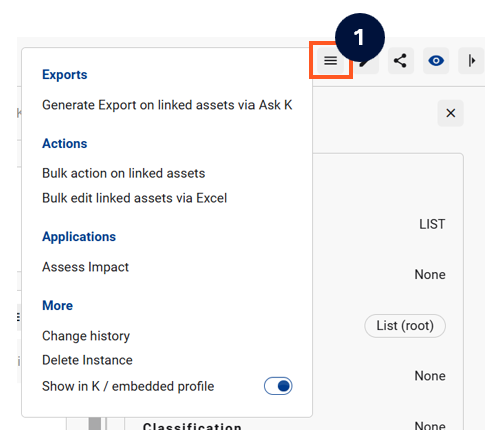
All actions that can be performed on a Collection can be performed on a List by clicking on the Menu icon.
All created lists are public lists and can be accessed by any user.
How to create lists and add items
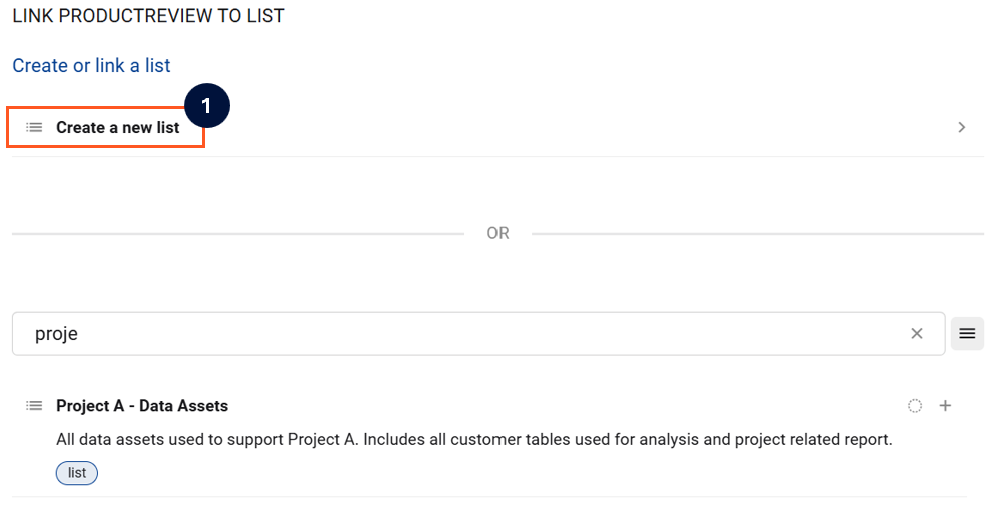
The method to create a new list is the same as adding data items to a list. Instead of selecting a list, select the option of ‘Create a new list’
Currently there are 3 ways you can add items to a data list:
|
Options |
Instructions |
|---|---|
|
Option 1: Via the Data Profile Page or Side panel pop out |
Click the '+' icon on the top right hand corner and click 'Add to List' 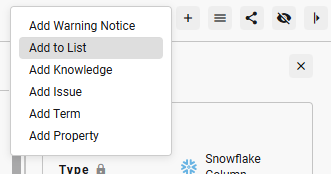
|
|
Option 2: Via Search Page
|
Right click on the data item 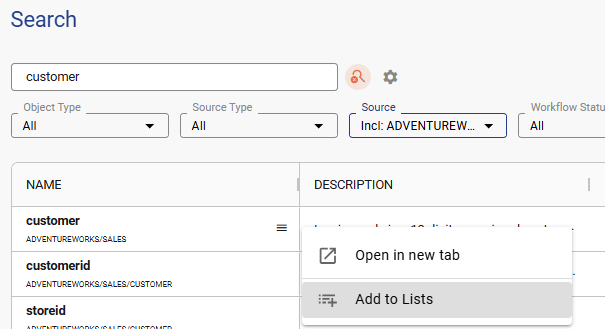
|
|
Option 3: via Bulk Action |
To add multiple items to a list, you can use the Bulk Action function Bulk Action can be accessed via:
On the Bulk Action page, select List as the attribute to update 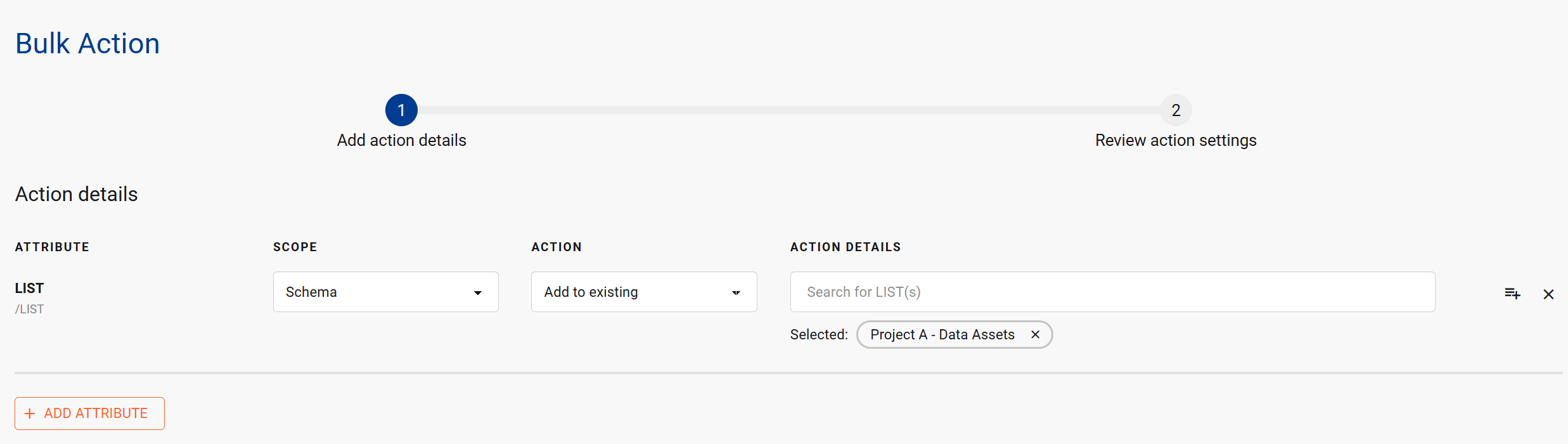
|
Adding tables to a list via List Builder
Sometimes you may want to create a list from a pre-identified list of tables (e.g. an offline excel extract). In this scenario, manually building the list through multiple searches can be time consuming and result in missed tables.
To help with this specific use case, K has a List Builder functionality that connects with Bulk Action and allows users to manually paste a list of table names into Bulk Action (instead of adding via Search).
When using this feature, you will need to check to ensure the data in your excel matches the object types and names in K.
Access the List Builder page for more information.
How to view and manage Lists
To view lists, click on Lists in the inventory.
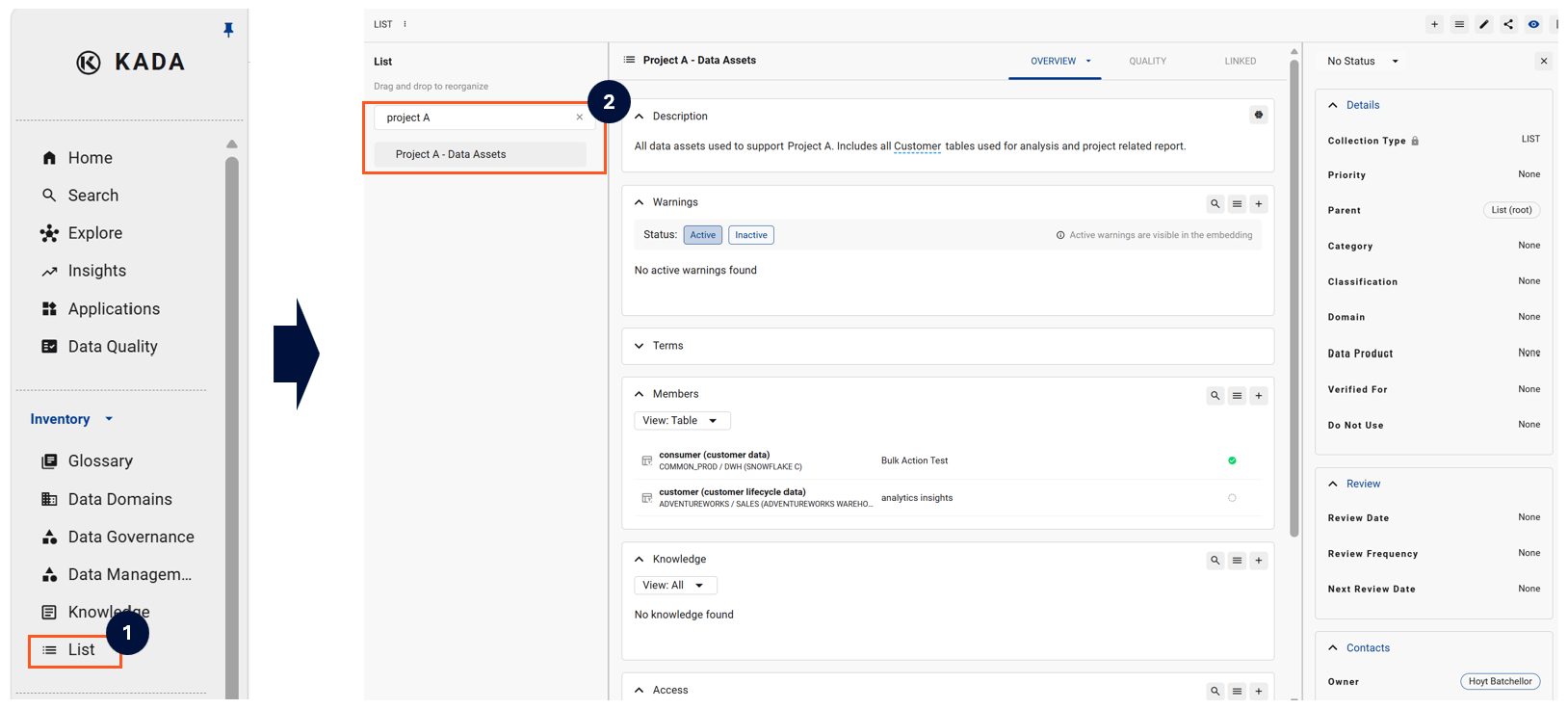
Lists are a type of Collection and each list is an instance. This means similar lists are managed in a similar way to an instance. Key elements of this page include:
-
The Overview tab that lets you view key information and knowledge about the list
-
The Quality tab to access a filtered view of the Data Quality Dashboard for data assets in the list
-
Use the Menu icon to access multiple K features, including impact assessment and the option to delete this list instance
-
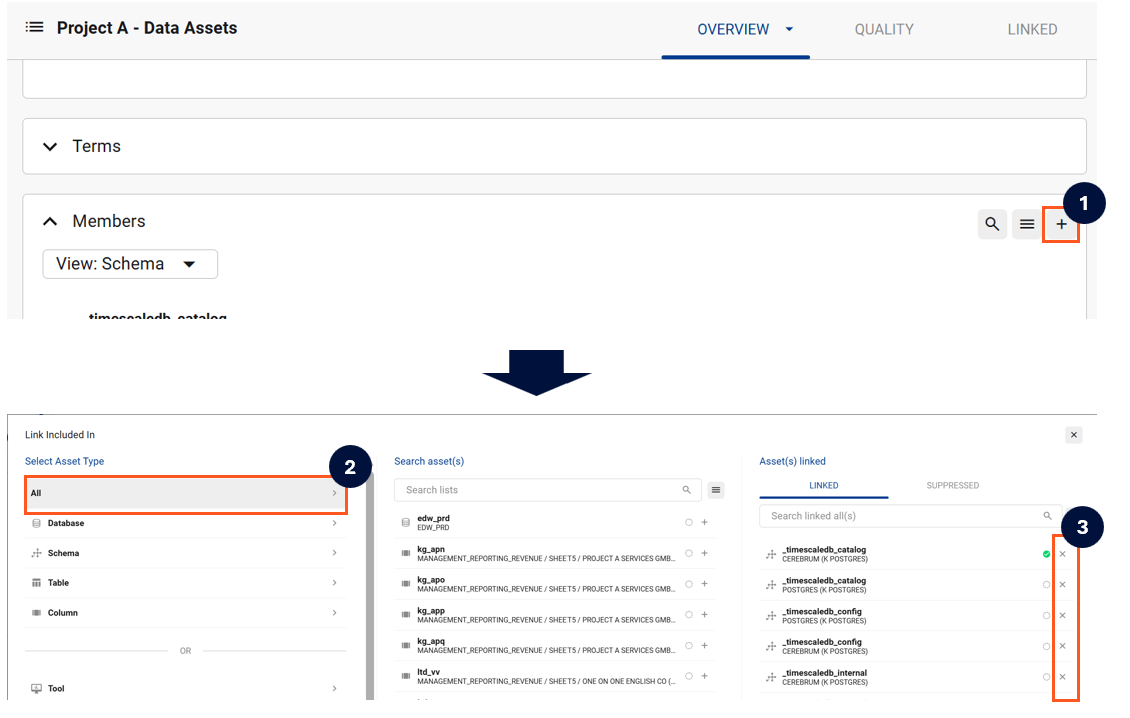
Through the Members section of the Overview tab, view the list of items linked to the list
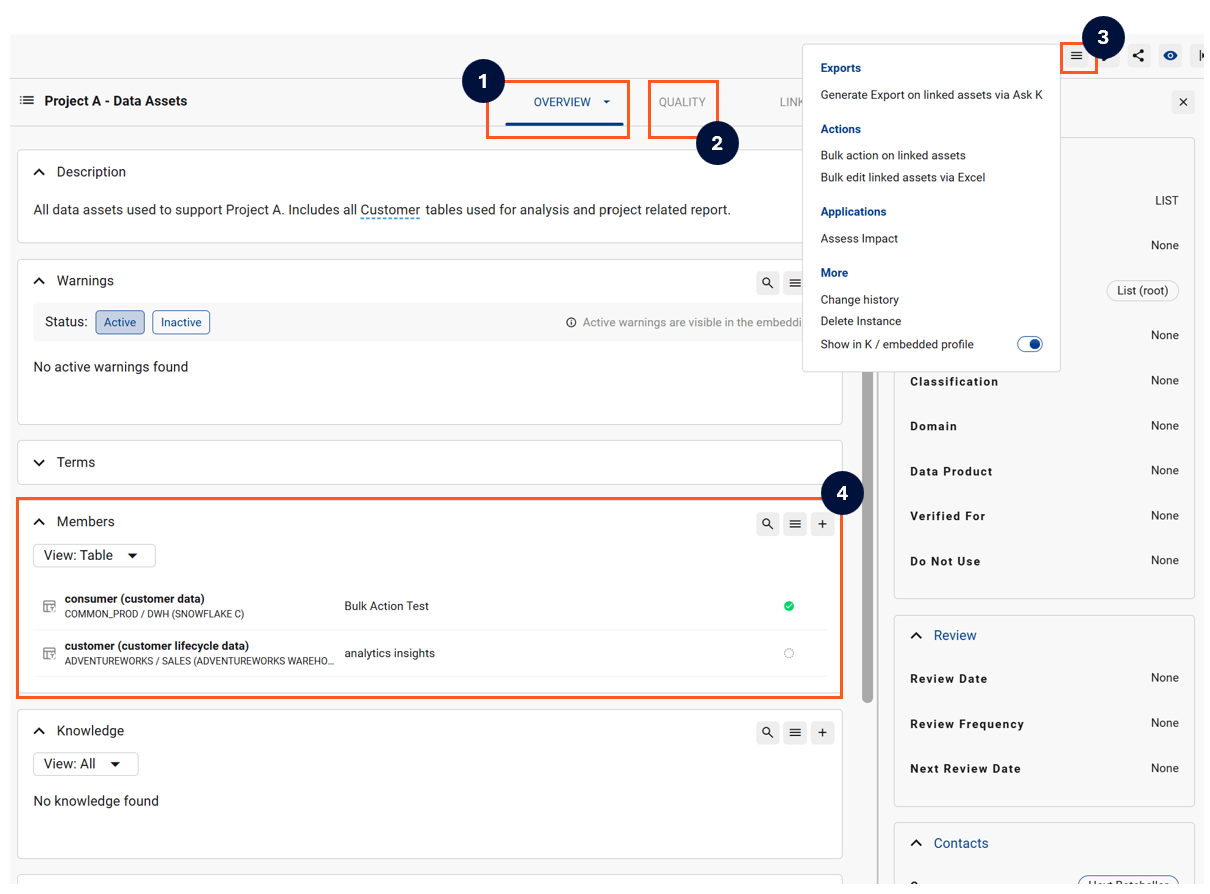
Each list is an instance within the List collection. To delete a list, open the list, click on the menu icon and select Delete Instance
How to remove items from a list
There are two ways you can remove linked assets from a list.
Option 1 - Individually unlink an item
Under the Members section of the List,
-
Locate the item you want to remove
-
Click on the menu icon and select Unlink
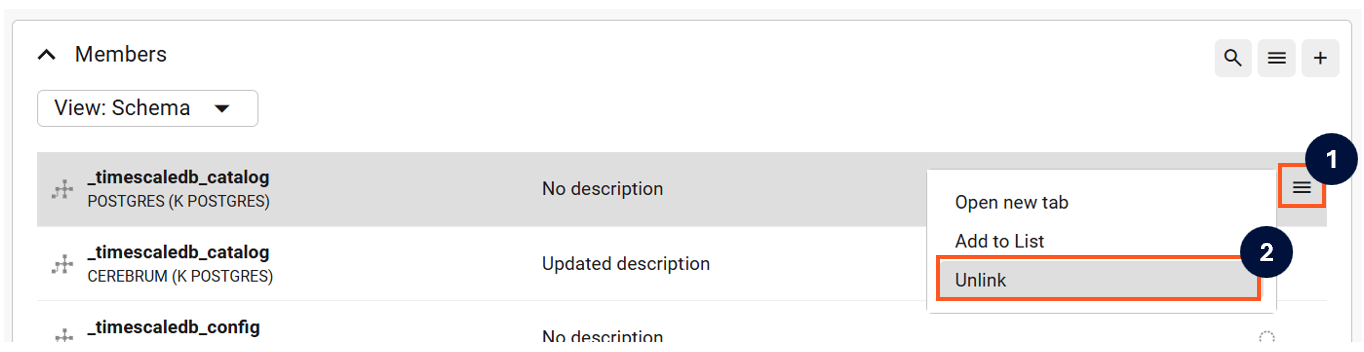
Option 2 - Remove via editing the list members
-
Click on the + icon to open the pop-up that lets you edit list membership
-
Click on All Asset types to bring up all linked assets
-
If you only what to view some asset types, use the filter options to narrow down the display options
-
-
Click on the x icon next to the items you want to unlink