
Updated in Version 6.0
K can help you automatically conduct impact assessments to assess the impact of changes to data items and identify impacted users. Common scenarios where an impact assessment would be helpful include:
-
Checking which data assets and users are impacted by a potential change
-
Assessing the testing effort required for a change
-
Quickly verifying which data assets have been impacted by an incident or issue
-
Generating a list of users, data owners, or stewards of impacted data assets to contact
-
Data migration analysis
About the K Impact Assessment
The K impact assessment can be performed across different directions and levels:
-
Direction: Relative to the data asset, the direction you want to assess impact across the data lineage — e.g. Upstream vs Downstream
-
Assessment level: At what data level you want to conduct the impact assessment. Based on the type of data asset selected, there are 4 assessment levels:
|
Assessment level |
Included in assessment |
Description |
|---|---|---|
|
Table level |
Tables, Dataset Tables, Reports, Pipelines, ML Models |
Performs a coarse grain assessment and returns all impacted assets at the table/report/pipeline level |
|
Column level |
Columns, Fields, Sheets |
Performs a fine grain assessment and returns all impacted assets at the column/field level |
|
User level |
Users |
Performs a user assessment and returns all data assets that a specific user has created or used |
|
Collection bounded |
Coarse grain assets within a collection instance |
Performs a collection assessment and returns all table-level assets within the collection |
How to run an impact assessment
Step 1 — Select impact assessment target
-
To assess a single data asset: go to the Data Profile page, click on the menu in the header, and select Assess Impact
-
To assess multiple data assets: create a list containing all the assets you want to assess, or select a collection instance — then open it and select Assess Impact from the menu
Step 2 — Configure impact assessment settings
-
Click the green New Impact Assessment button
-
If the button is greyed out, the impact assessment target has not been confirmed yet

-
-
Confirm the assessment settings and click Next:
-
Assessment Level: Table, Column, User, or Collection Bounded (options shown dynamically based on the asset type selected)
-
Direction: Upstream or Downstream
-
-
Confirm the next level of assessment detail and click Run:
-
Depth limit — for large assessments, start with a lower depth and increase if needed
-
Expansion limit — the number of connected assets displayed per node, ranked by trust score
-
Usage period
-
Source limits (optional)
-
Step 3 — Check and access your impact assessment results
-
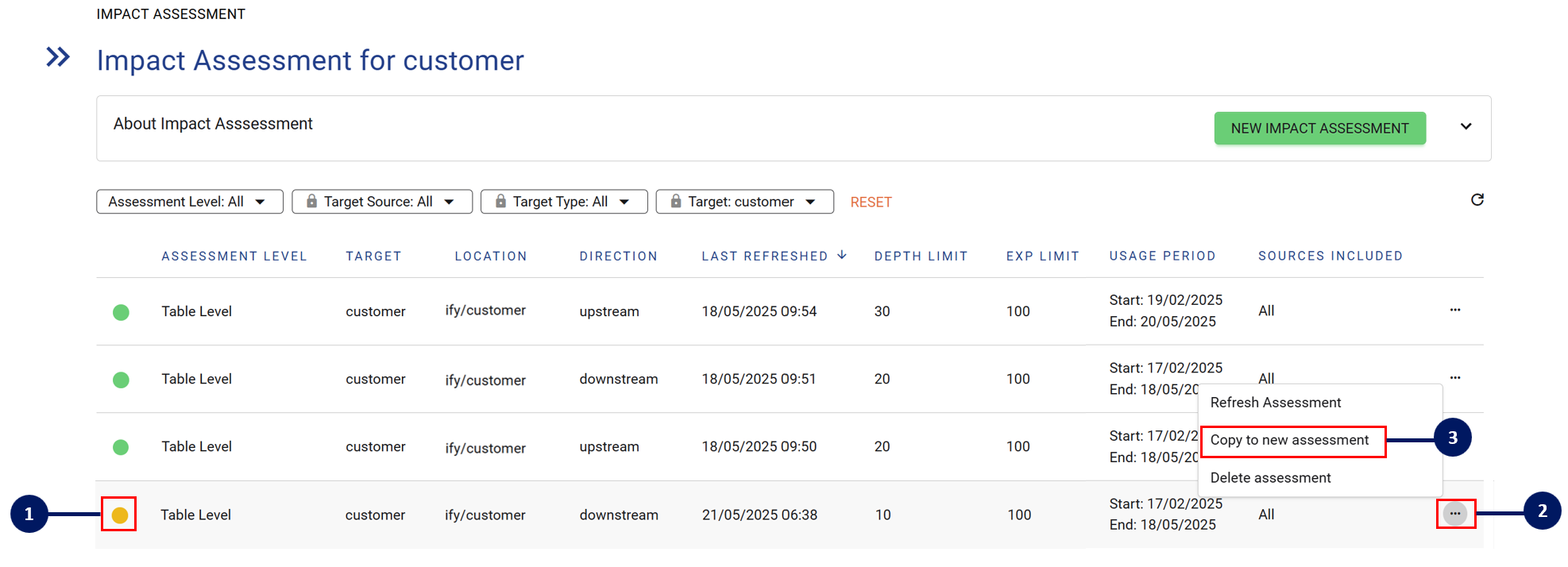
While running, the status displays as Amber. Once ready to review, it turns Green
-
Use the Status filter to quickly find assessments in a particular state
-
To stop a run in progress, click … → Cancel
-
-
You can view assessment settings from the results screen. Click … → Copy to new assessment to tweak settings and re-run
-
To Refresh an assessment, click … → Refresh — this re-runs with the same settings against the latest data
-
To re-run across a different time period, use Copy to new assessment and update the usage assessment date
-
Click on the row to open your impact assessment results
All users can view previously run impact assessments
If you run a historical impact assessment (e.g. 90day window for last year), the impact assessment will be based on the data lineage of the ecosystem that K has stored as at last year. This means if you have in the last year onboarded additional data sources, the historical impact assessment will not show these results as K has not stored the metadata.
Viewing impact assessment results
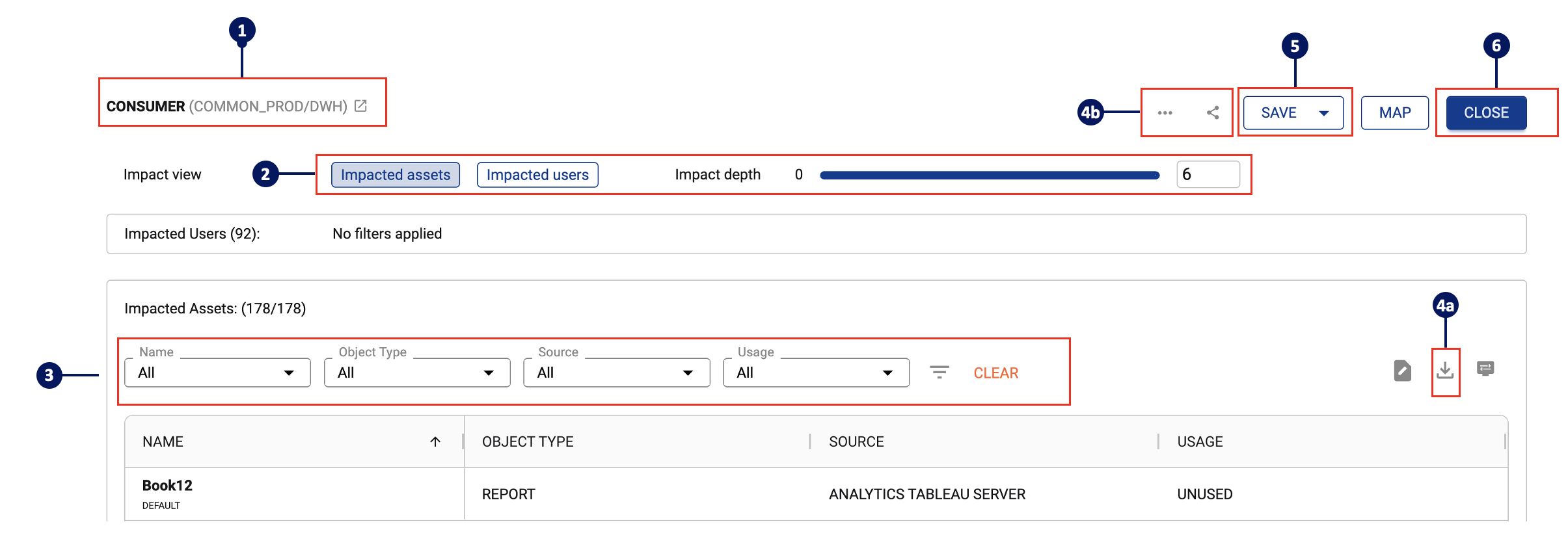
The default view shows results in list format, where you can:
-
Click the open button on any asset header to open its Data Profile in a new tab
-
Toggle between impacted users and impacted assets views — and filter by depth (number of hops from the starting object)
-
Change filters, download results, or adjust displayed columns
-
Download results via the download button, or access additional export options from the … menu
-
Click Save to preserve your current filter configuration for future visits
-
Click Close to return to the impact assessment history page
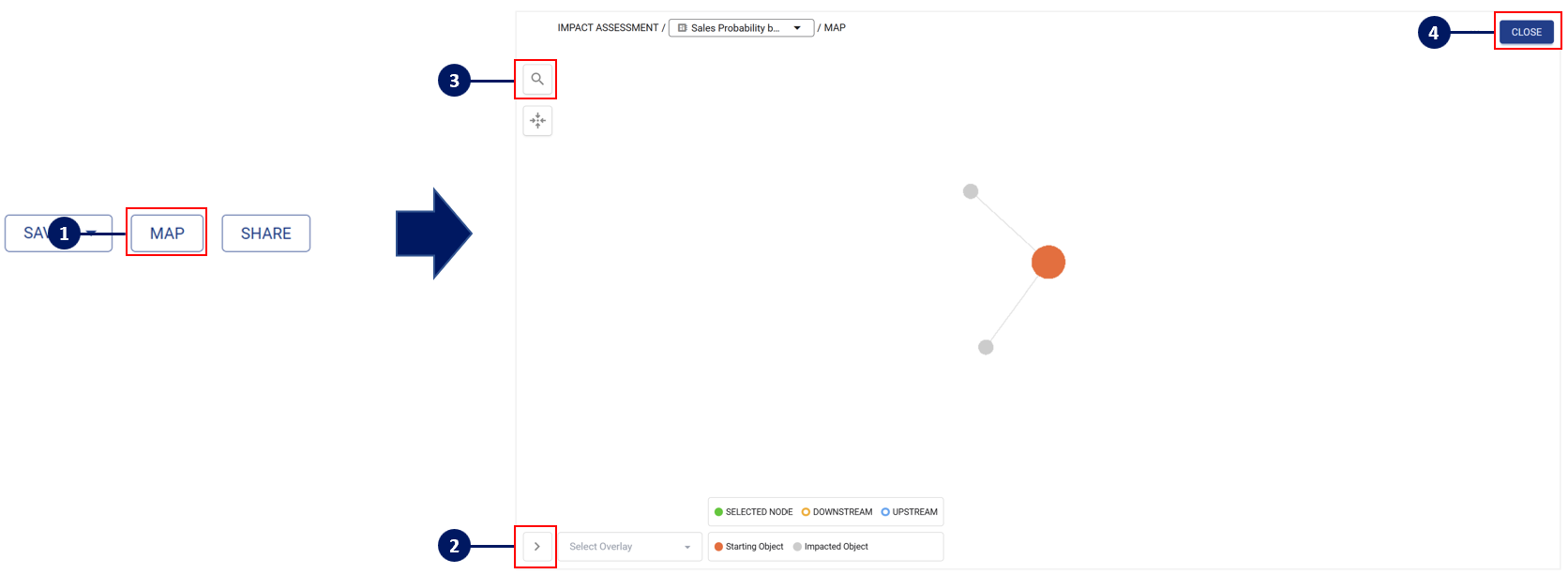
You can also switch to a visual Map view, which:
-
Automatically applies any filters set in the list view
-
Supports legend overlays — expand via the bottom icon
-
Includes a search function to locate specific nodes when the map is large
-
Can be exited at any time by clicking Close to return to the list view
Additional actions
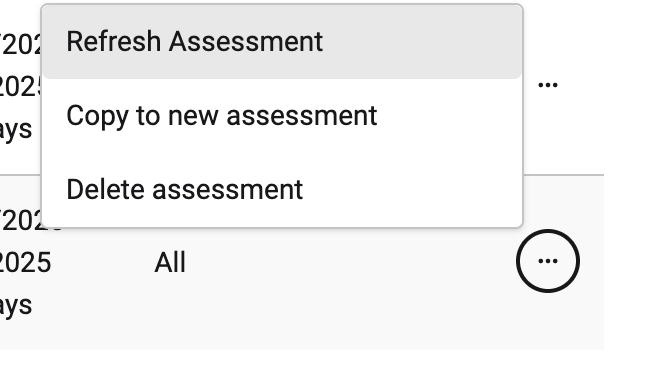
There are four additional actions available from the menu
|
Action |
Description |
|---|---|
|
Assessment details |
View the settings used for this assessment |
|
Refresh assessment |
Re-run with the latest data sources loaded to K |
|
Impacted asset by user export |
A list of all users and the impacted assets they use |
|
Detailed lineage report |
A detailed Excel export listing each connection row by row |
Refreshing an impact assessment
When an impact assessment requires a refresh (e.g. due to archiving or a platform release), its status will show as Pending with a tooltip advising that a refresh is required.

To action this: click … on the assessment row and select Refresh assessment. You will be notified when the refreshed assessment is ready (if email notifications are configured).
💡 Related: See Lineage Mapper for visualising the data flows that underpin your impact assessments, and Collections for collection-bounded impact assessments.