
UPDATED IN VERSION 6.2
Data migrations from a legacy platform to a modern stack can be complicated. Working out which data assets to migrate is often lengthy, manual and error prone.
K uses its usage analytics to help you decide what data to move, what to retire, and which users and teams are affected. You can then prioritise the right clusters of data to migrate and speed up the migration.
K supports you at every stage:
-
At the start: K automates the migration analysis that would otherwise take months, and recommends a strategy for every asset
-
During the migration: K helps you write the migration code with an agent, and tracks progress so you stay on track
Migration Dashboard
The Migration Dashboard brings this together in one place. K assesses every asset you're migrating and recommends whether to Retire, Reinvent, Redesign, Refactor or Rehost it, along with an effort score and a risk score.
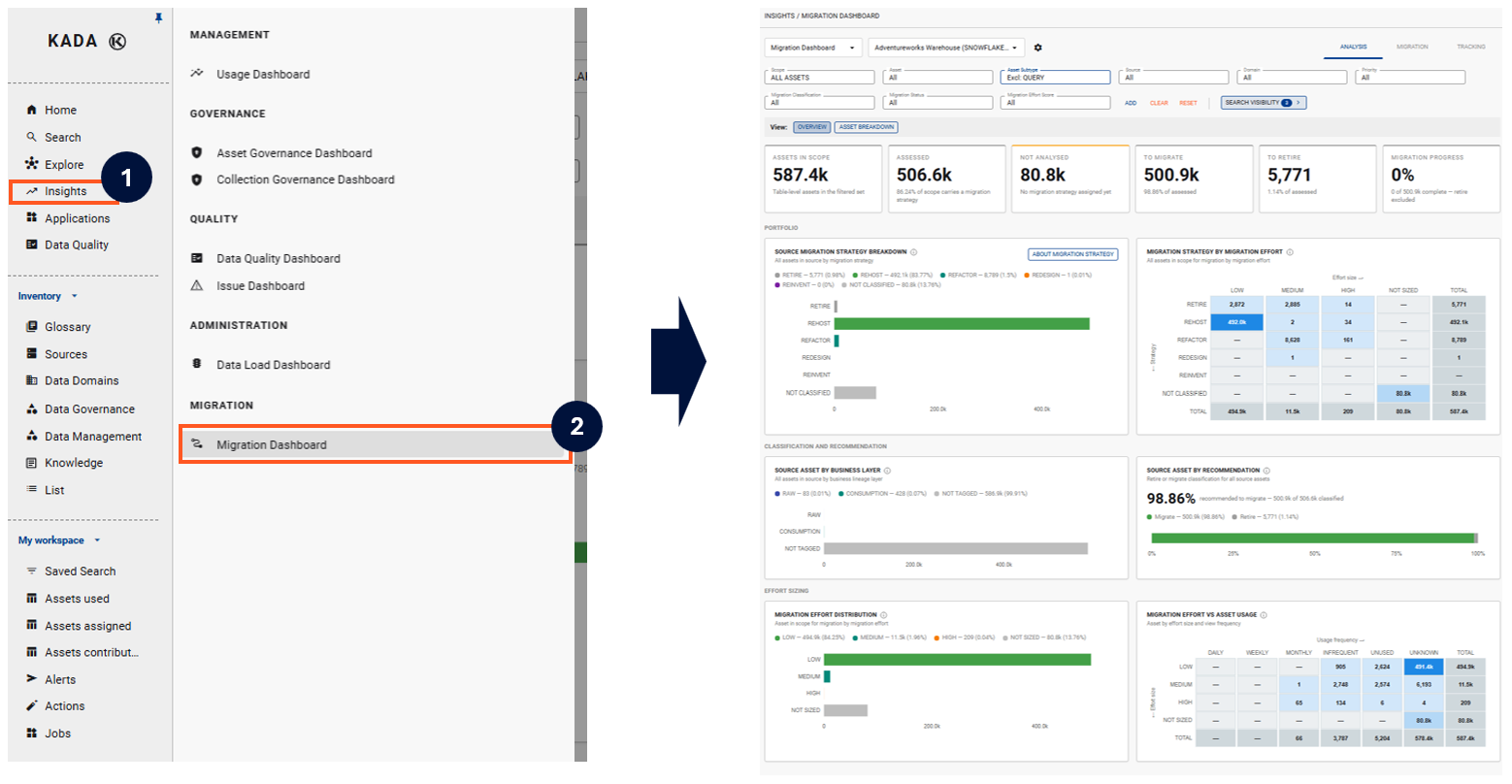
Migration dashboard
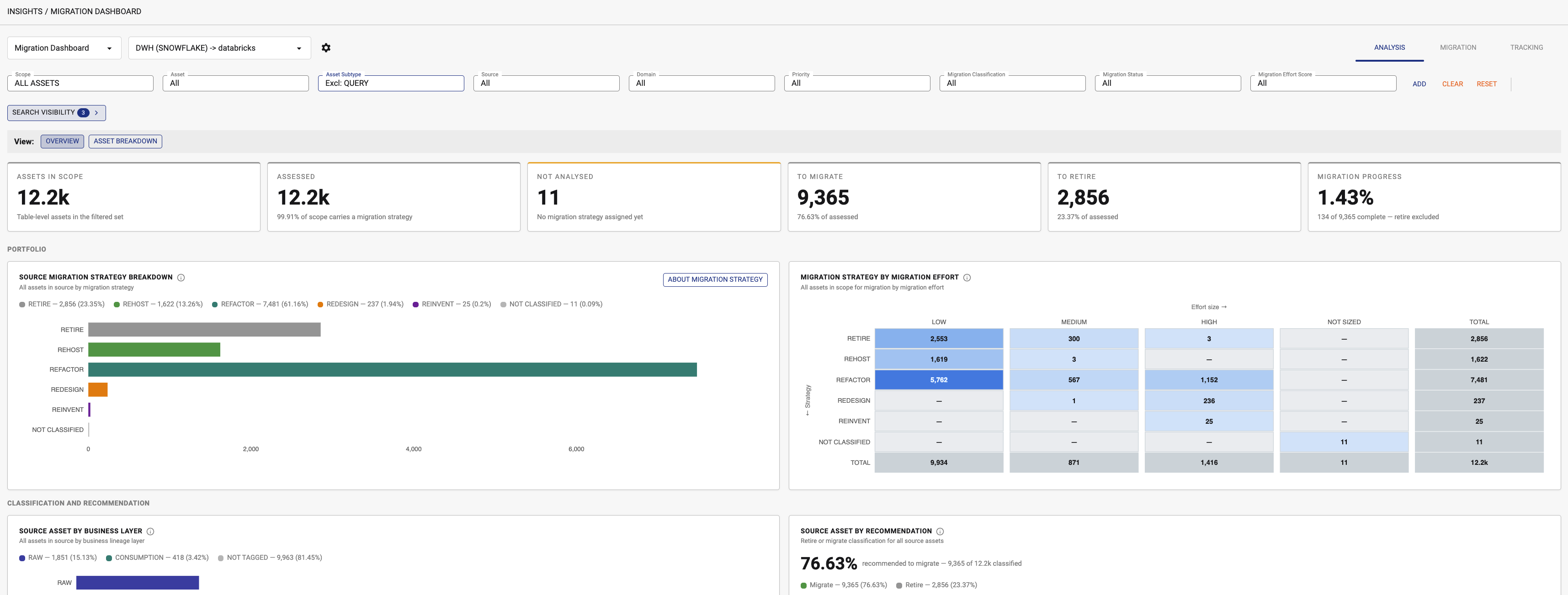
About the Migration Strategy
Every asset is assessed and assigned a particular strategy based on a number of parameters observed. Multiple parameters are calculated (some shared below) and displayed in the Migration tab (on the Asset Profile page).
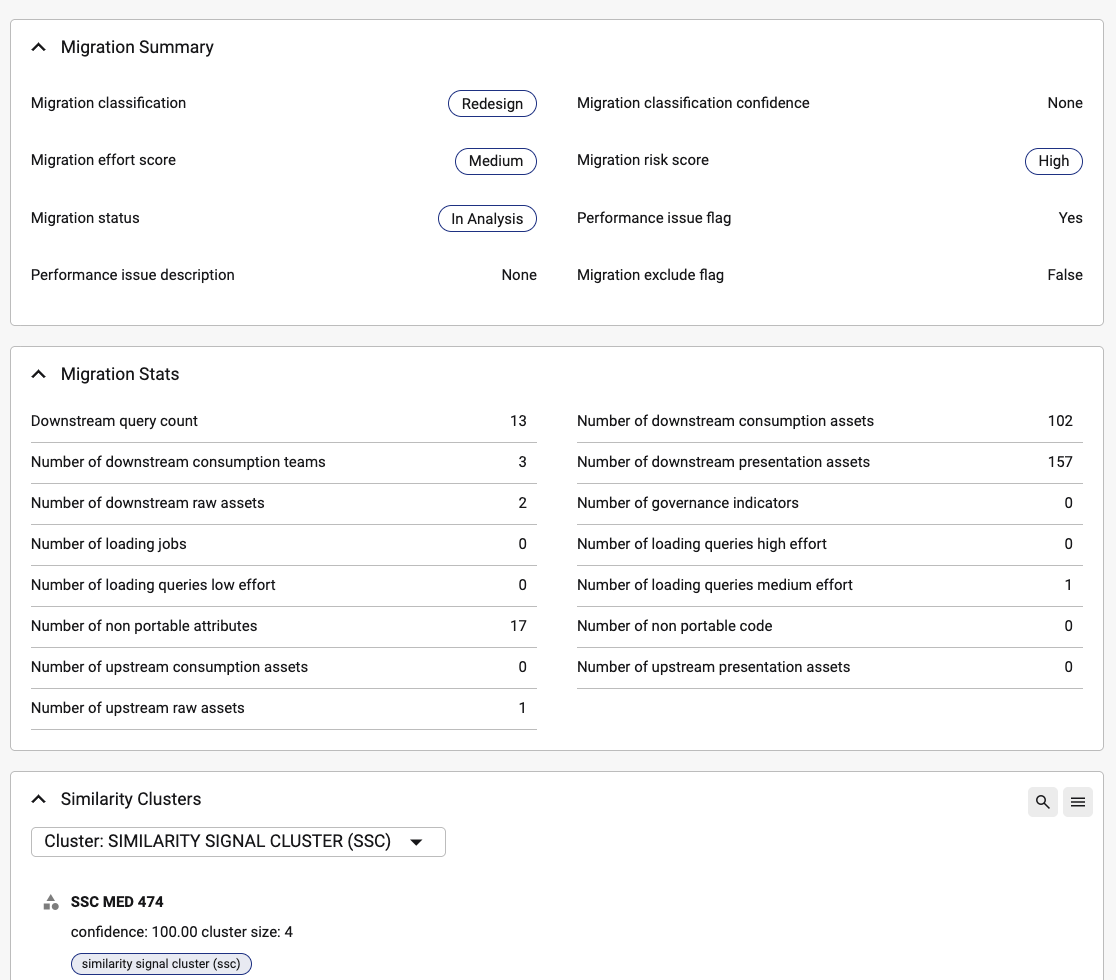
Summary of the assigned strategies are explained below:
|
Strategy |
Description |
Factors |
Details |
|---|---|---|---|
|
Retire |
Assets that are no longer used can be retired rather than migrated. Retired can mean decommissioned or archived depending on the organisations data retention requirements. Assets marked for retire are good candidate for quick decommissioning wins; reducing maintenance overhead and cost whilst more valuable data assets are being migrated |
View frequency = Unused |
Note: View frequency = Unknown are not automatically set to Retire. Review assets in this frequency and set their Migration Strategy to Retire if they are not needed.
Definition of View frequency |
|
Rehost |
Data asset that can be moved as-is to your target platform, with minimal or no changes (“lift & shift”). No changes will carry forward any existing technical debt. |
Number of non portable attributes = 0 AND Number of non portable codes = 0 |
K assesses the structure of the data assets to confirm if is portable to the target platform K also assess the code used to create/load the data asset and confirms if the code is portable to the target platform (can be run as is). |
|
Refactor |
Data asset requires code changes so that it runs on your target platform while keeping the same structure & output. E.g. rewriting syntax, replacing unsupported functions etc. |
number of non portable attributes > 0 OR number of non portable codes > 0 |
K assesses the structure of the data assets to confirm if any of the attributes are not portable to the target platform K also assess the code used to create/load the data asset and confirms if the code is not portable to the target platform (cannot be run as is). |
|
Redesign |
Data asset is not performant or suitable to migrate to the target platform. The Data asset should be redesigns to meet future state design patterns |
Performance flag = True AND number of non portable attributes > 0 OR number of non portable codes > 0) |
K assess data asset that is not portable to the target platform AND has been flagged for not being suitable in the target platform. |
|
Reinvent |
Widely used data assets that are used along with other data assets that present opportunities for migration to semantic models |
number_of_consumption_users > AND part of any Shared consumption source cluster OR part of any Shared raw source cluster |
K asses widely used assets that are heavily connected together. |
See the configuration page to see how to adjust the strategy parameters to suit your migration scenarios
Enabling the Migration Dashboard
|
Page |
What it covers |
|---|---|
|
Prepare your assets, create a migration pair and run the migration analysis |
|
|
Review recommendations, change an asset's strategy, generate migration code and track progress |
|
|
Connect your agent tool to K so it can help write the migration code |
Understanding usage at the Asset Level
The Migration Dashboard looks at usage across your whole migration. To look closer at how a specific asset, schema or source is used, use the features below.
At the asset level
You can use K to understand how a specific data asset is used.
-
Use Search to find the data asset.
-
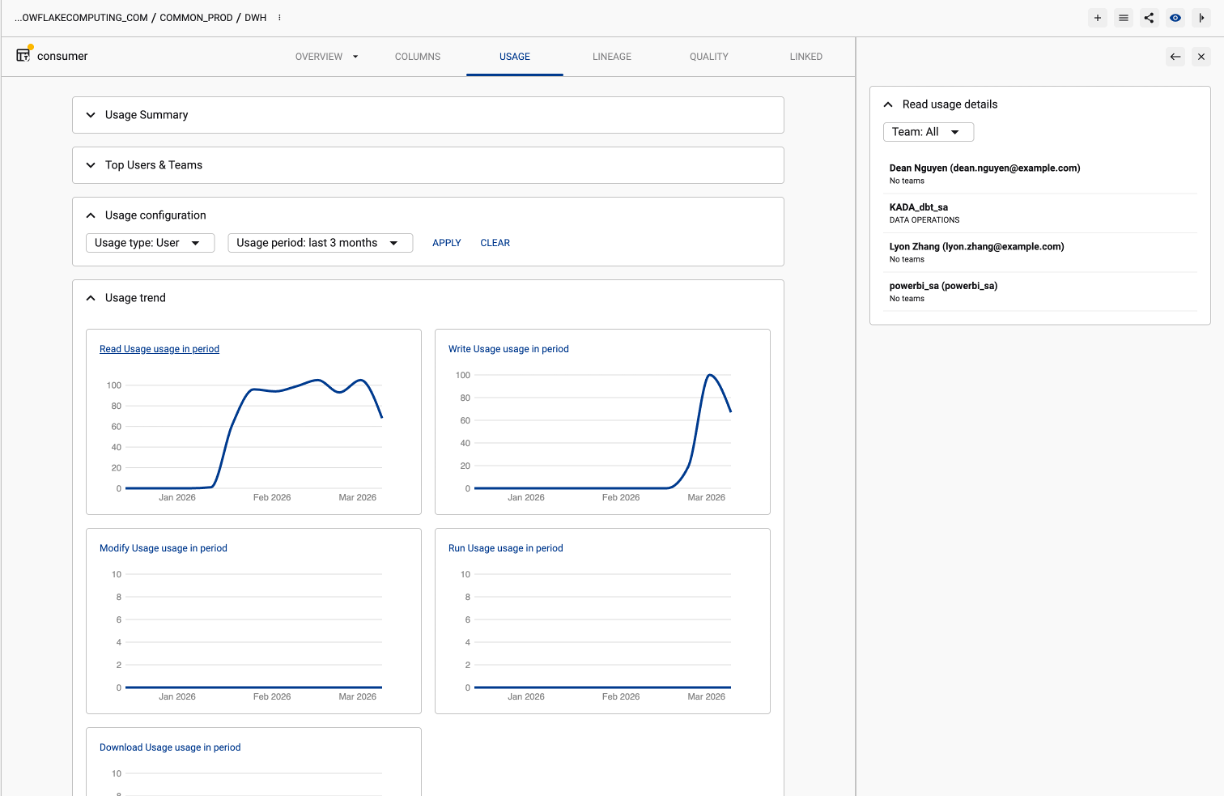
Open the data asset's profile and select the Usage tab.
-
Select the usage period to analyse (e.g. Last 3 months) and click APPLY.
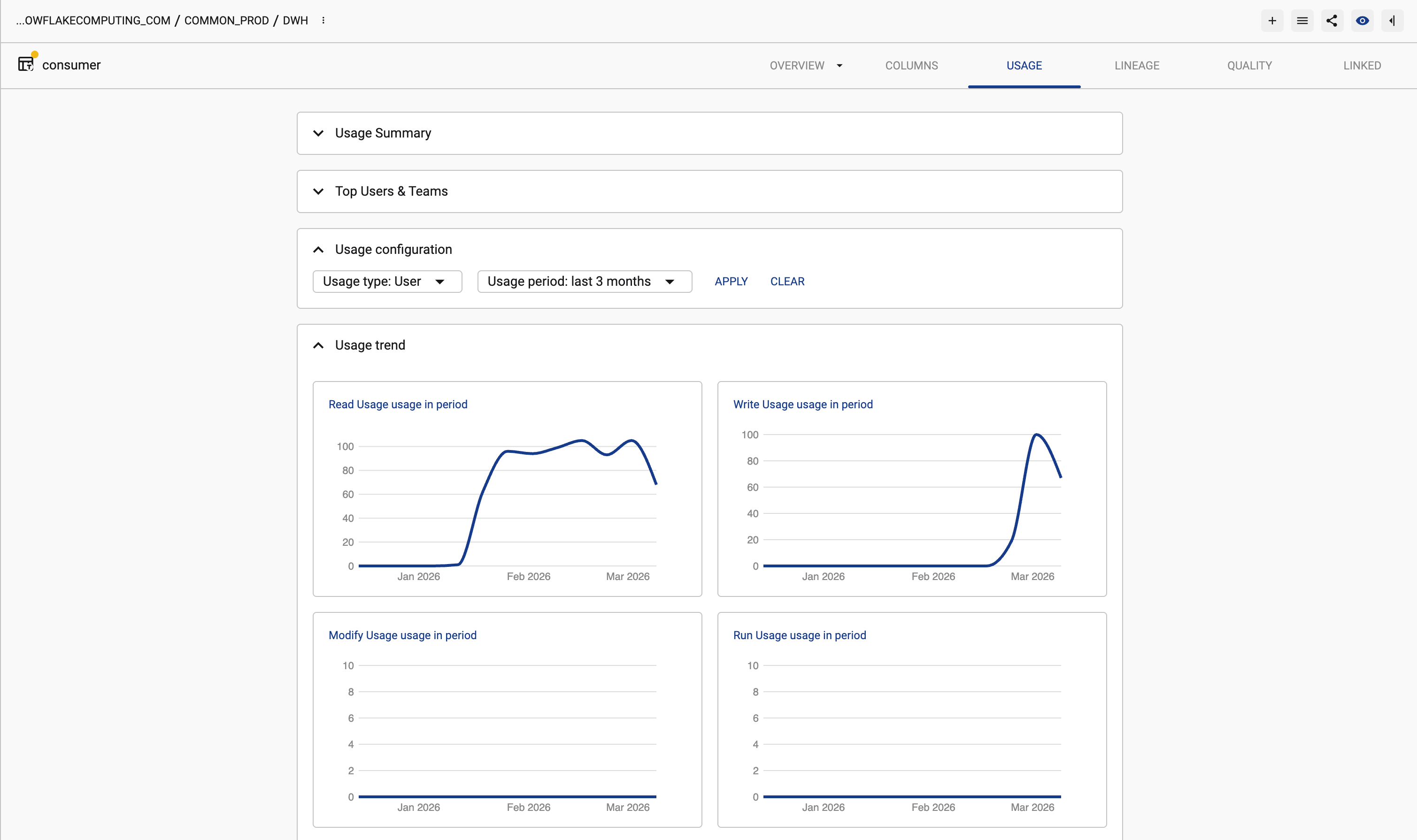
-
You can select the chart to see the usage for that period of time, or select a day on the chart to see who used the asset on that given day.
-
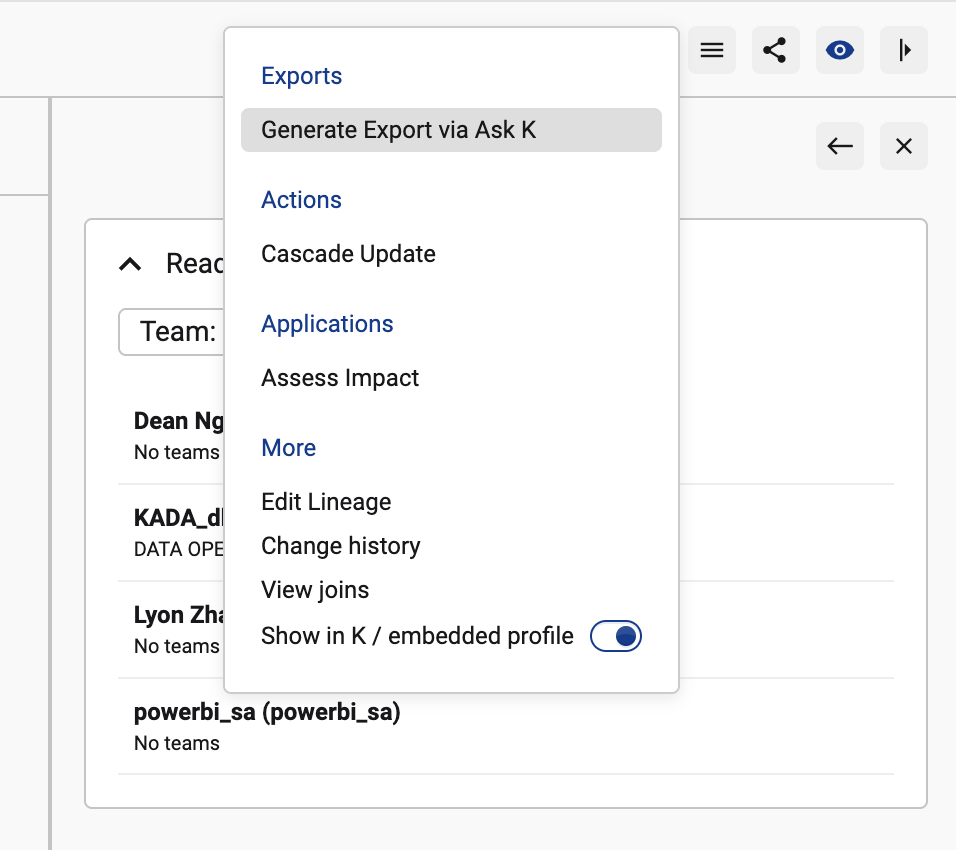
To generate an extract of all usage for this asset, select the menu button and click Generate Exports via Ask K
-
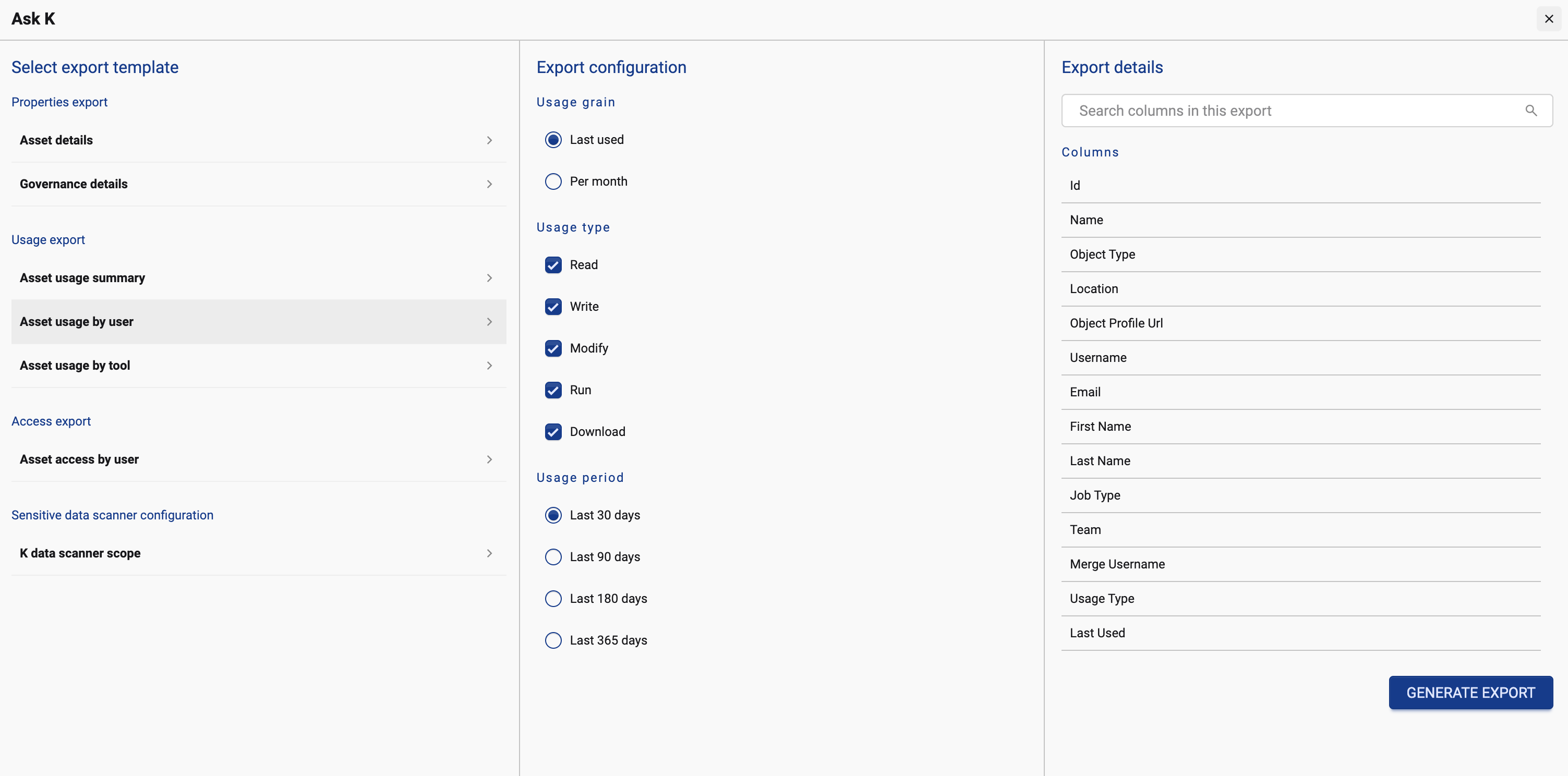
Select Asset usage by User or Asset usage by tool
Understanding usage at the schema, workspace, database or tool level
You can use K to understand how groups of data are used. For example, understanding how a Schema of tables is used.
-
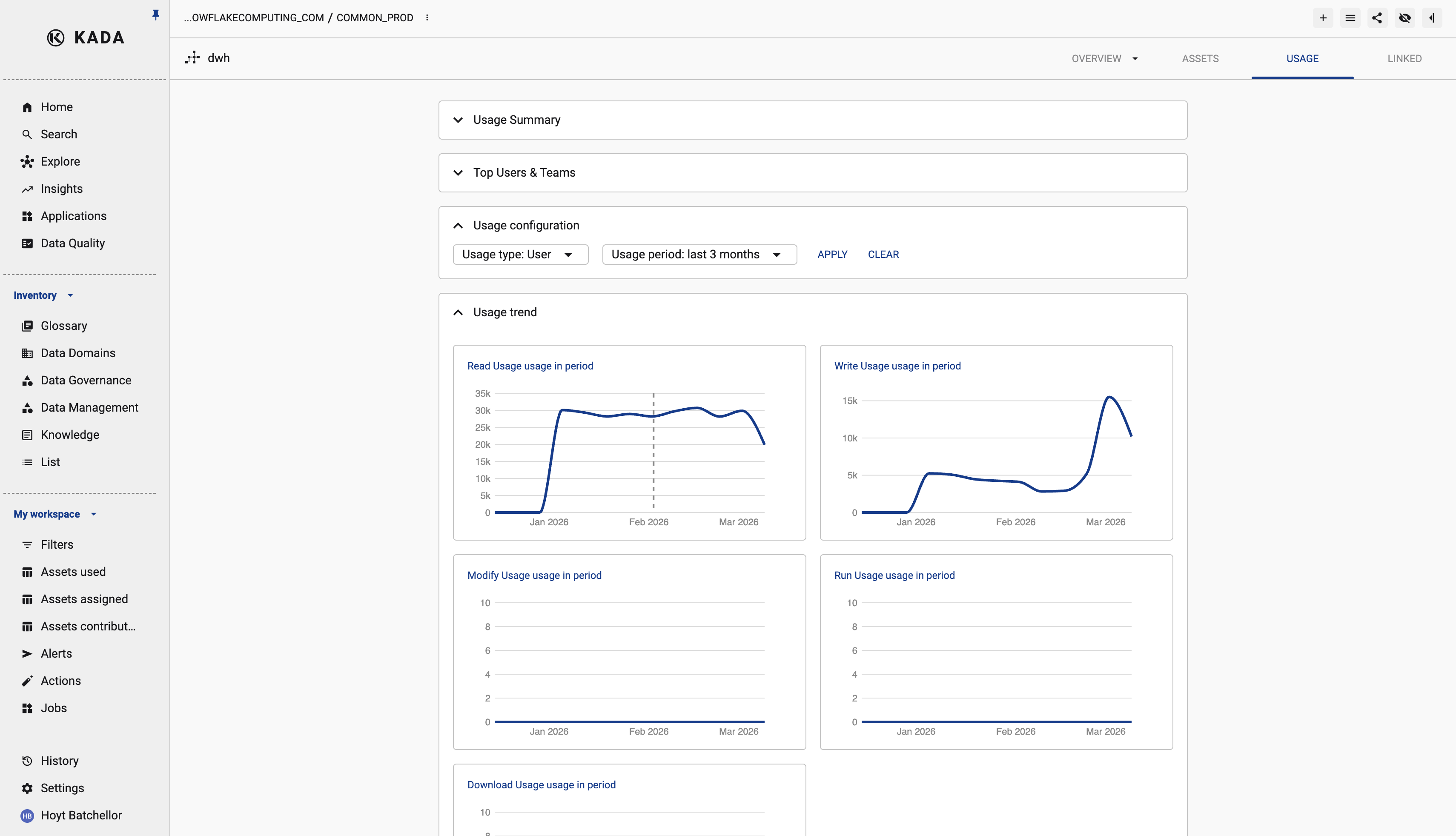
Similar to above, go to the Schema profile page. Select the Usage tab.
-
Select the usage period to analyse (e.g. Last 3 months) and click APPLY.
-
Unlike a single asset, to generate an extract of all usage for a schema, use Search to find all of the tables that belong to the Schema, then run Ask K.
-
To do this easily, from the Schema profile page, go to the Assets tab. Click on the menu button and select View in Search

-
From the search result you can apply any other filters required. Select Download then Custom export using Ask K
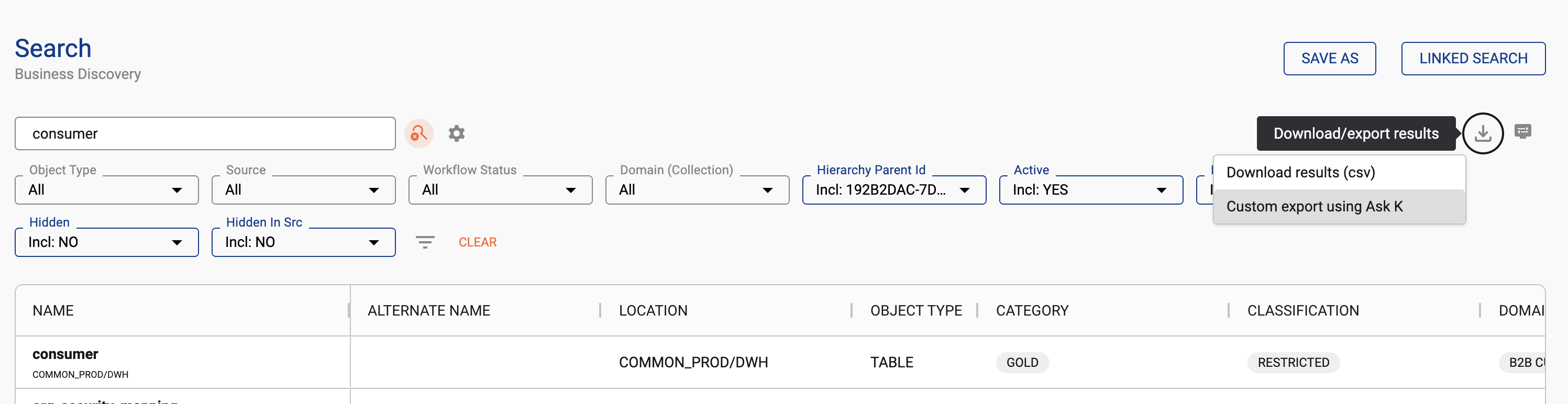
-
Select the export template appropriate to your use case.
Understanding usage at the source level
You can use K to understand how an entire source (its tables, schema, and databases) is used through the Usage Dashboard by filtering for the specific your want to review.
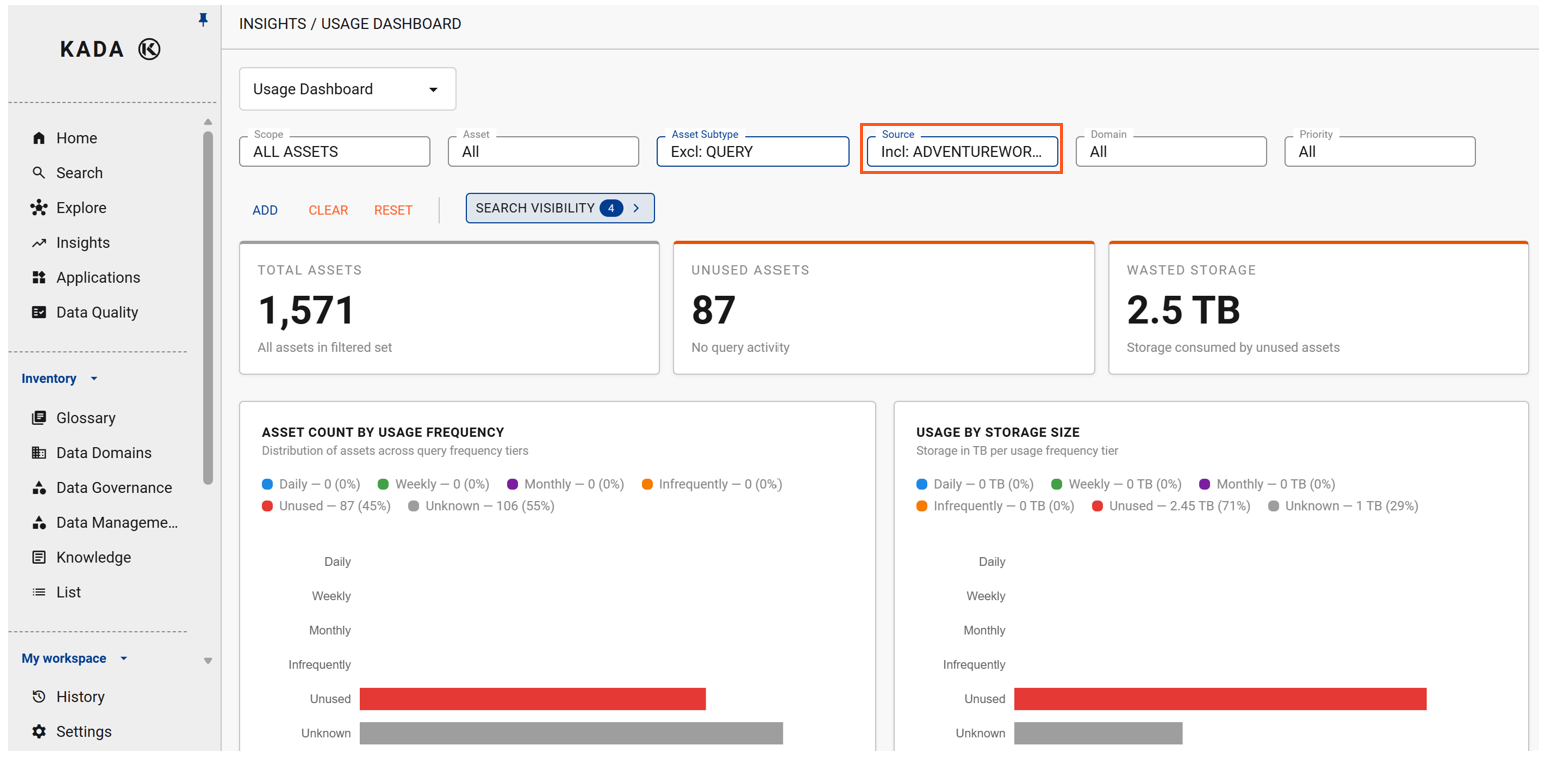
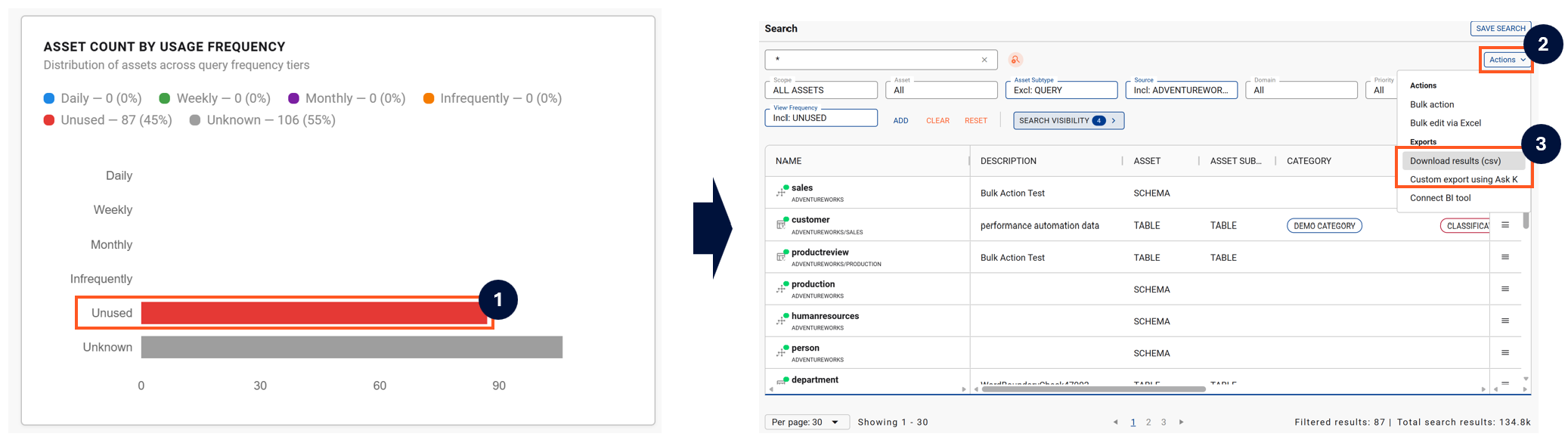
To get granular details about usage at the source level, you can download a straight list or use Ask K to extract details from K.
-
Step 1) Click on the area in the graph you want to drill down into
-
Step 2) The details will appear in filtered search list with the results
-
Step 3) Click on Actions and select Download results in csv or Custom export using Ask K and select the usage related exports
Related