
NEW IN VERSION 6.2
The Migration Dashboard helps you plan, action and track a migration from your legacy platform. This includes:
-
Analysis: the recommended migration strategy, effort and risk across all your assets
-
Migration: a working list of assets to migrate, where you can review strategies and hand off code to an agent
-
Tracking: the migration status of every asset, from backlog to decommission
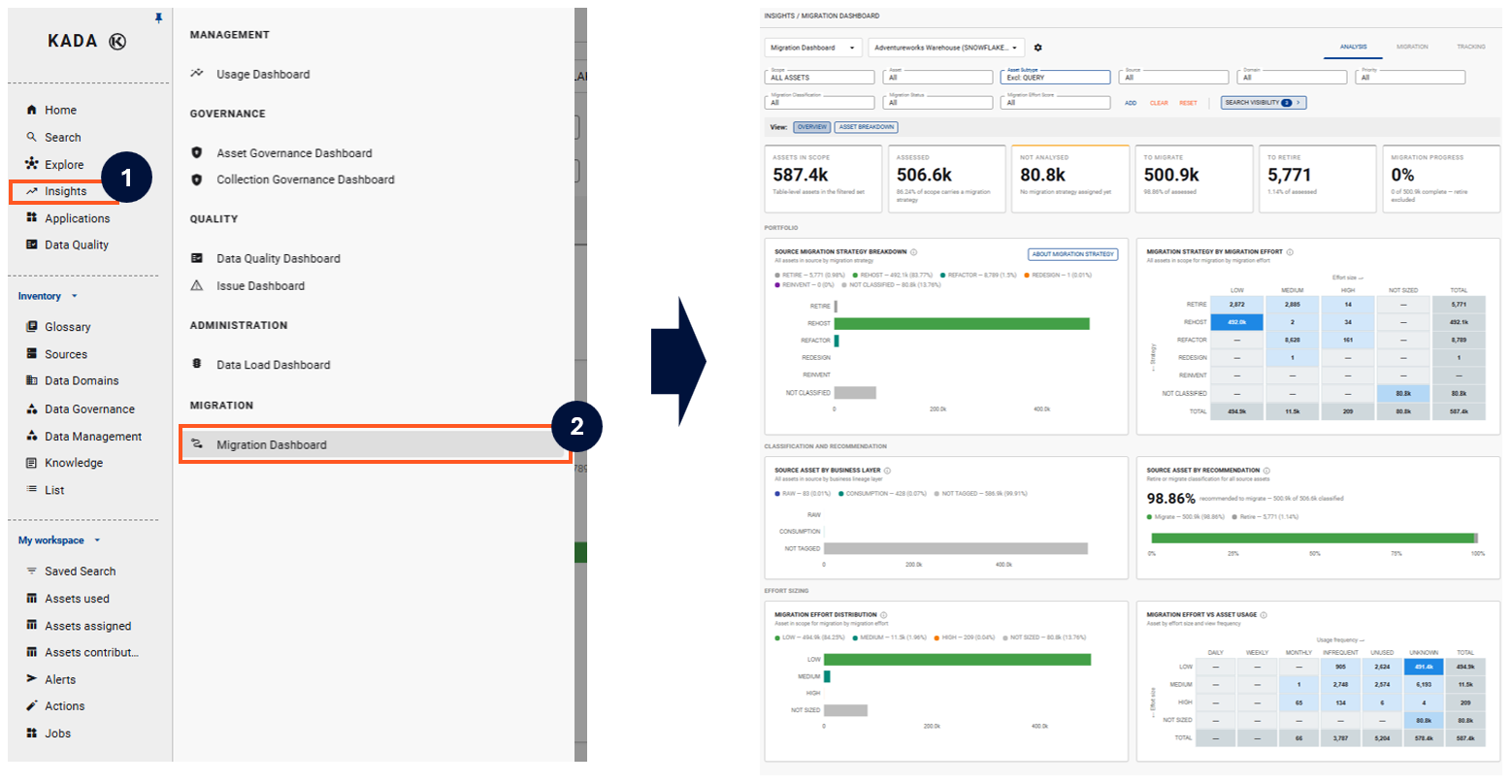
The dashboard needs at least one migration pair and a completed analysis run. See Configuring the Migration Dashboard to set this up.
Selecting a migration pair
The dashboard shows one migration pair at a time. Select the pair you want to review from the dropdown next to the dashboard name. Your filters apply across all three tabs.
By default the dashboard excludes queries (Asset Subtype: Excl: QUERY) so the numbers reflect table-level assets.
Customising your Dashboard
The top part of your dashboard has a number of filters that you can drill down and refine. Similar to the Search pages, you can choose to add additional filters.
When you change your filter settings, K will remember your last filter settings and retain them. Click reset to change the filters back to the default options
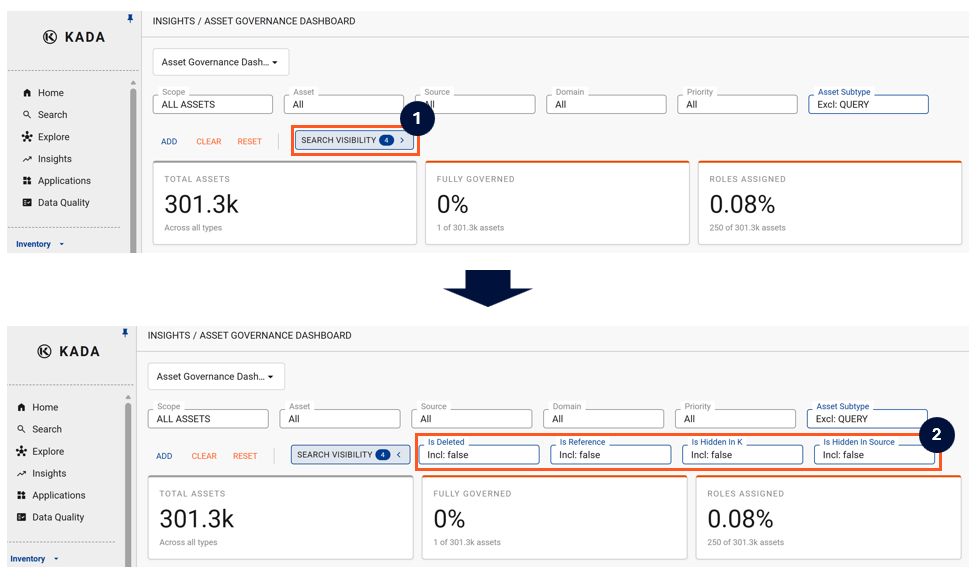
By default, there are a number of standard filters that have been set. These include:
-
Deleted: False (exclude all deleted assets)
-
Reference: False (do not include reference assets)
-
Hidden in K: False (assets that your Data Governance Managers and Admin users have chosen to hide and not have displayed in K by default)
-
Hidden in Source: (assets that are hidden in the Source system)
To view and change these default settings, click the Search Visibility button.
Analysis tab
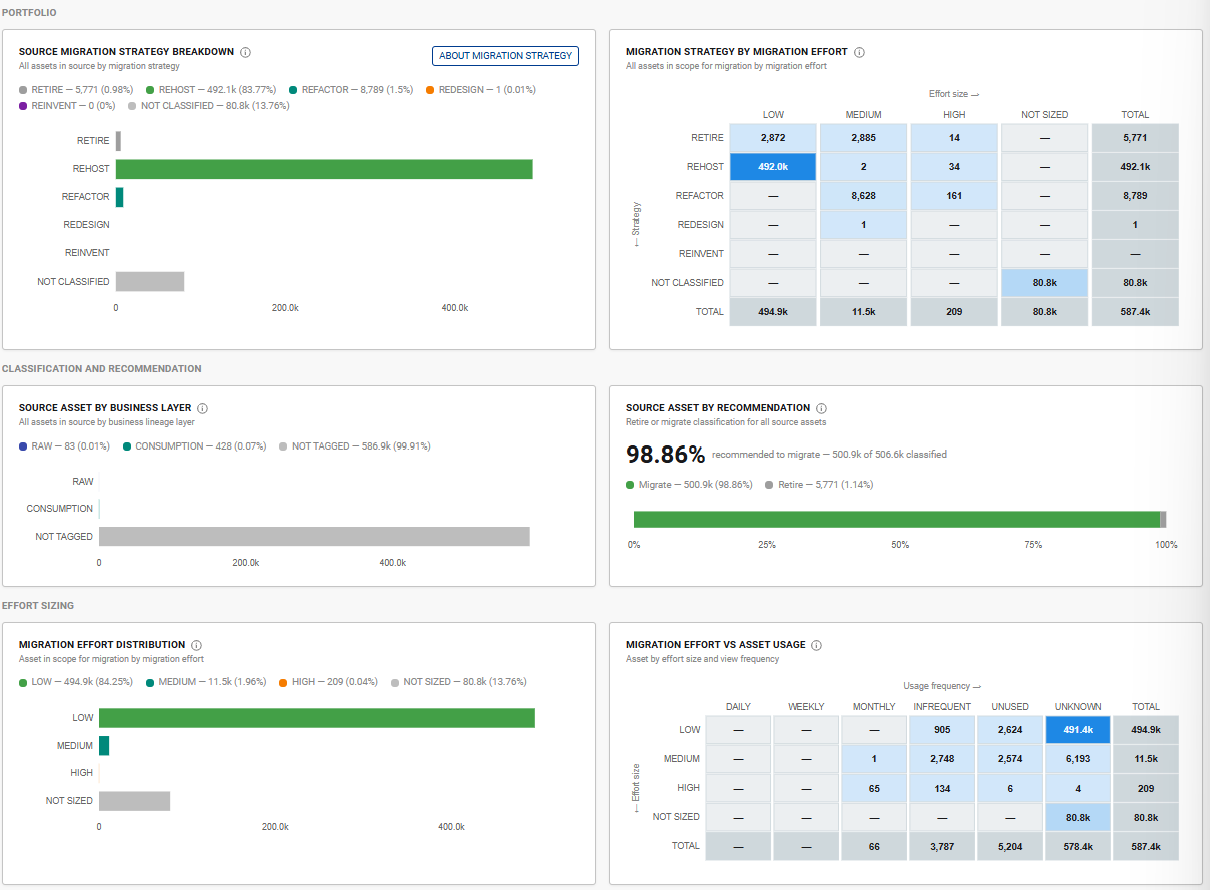
Use the Analysis tab at the start of a migration to understand the size and shape of the work. The cards across the top give you the headline numbers. While the charts provide rich insights

|
Card |
What it shows |
|---|---|
|
Assets in scope |
Table-level assets in the filtered set |
|
Assessed |
Assets that have a migration strategy |
|
Not analysed |
Assets with no migration strategy yet |
|
To migrate |
Assessed assets recommended for migration |
|
To retire |
Assessed assets recommended for retirement |
|
Migration progress |
Share of assets to migrate that are complete. Retired assets are excluded |
|
Chart |
Use it to |
|---|---|
|
Source migration strategy breakdown |
See how many assets fall under each strategy. Click ABOUT MIGRATION STRATEGY for what each strategy means |
|
Migration strategy by migration effort |
Spot where the effort sits, for example how many Refactor assets are High effort |
|
Source asset by business layer |
See how many assets business lineage has tagged as raw or consumption |
|
Source asset by recommendation |
Compare how much of the portfolio is recommended to migrate versus retire |
|
Migration effort distribution |
See how many assets are Low, Medium or High effort |
|
Migration effort vs asset usage |
Compare effort with how often assets are used. Unused or infrequently used assets with high effort are worth questioning before you migrate them |
If a large number of assets show as Not classified or Not sized, check that the analysis has run since the sources were last loaded.
Migration tab
The Migration tab lists every asset to migrate, with its strategy, effort, total usage and migration status. Click OPEN IN SEARCH to work with the list in Search.
Screenshot needed: Migration tab, Assets to migrate list
Review and change an asset's strategy
-
Click the asset name to open its profile in the side panel
-
Select the MIGRATION tab
-
Review the Migration Summary and Migration Stats to see why K recommended this strategy
-
To change it, update the Migration classification to the strategy you want
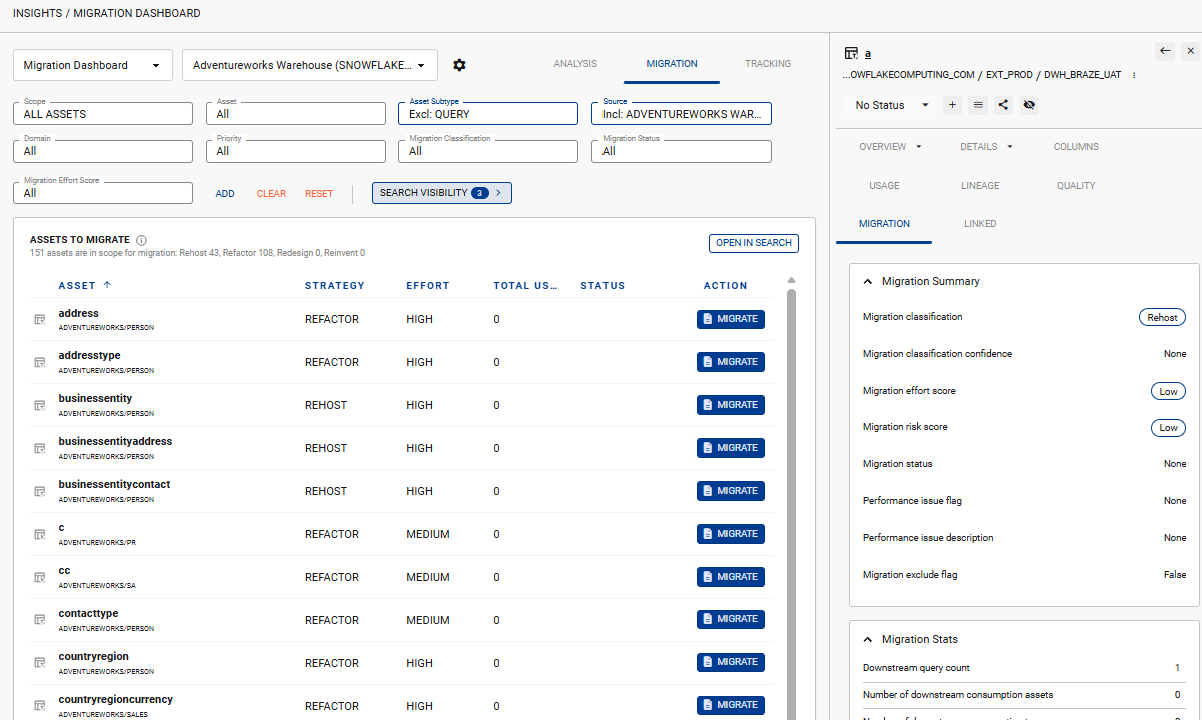
Where you have manually changed the migration strategy, K retains your choice on future runs.
From the same panel you can also set the asset's migration status, which feeds the Tracking tab.
Generate migration code with an agent
Click MIGRATE next to an asset to get an agent prompt that helps write the migration code.
-
Click MIGRATE on the asset you want to migrate
-
Check the Asset details: the source platform, target and strategy
-
Select your Agent Tool
-
Click OPEN IN AGENT to send the prompt straight to your agent, or COPY to paste it in yourself
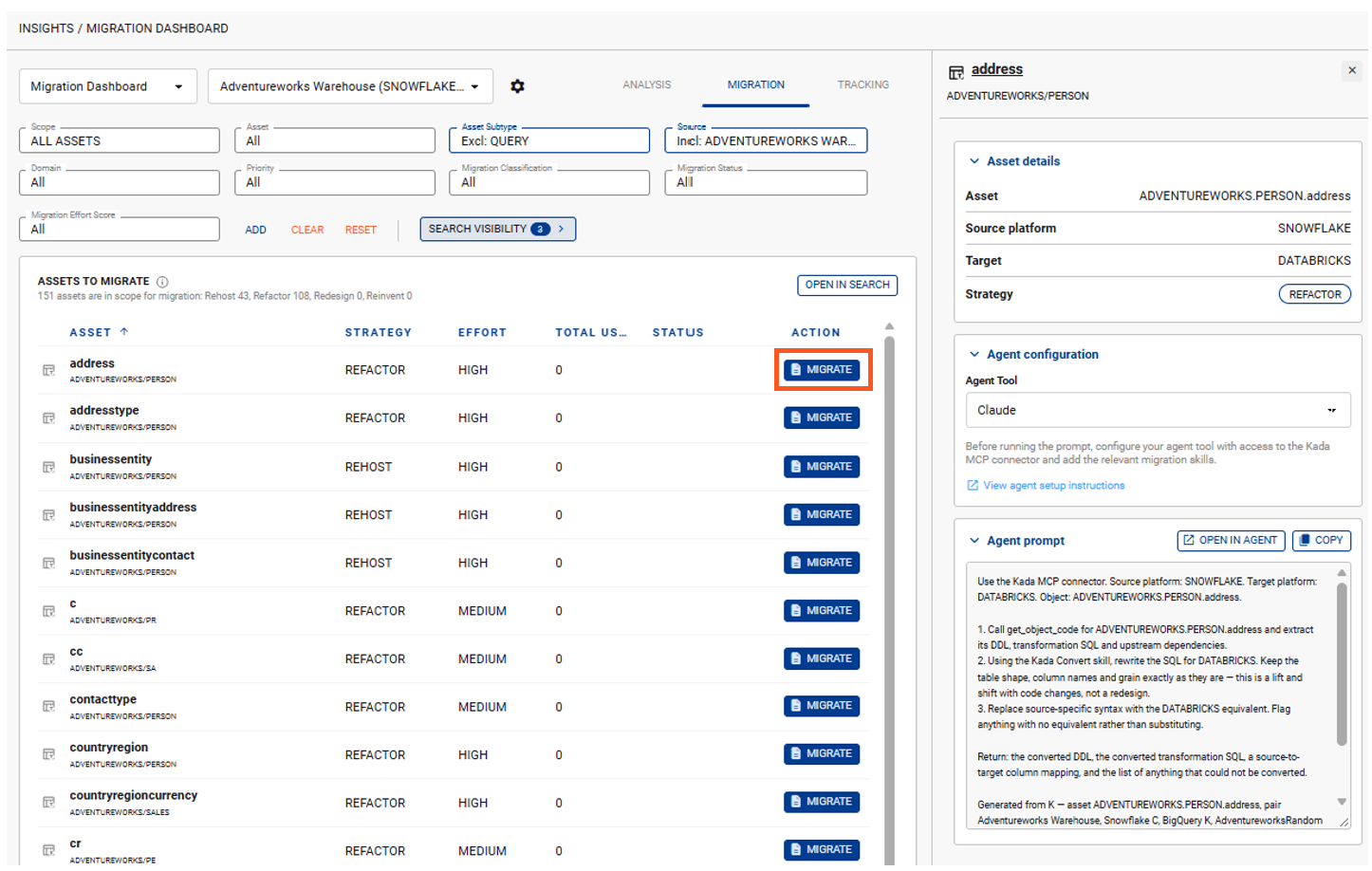
K builds the prompt from the asset's details and strategy. For example, for a Rehost asset the prompt asks the agent to extract the code, reproduce it on the target as-is, and list anything that has no equivalent on the target.
Your agent tool must be connected to the Kada MCP connector and have the Kada migration skills added. See Migration Agent setup.
Tracking
The Tracking tab shows where every asset to migrate is up to, based on its migration status.
|
Card |
Includes these statuses |
|---|---|
|
% Migrated |
Migrated, Legacy decommissioned |
|
% In progress |
In analysis, Build in progress, Technical validation, Business validation |
|
% Blocked |
Blocked |
|
% Not started |
No status, Backlog |
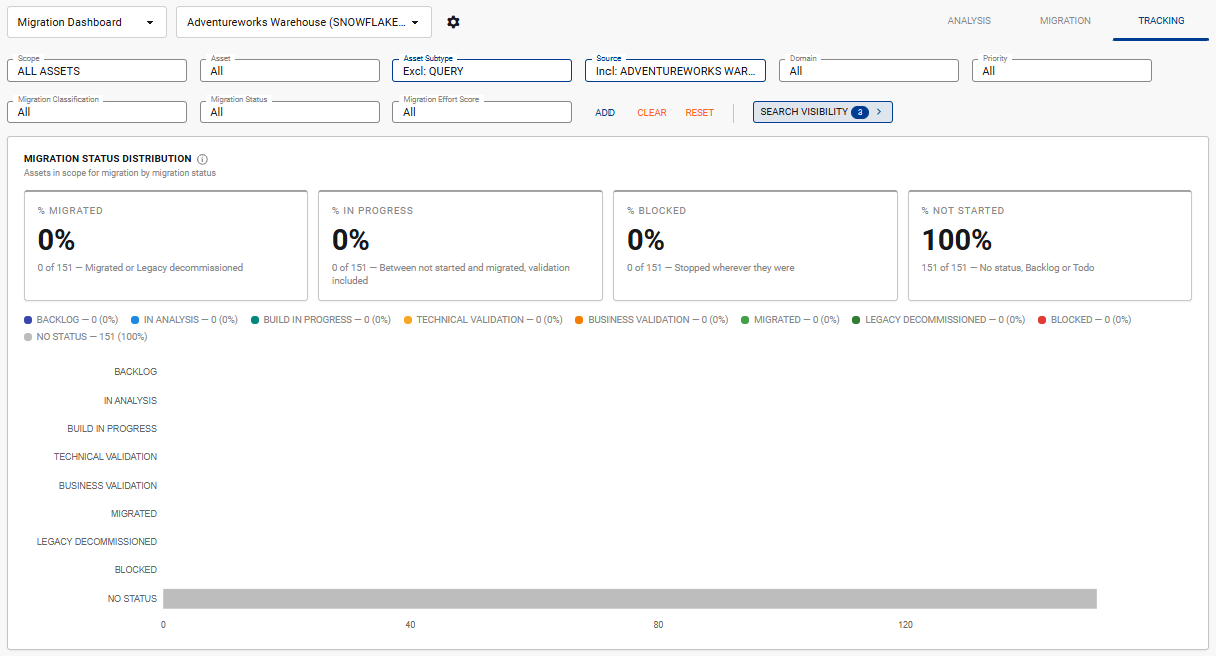
To update an asset's status, open it from the Migration tab and change its migration status in the side panel. You can also bulk update asset status through Bulk Action.