
Updated in Version 6.0
Import Bulk Edit File application lets you apply large-scale metadata updates across your data estate using structured Excel templates — without editing assets one by one.
Access to this function is role-controlled. In general, only Data Governance Managers, Data Managers, and K Admin users have access to bulk edit capabilities.
What you can update in bulk
|
What you can update |
How |
|---|---|
|
Data asset properties |
Update ownership, descriptions, classifications, and other metadata fields across many assets simultaneously |
|
Collection linkages |
Link or unlink assets to collection instances — including domains, glossaries, data governance collections, and data management collections |
|
Tags |
Apply or remove tags across a selected set of assets |
|
Warning notices |
Add warning notices to multiple assets at once |
For bulk updates specific to collection instances (e.g. updating the instances themselves rather than linking assets), see Bulk Edit Collections.
How to import a bulk edit file
-
Navigate to K Applications → Import Bulk Edit File
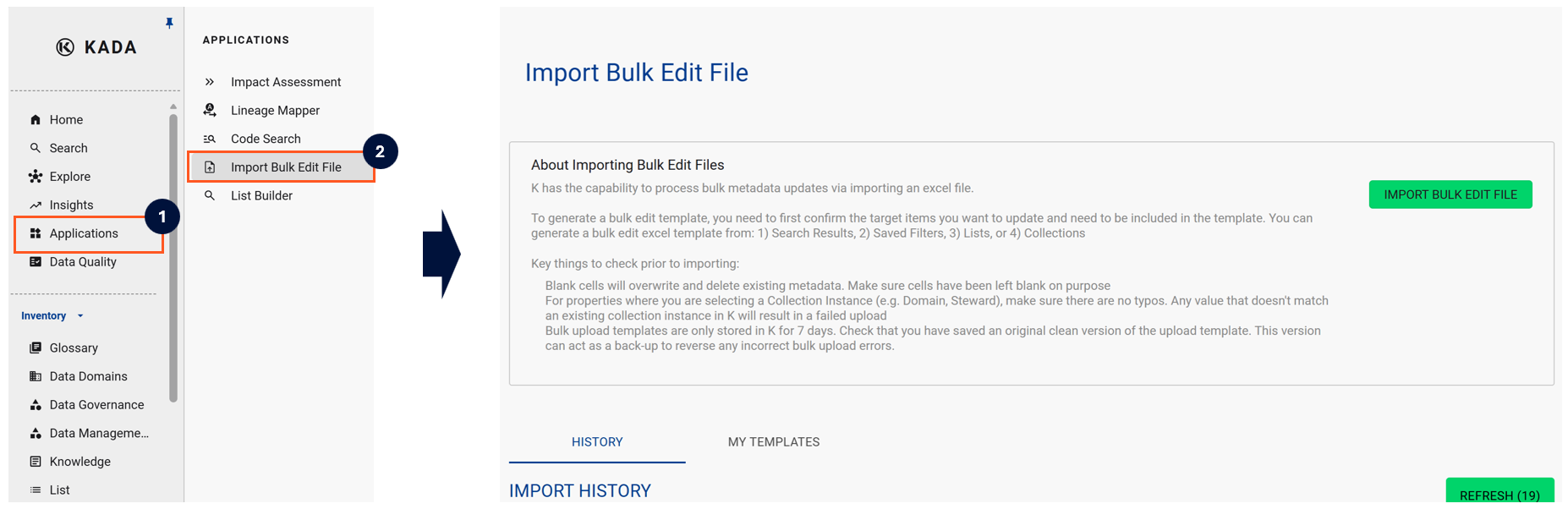
-
Select the type of bulk update you want to perform
-
Download the Excel template for that update type — each template is specific to its update type, do not re-purpose templates
-
Open the template and review the Guide tab before making changes. Key tips:
-
Always make your updates in the highlighted data tab (not the guide)
-
The first row indicates which columns are Mandatory vs Optional
-
Where a field is a lookup value (e.g. Data Owner), ensure the value already exists in K — unrecognised values will cause the entire file to be rejected
-
Blank cells will overwrite existing data — only leave cells blank intentionally
-
-
Save your updated Excel file
-
Return to Import Bulk Edit File, select your update type, and click Import
-
Attach your updated file and confirm the import
-
Monitor the progress of your import in My Ecosystem → My Tasks
Import types
When importing, you will be asked to confirm the import type:
|
Import type |
What it does |
|---|---|
|
Update only |
Modifies existing records based on your Excel file — does not delete anything |
|
Delete and reload |
Deletes all existing data for that update type and recreates from your file. Existing linkages will be removed and must be re-established. Use with caution. |
Tips for a successful import
-
Keep a copy of the original downloaded template as a backup — it can be used to reverse errors from a bulk upload
-
For lookup fields, check for typos — any invalid value will reject the entire file
-
For large updates, consider running a small test batch first before uploading the full file
Reviewing import history
You can view all previous bulk edit imports in the Import tab. This shows the import status, who ran it, and when — useful for audit trails and troubleshooting.
💡 Related: For bulk actions on data assets (updating properties, tags, and lists directly from search results), see Bulk Functions in Data Governance. For bulk updates to collection instances themselves, see Bulk Edit Collections.