
New in Version 6.1
This page is for KADA Admins. It covers setting up the storage connections that alerts can export to. To create the alert itself, see Choosing a delivery channel on the Alerts page.
Alerts can deliver by email, or export their results as a CSV to cloud storage. Before anyone can use storage delivery, a KADA Admin needs to set up at least one storage connection here. Once a connection exists, users with the Data Governance, Data Manager, or KADA Admin role can select it when creating an alert.
K currently supports two storage types: Amazon S3 and Azure Blob.
Creating a storage connection
-
On the side menu, click Settings and under Integrations, click Storage.
-
The page lists every connection that's been configured, with its name and type (S3 or Azure Blob), sorted alphabetically by name.
-

-
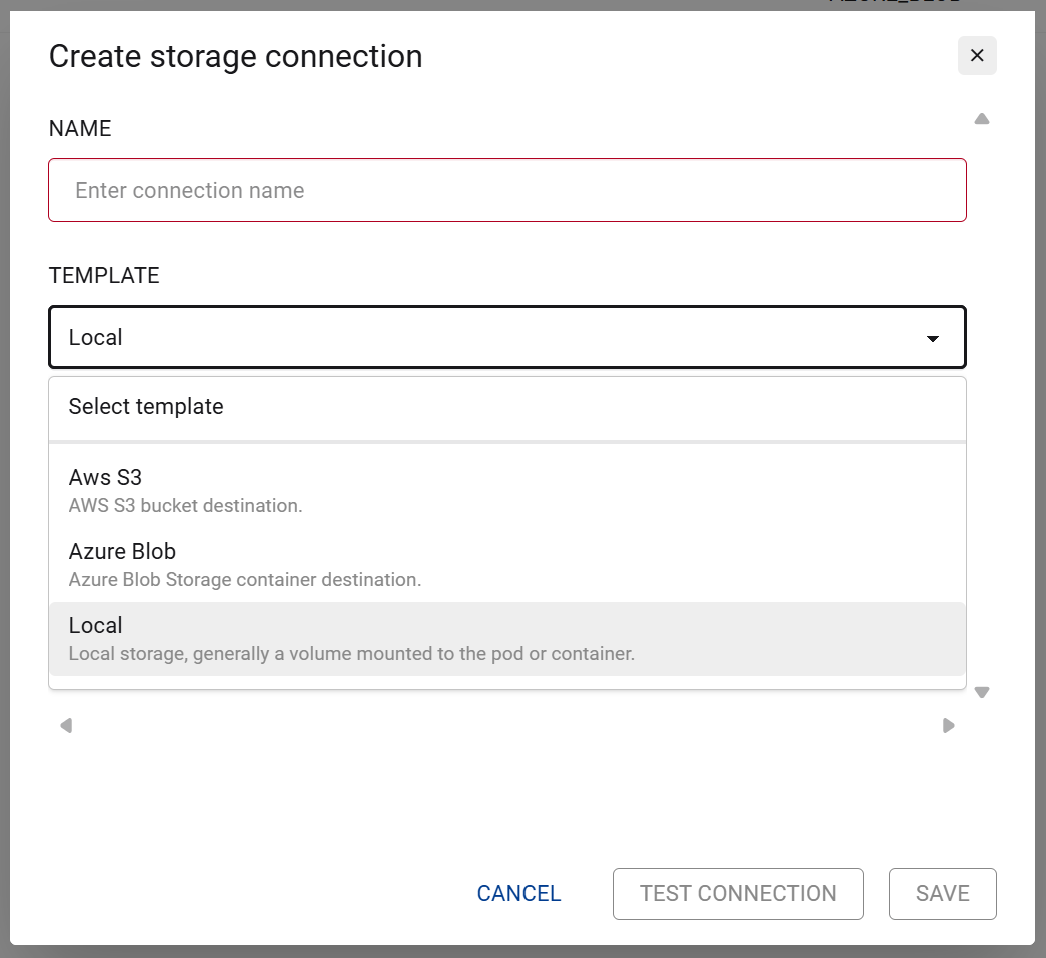
Click Add connection and a pop-up will appear to create a new storage connection
-
Enter a Name for the connection. This is what shows up in the delivery dropdown when someone creates an alert.
-
Select a Template: S3 or Azure Blob.
-
Select an Authentication type for that template. Amazon S3 currently supports Access Key.
-
Fill in the fields for your template and authentication type:
-
S3 with Access Key: bucket name, region, access key ID, secret access key
-
Azure Blob: container name, account name, access key
-
-
Click Test connection. K checks that it can both write to and read from the destination.
-
Click Save.
Save stays disabled until a test has passed against your current field values. If you change any credential field after testing, you'll need to test again before you can save.
Viewing and editing a connection
Click anywhere on a connection's row to see its details.
Click Edit from that view to change the name or configuration. As with creating a connection, you'll need to re-test before Save is enabled if you change any credentials.
Note: Credential fields are always masked here, they never show the actual value.
Deleting a connection
Open the actions menu on a connection and click Delete.
-
If any alerts are still using that connection, deletion is blocked. K tells you how many alerts are attached, clean those up (or point them elsewhere) first.
-
If nothing is using it, you'll be asked to confirm before it's removed.