
UPDATED IN VERSION 6.1
A Warning Notice is a great way to alert K users about data incidents or issues impacting a data asset. Once a Warning Notice has been created, it can be linked to multiple data assets.
After you click create the warning notice will appear at the top of the Data Profile page of a Governance Widget embedded in your reporting tools
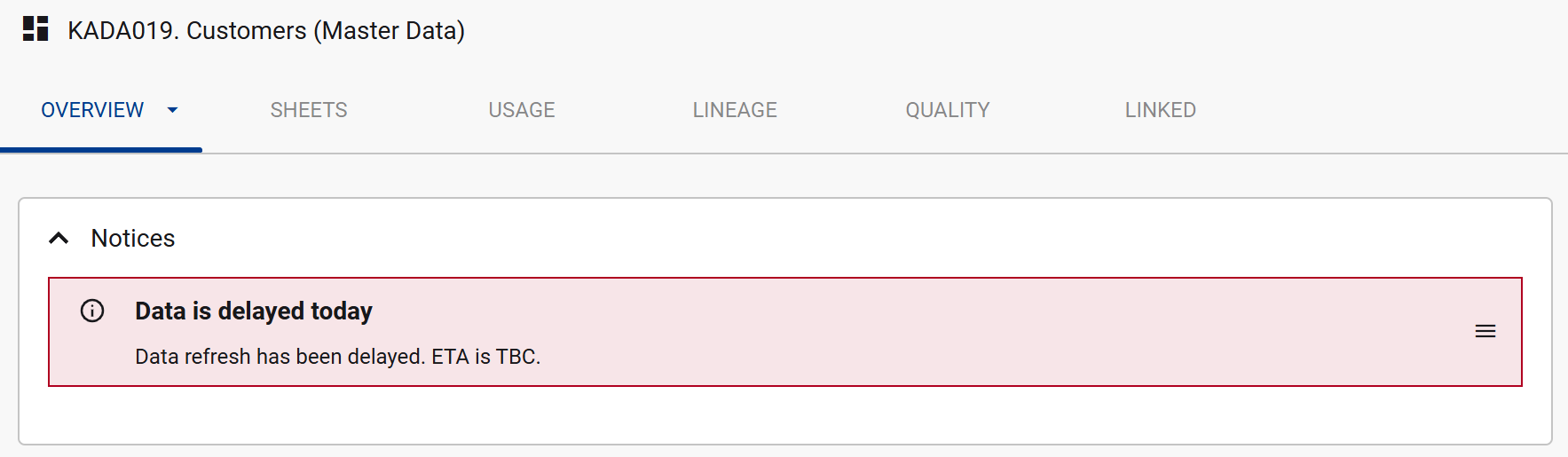

Creating a Warning Notice
The quickest way to create a warning notice is via the Data Profile page
-
Step 1) Click on the Add button at the top right corner
-
Step 2) Click Add warning notice

-
Step 3) Click Create a new warning notice
-
If the warning notice was previously created or used for another data asset, you can try searching for the warning notice and linking that warning notice to this data asset as well

-
-
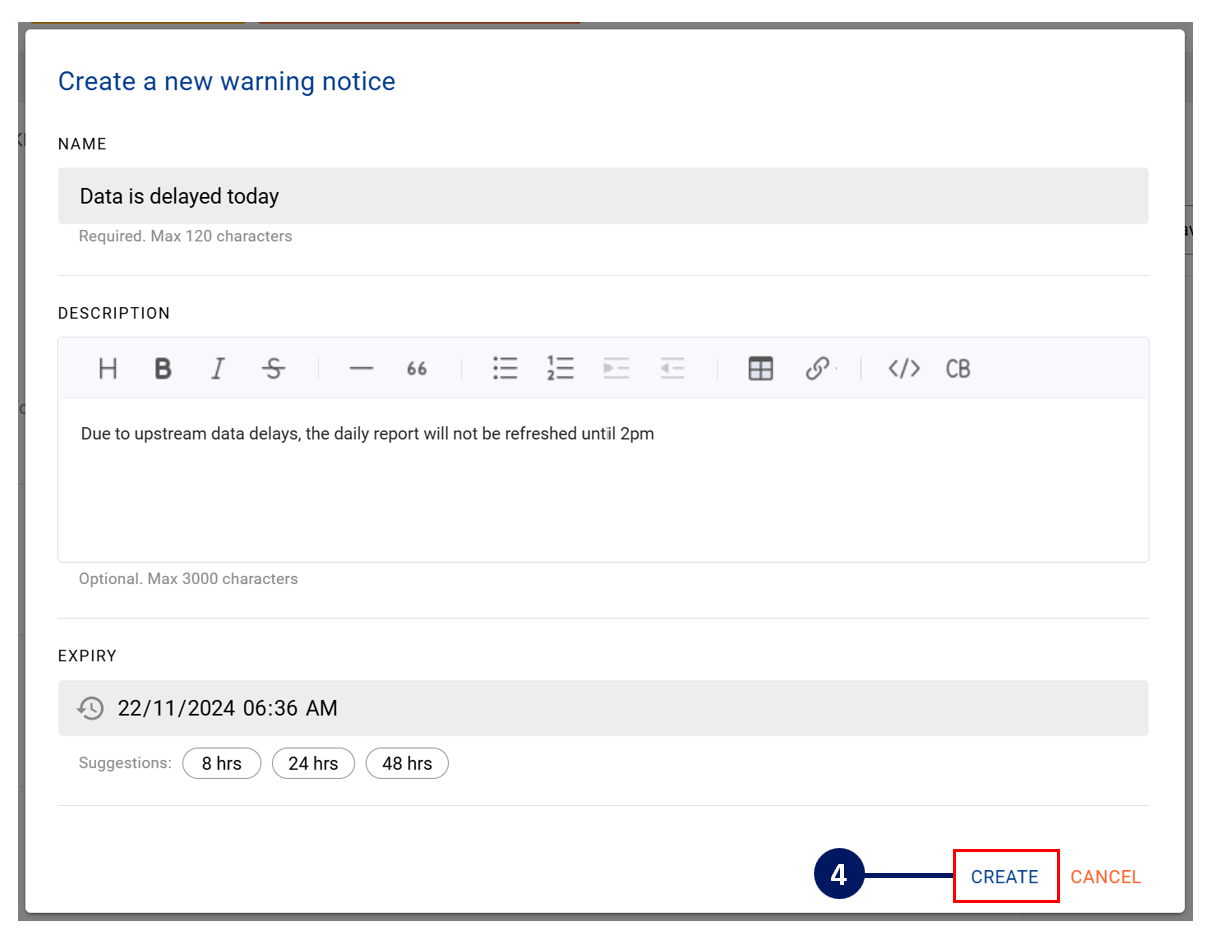
Step 4) Complete the warning notice details and click Create
-
Keep the name as concise as possible. The name will populate in the warning bars and governance widgets
-
The description field supports rich text formatting (bold, links, lists). This formatting carries through to the warning banner display
-
All warning notices are timebound. You must set an expiry date/time
-
After a warning notice has expired and is de-activated, you can choose to re-activate it at anytime
-
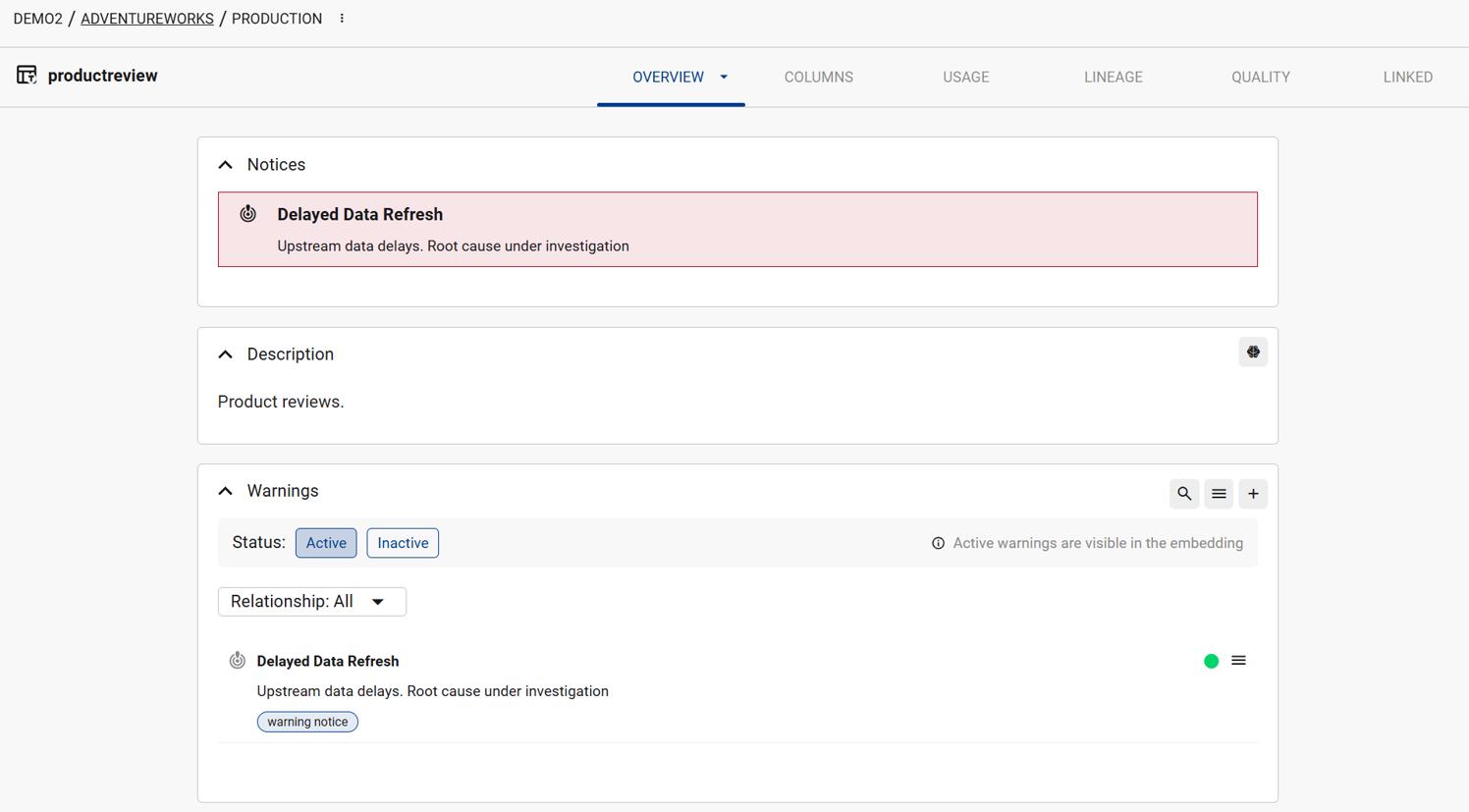
Viewing Notices on the Data Profile page
Every Data Profile page has a Notices section listing every warning linked to that asset, both active and inactive.
-
Each notice in the list shows its name, description, expiry, and a relationship badge showing how it's linked to the asset
-
Click a notice to open its full details in the sidebar
-
Use the Active / Inactive toggle to switch which notices are listed. Active warnings are visible in embedded Governance Widgets; inactive warnings are not
-
Use the relationship filter to narrow the list to a specific link type
-
Use Search to find a notice by name, or Add to link an existing or new warning notice to the asset
-
Right-click a notice for more actions: open in new tab, add to list, or remove the link to the asset
Re-using / Linking Warning Notices
Warning Notices are part of a Collection. This means you can link multiple data assets to the same warning notice. Once a warning notice has been created, you can edit the warning notice details at any time, similar to how you would update an instance within a collection
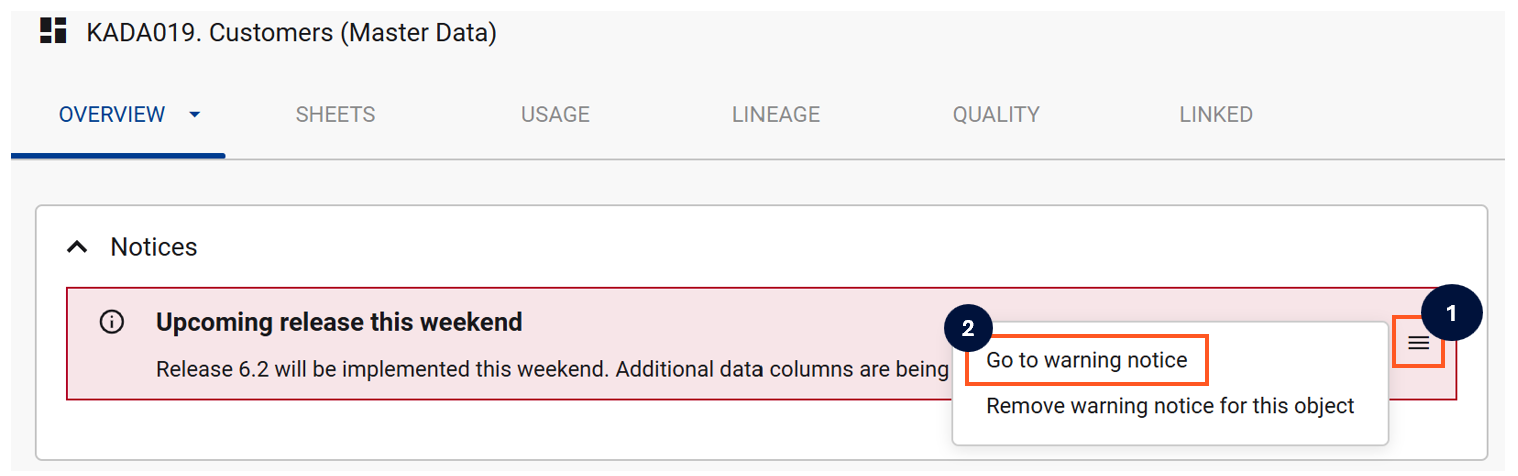
To quickly open the instance, click on the Menu icon and click on Go to warning notice
On the Warning Notice page, you can easily:
-
Update the warning message and description
-
Check if there are other data assets linked to this warning message via the Related tab
-
De-activate or extend the warning message
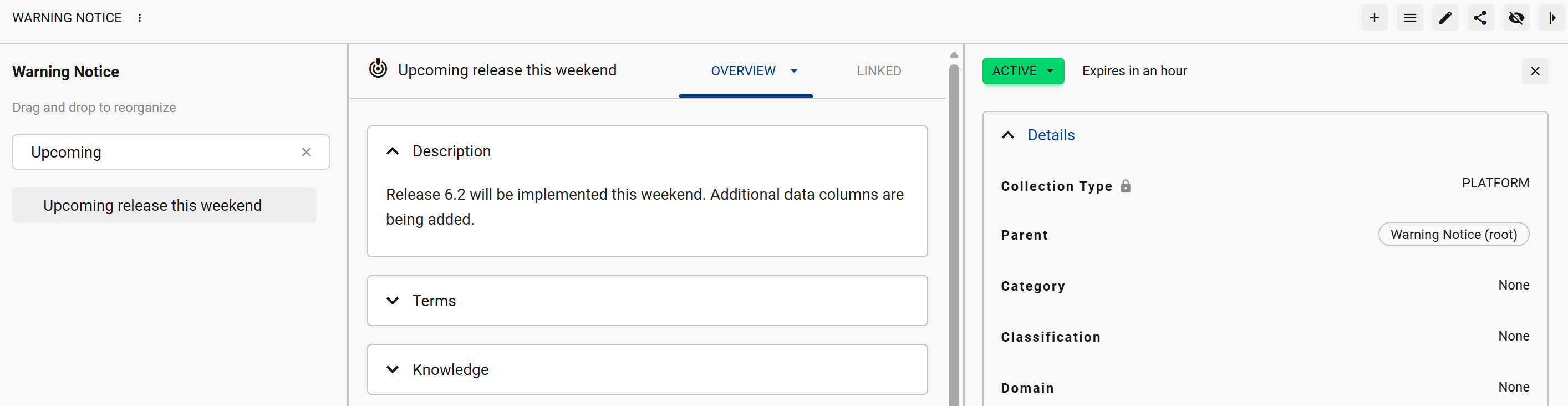
Sometimes data incidents can re-occur. Re-activating a previous warning by extending an expired warning can quickly add the notice to all data assets that are linked.
