
NEW IN RELEASE 6.1
What is Business Lineage?
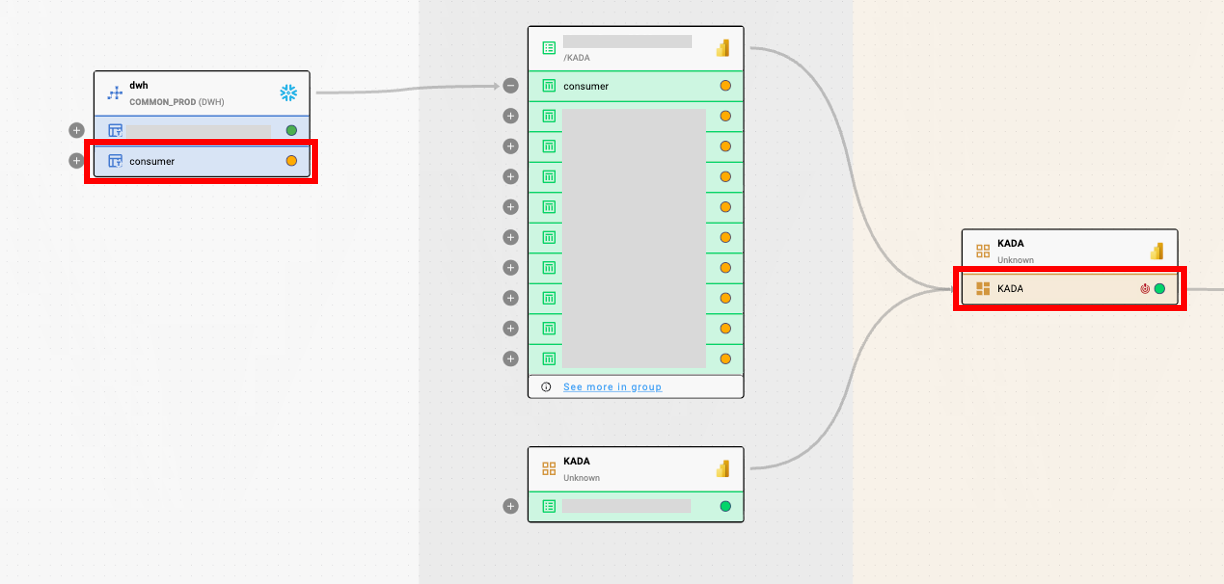
Business Lineage lets people understand an asset's upstream or downstream context — without having to open and read a full technical lineage graph.
It provides a simplified view vs. technical lineage, reducing the need to expand lineage maps to answer questions such as where does the data come from.
How it works
Once Business Lineage is configured, all assets assigned a Layer will be:
-
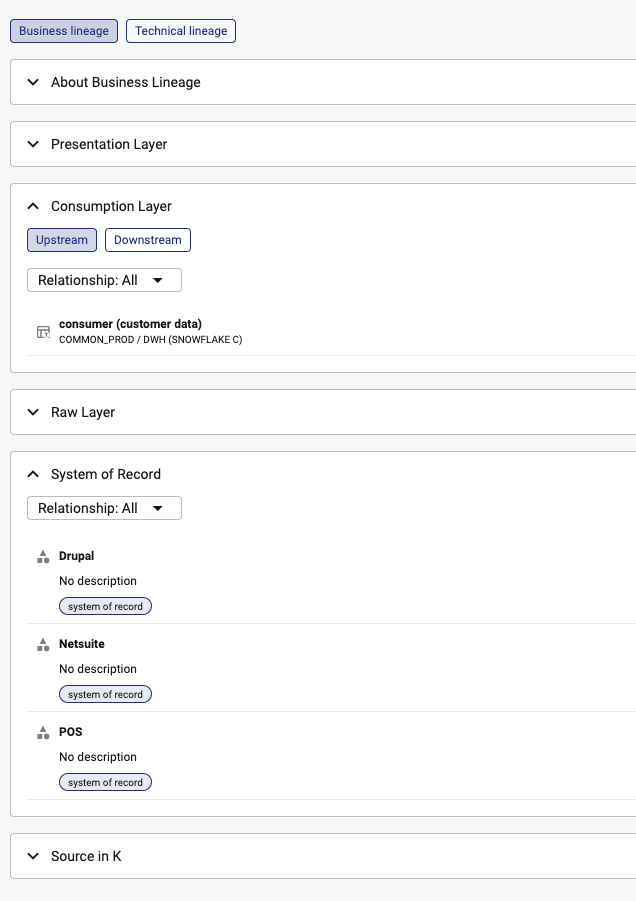
Connected to its upstream and downstream assets across the Raw, Consumption, and Presentation layers — any intermediate assets, such as staging or temp tables, are hidden from this view.
-
Rolled up, for Terms, Warnings, Issues, and DQ Tests linked at column level, to the parent table (or from Sheets/Dataset Fields to their parent Report/Dataset Table).
-
Pushed down, for its Layer position and System of Record, to its own columns.
-
Propagated, for Terms, Warnings, Issues, DQ Tests, and Source in K, along technical lineage to every downstream asset.
System of Record is the one property that does both: it pushes down to its own table's columns and separately propagates along lineage to every downstream table.
Links created by business lineage can be suppressed if they're noise or incorrect — suppressing an item only affects that one relationship on that one asset; it doesn't stop the item from continuing downstream. See Suppressing and Restoring Propagated Items for the one action that does block downstream propagation (suppressing the lineage edge itself, not the item).
Visit Business Lineage Rulesfor more detailed information and examples on how it works in practice
Why it matters
|
Outcome |
What changes for users |
|---|---|
|
Faster trust decisions |
A user opening a report or table sees upstream definitions, warnings, quality failures, and open issues directly on the asset — no need to trace the lineage graph by hand. |
|
Governance configured once, applied everywhere |
Governance teams set up System of Record and layers (Raw / Consumption / Presentation) a single time; the daily job keeps every downstream asset up to date automatically. |
|
Noise stays controllable |
Anything propagated is clearly distinguished from directly-linked metadata, and can be suppressed by users with edit permissions such as Data Owners and Stewards. |
Key Business Lineage Concepts
|
Term |
Meaning |
|---|---|
|
Layer |
A table-level property: None, Raw, Consumption, or Presentation. Layer determines whether an asset's Business Lineage tab is shown, and what shows up in the layered upstream view. Adding a Layer to a Table level object will propagate the layer value to its children (e.g. Columns) without you having to perform the action. |
|
System of Record |
A Collection marking where data originates from. Linked to table-level assets in the Raw layer only. It is automatically pushed down to that table's own columns and propagates downstream to Consumption and Presentation assets. |
|
Source in K |
An auto-derived link showing where an asset's data is sourced from within K. This is useful to quickly identify which upstream source (e.g. Database) a Report is connected to without having to look at technical lineage. |
|
Roll up |
Terms, Warnings, Issues, and DQ Tests linked at column level are automatically added to the parent table. Roll-up is one level only — a rolled-up item is display only and does not itself continue propagating onward from the parent. |
|
Push down |
Layer and System of Record travel from a table down to its own columns only. |
|
Propagated from upstream |
An item that reached an asset by travelling technical lineage (not roll-up or push-down) from an upstream asset. Propagated items are tagged with a "business_" prefix on their relationship name (e.g. |
|
Suppression |
Hiding a specific propagated relationship on a specific asset, without deleting the underlying link. It only affects that one relationship, on that one asset, and doesn't stop the item from reaching assets further downstream. |
|
Business Lineage edge vs. Technical Lineage edge |
Both can be added manually between two tables, but they're not interchangeable. A manually-added Business Lineage edge only establishes the upstream Layer reference — it does not carry Terms, Warnings, or other attributes. A manually-added Technical Lineage edge behaves like a real, discovered lineage edge and carries everything, the same as an edge Business Lineage relies on automatically. |
What stops propagation
Three things behave differently to what you might expect. Worth knowing before you start troubleshooting a "missing" item:
-
Deleting an asset in the path stops everything beyond it from showing that chain's upstream context — not the layer reference, not any attribute travelling through it.
-
Deleting an attribute itself (a Term, Issue, DQ test, Source in K reference, or System of Record object) also stops it from propagating further, except Warnings — a deleted or inactive Warning keeps propagating as if nothing happened.
-
Hidden flags don't block anything.
hidden_in_Kandhidden_in_sourceare visibility settings, not deletions, and have no effect on propagation.
Suppressing an item is also easy to mix up with suppressing the connection carrying it: suppressing an item (a Term, Warning, Issue, or DQ test) is local to that one asset and doesn't interrupt what's downstream. Suppressing or deactivating the lineage edge itself is the stronger action — it blocks everything from crossing that edge. See Suppressing and Restoring Propagated Items.
Who does what
|
Guide |
Who it's for |
What it covers |
|---|---|---|
|
Data Governance, Data Manager, Admin |
Enabling Business Lineage, configuring System of Record, assigning Layers (individually and in bulk) |
|
|
All users |
Where propagated Terms, Warnings, Issues, and DQ Tests show up across the Overview, Quality, and Lineage tabs, and in the sidebar |
|
|
Users with Edit access, Data Owners, Data Stewards |
Hiding a propagated item that's noise, and restoring it later, plus how that differs from suppressing a lineage edge |
|
|
Business Lineage Extract |
All users |
Getting upstream context through Ask K, and exporting business lineage data |
Permissions Summary
|
Action |
Who |
|---|---|
|
View business lineage on a profile (roll-ups, push-downs, Terms, Warnings, Issues, Upstream DQ tests, Lineage tab, map, Layer, System of Record) |
All K roles |
|
Configure Business Lineage Settings page |
Data Governance, Data Manager, or Admin |
|
Edit Layer / System of Record, incl. bulk actions |
Data Governance, Data Manager, or Admin |
|
Link, suppress, or restore Terms / Warnings / Issues / Upstream DQ tests |
Anyone granted permission via the Role Permission page, or the asset's Data Owner / Data Steward |
|
Run the Business Lineage extract |
All K roles |
Current Limitations
-
Business Lineage is calculated daily (part of the daily job schedule).
-
There's no audit log of suppression actions in this release.
-
Business Lineage itself is disabled by default at the platform level and must be turned on in Settings.