
NEW IN RELEASE 6.1
Viewing Business Lineage on an Asset
Anyone with permission to view a profile can see its business lineage context — no special role is required for viewing. Business lineage is only available on assets that are added to a Raw, Consumption or Presentation layer. If no business lineage is configured for an asset then only technical lineage will be shown.
Business lineage not only simplifies technical lineage, it also propagates terms, warnings, issues, and data quality tests (if enabled in business lineage settings).
This guide walks through Business Lineage and where propagated Terms, Warnings, Issues, and DQ Tests show up across an asset's profile.
Not sure what "roll up," "push down," or "propagated from upstream" mean? Check the Key Concepts glossary in the Business Lineage Overview section first.
Overview tab: Terms and Warnings
Business-linked Terms appear in the Term list alongside directly-linked ones. You can filter for between directly linked and propagated terms using the Relationship filter.
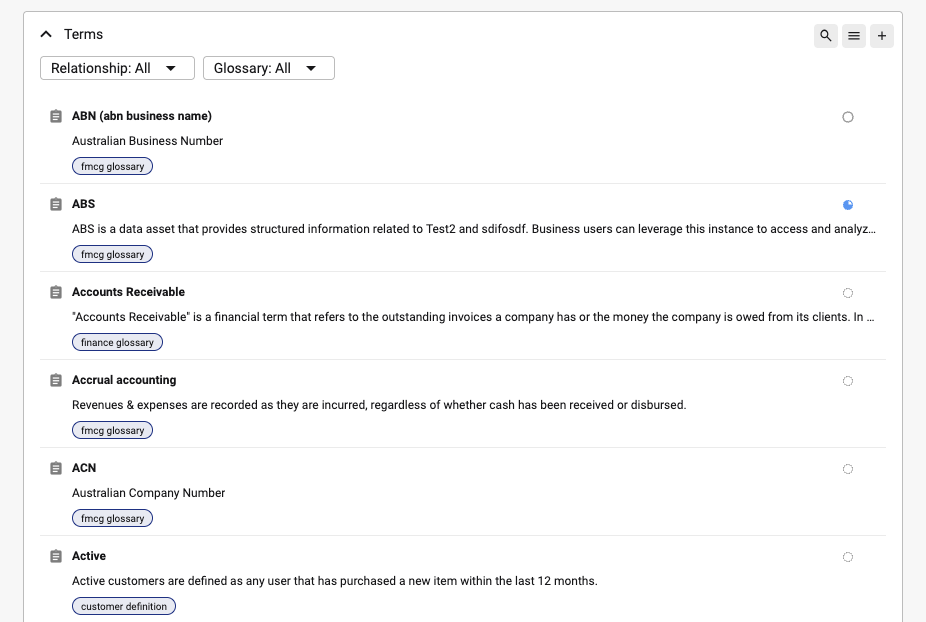
Warnings appear in their own Warning list, with the same business-linked/direct distinction and an active/inactive toggle.
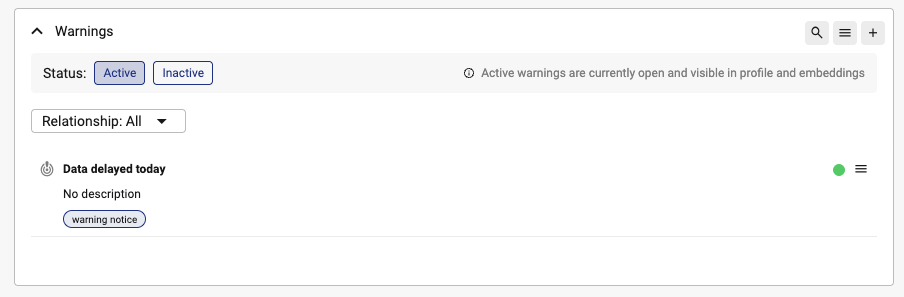
Terms and Warnings that rolled up from a child column are display only on the parent — they show up in the list and can't be suppressed from there (see the Suppressing a Propagated Item guide).
Quality tab: Issues, DQ Tests, and Upstream DQ tests
Issues appear in the Issue list with a business-linked/direct indicator, and can be filtered by that relationship.
DQ Tests shows tests directly linked to the asset, plus any tests rolled up from a directly-linked child column.
Upstream DQ tests is a separate section listing every DQ test reaching the asset from upstream — of any status (pass, fail, or not run) — either propagated along lineage or rolled up from a child column that itself received it from upstream.
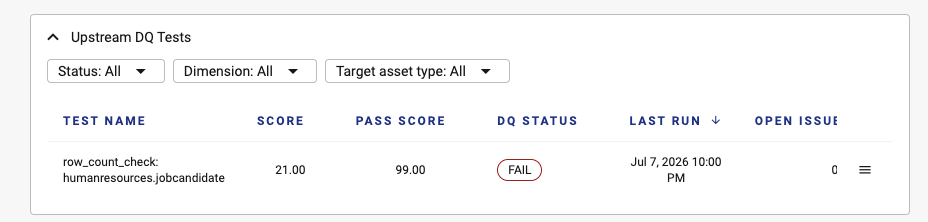
Use the DQ Status filter to narrow to Pass or Fail. At table level, a Target Asset Type filter lets you scope to Table or Column results; at column level this filter isn't shown, since only Column-scoped results are possible.
Lineage tab: Business lineage view and the map
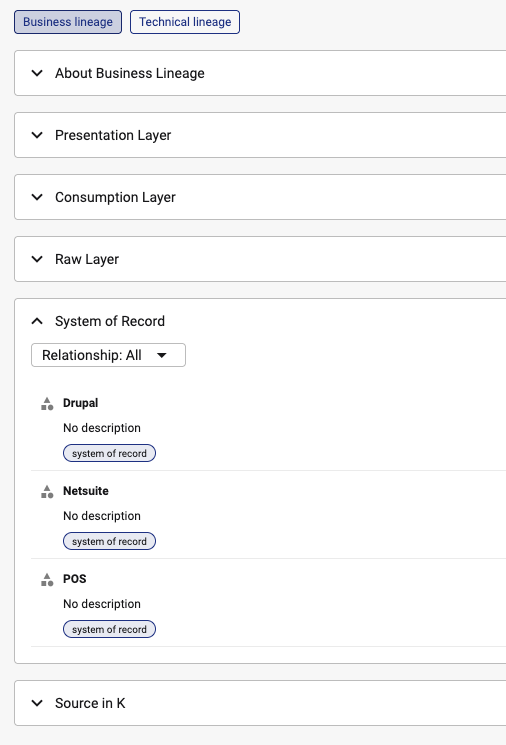
Toggle to the Business Lineage view on the Lineage tab to see the asset's key upstream hops by layer — Presentation, Consumption, Raw, System of Record, and Source in K.
Open the Map to see the previous visual, explorable version of the technical lineage relationships.
Tips
|
Situation |
What's happening |
What to do |
|---|---|---|
|
An item shows "Roll up" and I can't suppress it here |
Rolled-up items are display only on the parent |
See the Suppressing guide, linked below — you'll suppress it at the child asset it arrived from instead |
|
I can't find a Relationship filter on Upstream DQ tests |
This section doesn't have one by design - all Upstream DQ tests are propagated. Directly linked DQ tests appear in the DQ Test section. |
Use the DQ Status filter, and the Target Asset Type filter instead |
|
A column shows no System of Record |
Its parent table doesn't have one |
System of Record only reaches columns by push-down from their own parent table — never from another column, even if column-level lineage exists |
|
A column's Layer badge doesn't match what I expected from its Terms/Warnings |
The Layer badge is sourced from the table-level chain only; Terms and Warnings can also arrive via the column-level path |
Check the table's own Layer setting rather than assuming the column path drives the badge |