
NEW IN RELEASE 6.1
Business Lineage propagation follows a small set of rules. This page groups all 12 rules into five types, each with a diagram you can read on its own, plus the exact mechanics underneath if you want them.
Tip: How to quickly identify if an attribute has been propagated or directly linked
-
Propagated attributes always start with the prefix “business_”. For example:
-
Direct link: relates_to
-
Propagated link: business_relates_to
-
The Three Propagation Mechanisms
Almost every rule below is a variation of one of these three ways an attribute can move from one asset to another.
|
Propagation Mechanisms |
Direction |
Applies to |
|---|---|---|
|
Column → its own parent table (one level only) |
Terms, Warnings, Issues, DQ Tests |
|
Table → its own columns (one level only) |
Layer, System of Record |
|
Any upstream asset → any downstream asset, any number of hops |
Terms, Warnings, Issues, DQ Tests, Source in K, System of Record |
5 Groups of Propagation Rules
-
Core Mechanics (rules 1-4) — How Layer, System of Record, and other attributes move by default
-
How Paths Combine (rules 5-6) — What you see when table-level and column-level paths both reach the same asset
-
Manual Edges (rule 7) — Two ways to manually connect two tables, and what each one carries
-
Deletion (rules 8-9) — Removing an asset or attribute stops propagation, with one exception
-
Hidden Flags & Suppression (rules 10-12) — What looks like it should block propagation, and what actually does
Group 1: Core Mechanics
How Layer, System of Record, and other attributes move by default.
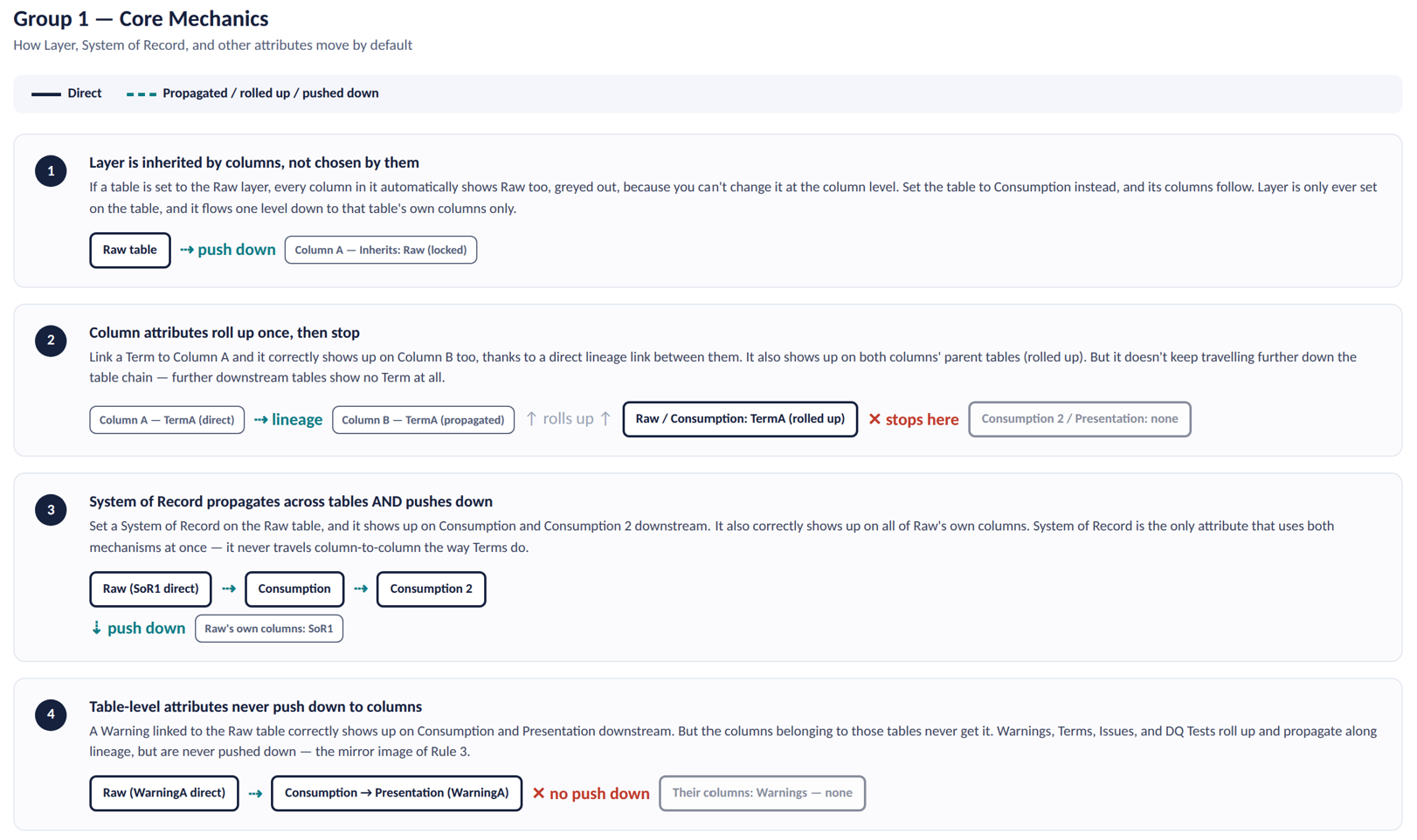
Rule 1: Layer Is Inherited by Columns, Not Chosen by Them
If a table is set to the Raw layer, every column in it automatically shows Raw too, greyed out, because you can't change it at the column level. Set the table to Consumption instead, and its columns follow.
Rule 2: Column Attributes Roll Up Once — Then Stop
Link a Term to Column A and it correctly shows up on Column B too, thanks to a direct lineage link between them. It also shows up on both columns' parent tables (rolled up). But it doesn't keep travelling further down the table chain.
Rule 3: System of Record Propagates Across Tables and Pushes Down
Set a System of Record on the Raw table, and it shows up on Consumption and Consumption 2 downstream (arriving "via propagated upstream"), and it also correctly shows up on all of Raw's own columns.
Rule 4: Table-Level Attributes Never Push Down to Columns
A Warning linked to the Raw table correctly shows up on Consumption and Presentation downstream. But check the columns that belong to those tables, the Warning isn't there. Warnings roll up and propagate along lineage, but are never pushed down.
Group 2: How Paths Combine
What you see when table-level and column-level paths both reach the same asset.
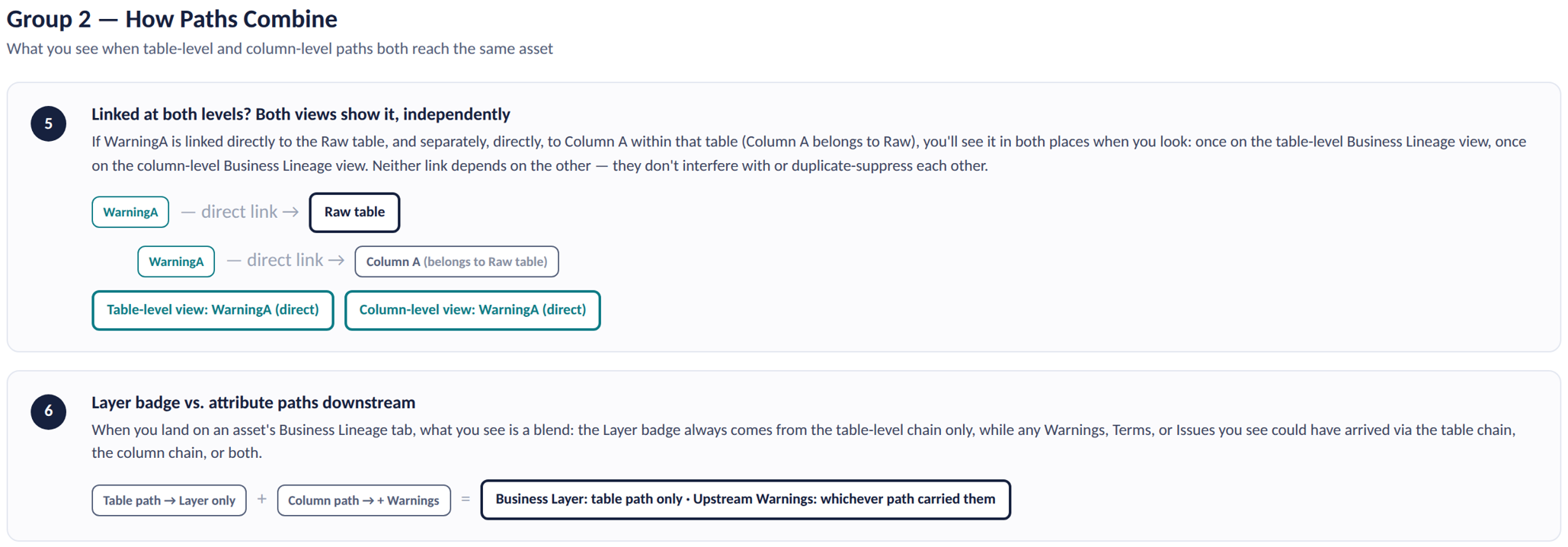
Rule 5: Linked at Both Levels? Both Views Show It — Independently
If WarningA is linked directly to the Raw table, and separately, directly, to Column A within that table (Column A belongs to Raw), you'll see it in both places when you look: once on the table-level Business Lineage view, once on the column-level Business Lineage view. Neither link depends on the other.
Rule 6: How Layer and Attribute Paths Combine Downstream
When you land on an asset's Business Lineage tab, what you see is a blend: the Layer badge always comes from the table-level chain only, while any Warnings, Terms, or Issues you see could have arrived via the table chain, the column chain, or both.
Group 3: Manual Edges
Two ways to manually connect two tables — and they carry different things.
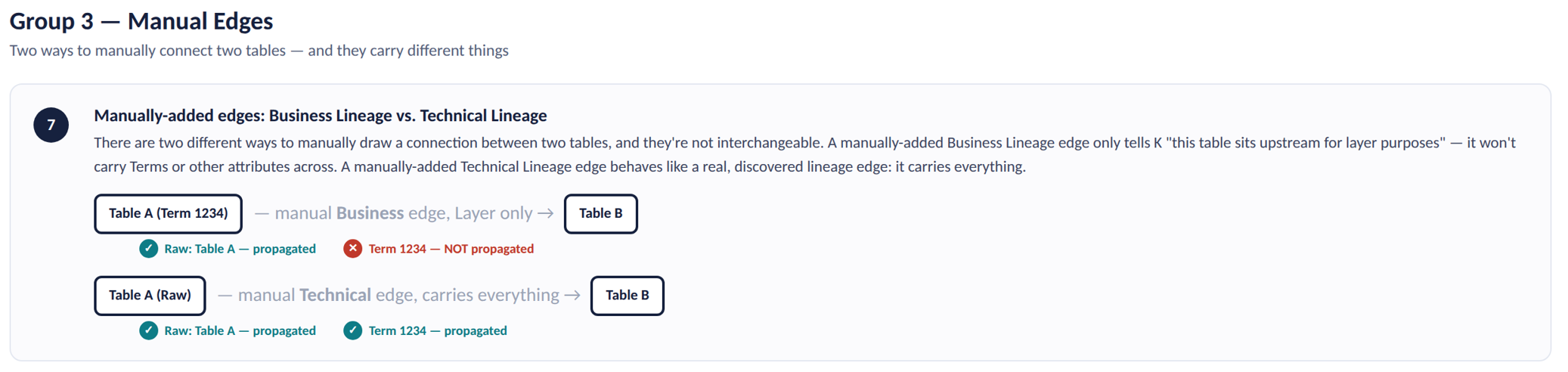
Rule 7: Manually-Added Edges: Business vs. Technical Lineage
There are two different ways to manually draw a connection between two tables, and they're not interchangeable. A manually-added Business Lineage edge only tells K "this table sits upstream for layer purposes," it won't carry Terms or other attributes across. A manually-added Technical Lineage edge behaves like a real, discovered lineage edge: it carries everything.
Group 4: Deletion
Removing an asset or attribute stops propagation — with one exception.
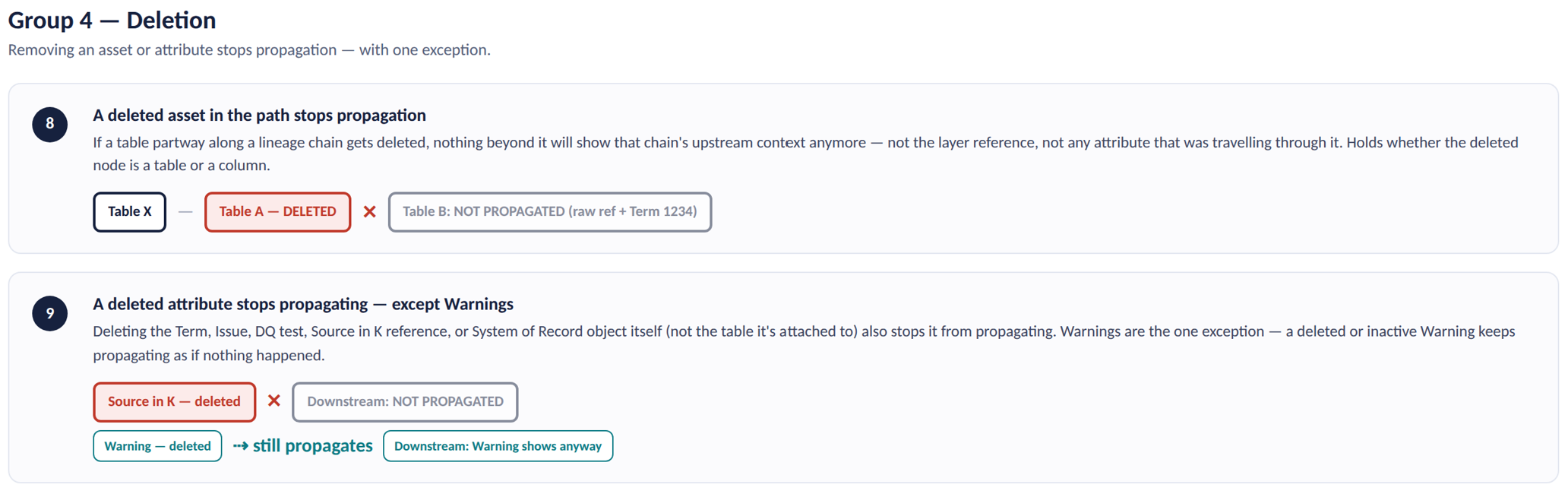
Rule 8: A Deleted Asset in the Path Stops Propagation
If a table partway along a lineage chain gets deleted, nothing beyond it will show that chain's upstream context anymore, not the layer reference, not any attribute that was travelling through it.
Rule 9: A Deleted Attribute Stops Propagating — Except Warnings
Deleting the Term, Issue, DQ test, Source in K reference, or System of Record object itself (as opposed to the table it's attached to) also stops it from propagating. Warnings are the one exception, a deleted or inactive Warning keeps propagating as if nothing happened.
Group 5: Hidden Flags & Suppression
What looks like it should block propagation, and what actually does.
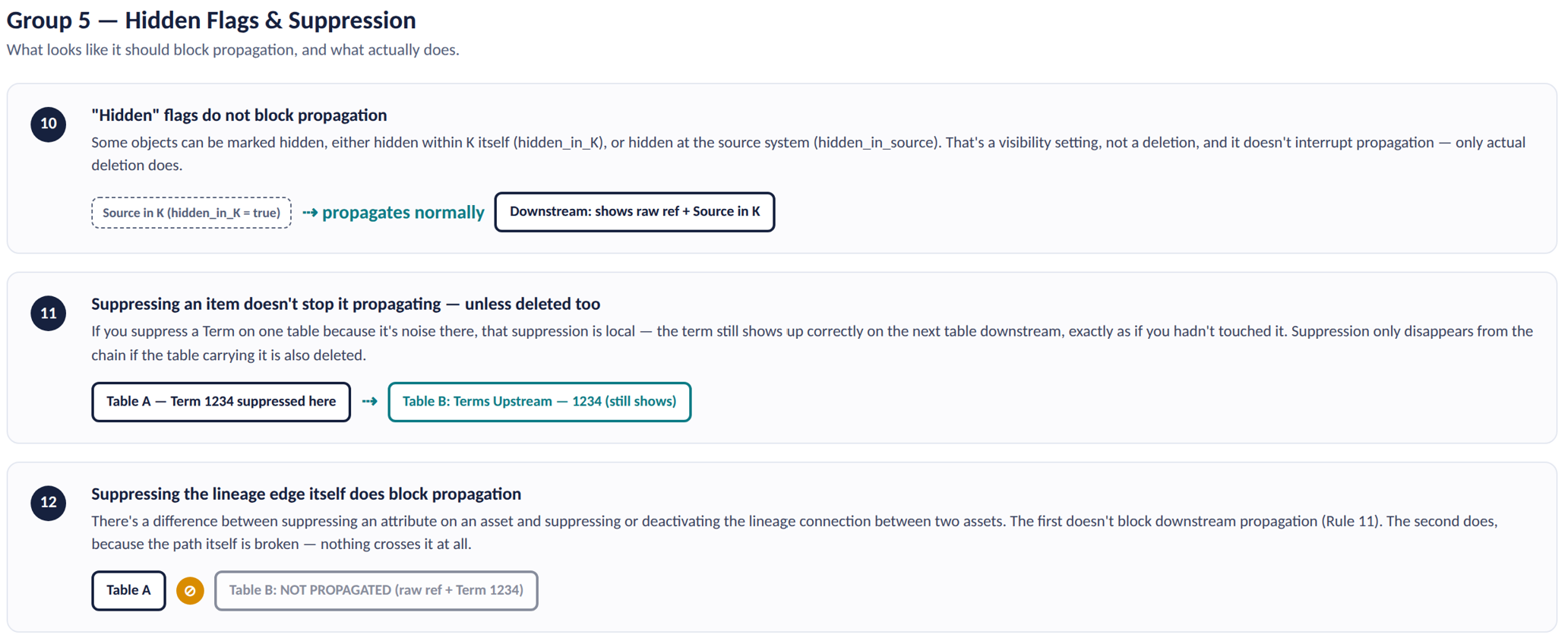
Rule 10: "Hidden" Flags Do Not Block Propagation
Some objects can be marked hidden, either hidden within K itself, or hidden at the source system. That's a visibility setting, not a deletion, and it doesn't interrupt propagation.
Rule 11: Suppressing an Item Doesn't Stop It Propagating — Unless Deleted Too
If you suppress a Term on one table because it's noise there, that suppression is local, the term still shows up correctly on the next table downstream, exactly as if you hadn't touched it. Suppression only disappears from the chain if the table carrying it is also deleted.
Rule 12: Suppressing the Lineage Edge Itself Does Block Propagation
There's a difference between suppressing an attribute on an asset and suppressing or deactivating the lineage connection between two assets. The first doesn't block downstream propagation (see Rule 11). The second does, because the path itself is broken.