
Updated in Version 6.0
The following guide supports synchronising results from your self hosted KDQ platform to K.
The checkpoint script run_checkpoints.py allows you to run data validation tests across your workspace, jobs, and datasets.
Prerequisites
-
Published Workspace
-
Workspace secret key
Step 1: Create the Source in K
Create an Great Expectation source in K
-
Go to Settings, Select Sources and click Add Source
-
Select KDQ
-
Select “Load from File system” option
-
Give the source a Name - e.g. KDQ
-
Add the Host name for the KDQ service
-
E.g. Use the KDQ URL
-
-
Update the Landing Folder to a unique name - e.g. kdq
-
Click Finish Setup
-
Click the new source created above.
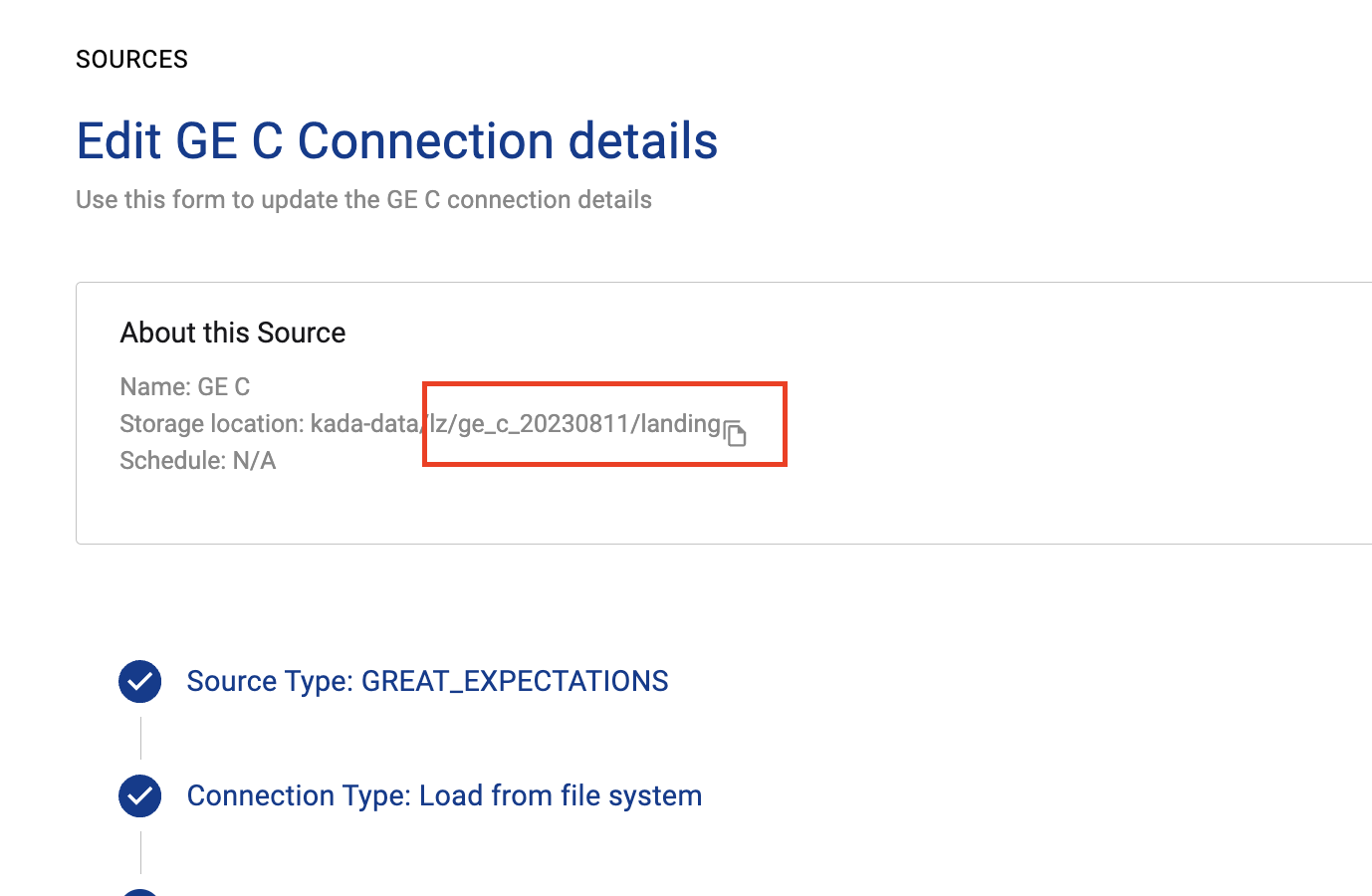
-
Note down the landing directory (highlighted above)for use in Step 3.
-
The landing directory starts from lz/…
-
Step 2: Request the K landing access token
Required for K as a Service
Request an Access Token from the Kada team to the landing folder for the source added in Step 1.
The Access Token will allow you to securely upload the KDQ results to K.
Step 3: Add the access key to KDQ
The Access Token will need to be added to every workspace.
-
Go to KDQ and open the Workspace. Go to the Secrets tab
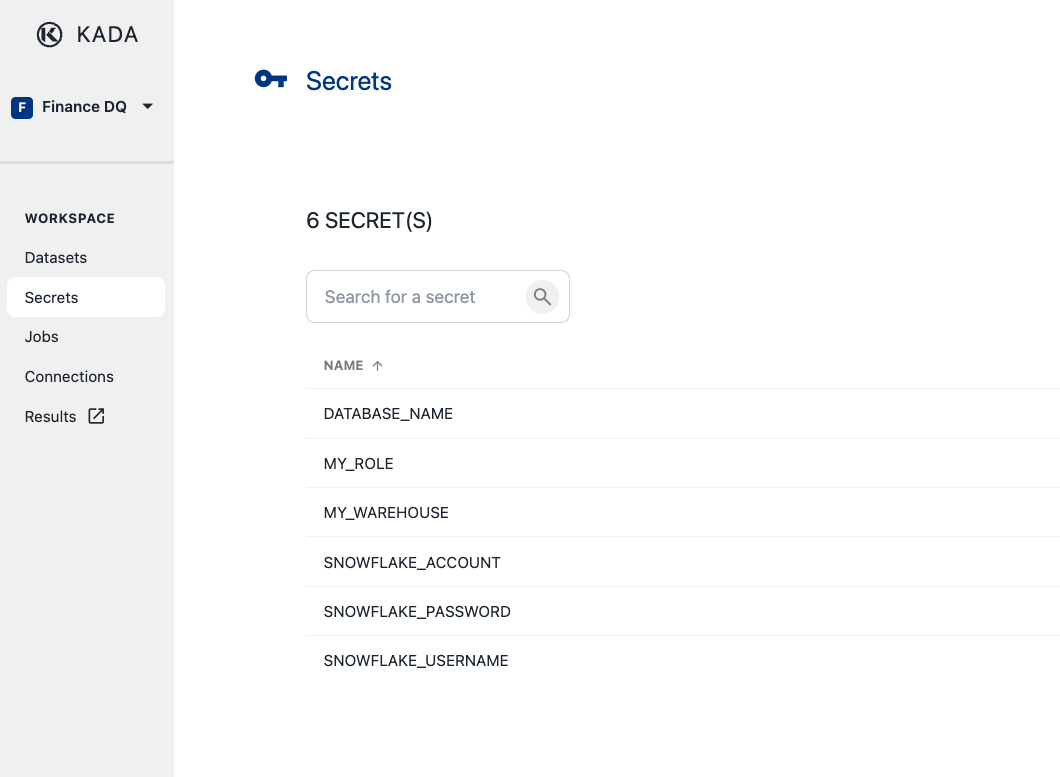
-
Click on Add Secret
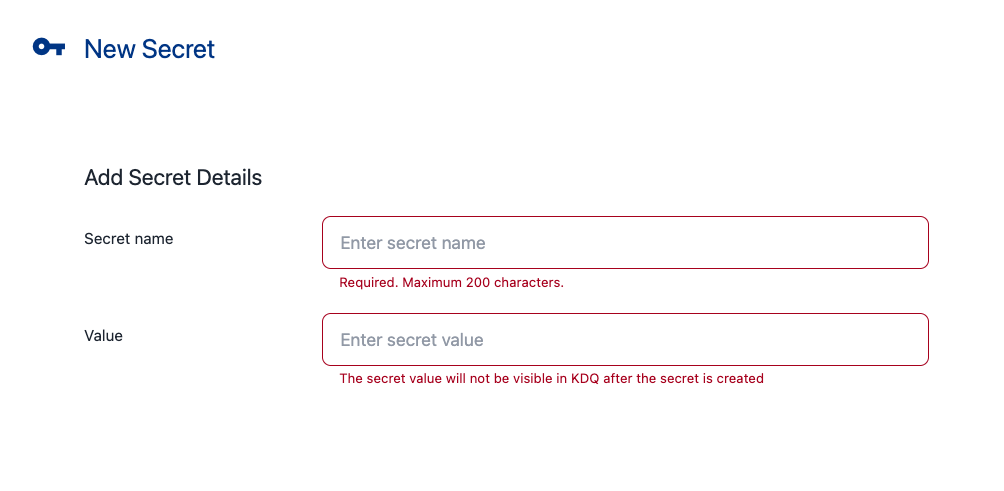
-
Add the 2 following secrets
-
KDQ_K_PLATFORM_LANDING: Use the landing directory from Step 1
-
Note: Do not include kada-data in the landing directory path
-
-
KDQ_K_PLATFORM_SAS_TOKEN: Use the Access token created in Step 2
-
Step 4: Configure the scheduler
In order to schedule the KDQ jobs, you will be required to implement your own scheduler e.g. CRON
The scheduler can use the following scripts to execute the KDQ jobs
Script Location
The checkpoint script is located at: /var/workspace/workspace_<workspace_id>/gx/run_checkpoints.py
Running KDQ using your scheduler
1. Run All Tests in All Jobs (Full Workspace)
Execute all validation tests across your entire workspace:
python /<path-to-published-gx-folder>/run_checkpoints.py -i secrets.rc -s <workspace-secret>
2. Run All Tests in a Specific Job
Execute all validation tests within a particular job:
python /<path-to-published-gx-folder>/run_checkpoints.py -i secrets.rc -s <workspace-secret> -j "Job-name"
Parameters Explained
|
Parameter |
Description |
Required |
|---|---|---|
|
|
Path to secrets file relative to run script (usually |
Yes |
|
|
Workspace secret key |
Yes |
|
|
Job name (in quotes if contains spaces) |
No |
Getting Required Information
Workspace Secret Key
-
You received this when you first created the workspace
-
If lost, you can regenerate a new one in the workspace settings
-
Important: After regenerating the workspace secret key you must republish the workspace for the key to take effect.