New in Version 6.1
K uses the alert feature to configure the metadata sync files to Snowflake.
Prerequisite
Before you configure the alert you will need to configure a Storage account for the alert to deliver the metadata sync file to.
Creating the Metadata Sync files
You will need to create a search for each asset type you want to update in Snowflake and an extract from your glossary of the terms you want to sync
-
Snowflake Tables & Views
-
Snowflake Columns for Tables
-
Snowflake Columns for Views
-
Terms
As the the process in the Metadata sync manages column updates differently if the columns belong to a table or a view, we create 2 different files for each.
The following steps assume you want to sync the default attributes:
-
Comments will be updated with [description] + [list of term + term description]
-
List of tags: category, classification, domain, owner, steward, pii_data_detected.
Snowflake Tables & Views file
Go to search
Apply the following filters
-
Asset = Table
-
[Optional] Database = Select the databases where the tables you want to update belong to
-
[Optional] Schema = Select the schemas where the tables you want to update belong to
Add the following columns
-
Terms (if you want to sync glossary terms)
-
PII data detected (if you want to sync PII tags)
Remove the following default columns
-
Trust
Save the search as “snowflake_[env]_table_sync”
Snowflake Columns for Tables / Views
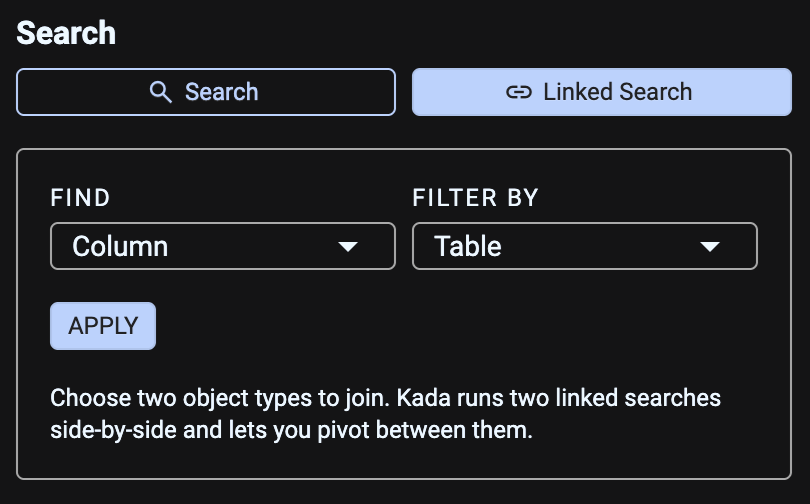
Go to Linked Search
Select Find Column - Filter by Table
Apply the following filters
On the Table side
-
Asset = Table
-
Asset Subtype = Table
-
[Optional] Database = Select the databases where the tables you want to update belong to
-
[Optional] Schema = Select the schemas where the tables you want to update belong to
Go to the Column side
Add the following columns
-
Terms (if you want to sync glossary terms)
-
PII data detected (if you want to sync PII tags)
Remove the following default columns
-
Trust
Save the search as “snowflake_[env]_column_tbl_sync”
Repeat the above but change the Table Subtype = View.
Save the search as “snowflake[env]_column_vw_sync
Terms file
Go to search
Apply the following filters
-
Asset = Collection Instance
-
Collection = Select the glossaries you want to sync
Remove all columns except for Description
Save the search as “snowflake_[env]_term_sync”
Configuring the File delivery to the Storage account
Go to Saved search.
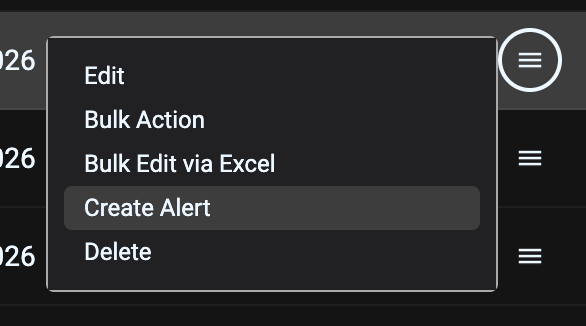
Click on more options on the snowflake_[env]_table_sync search
Select Create Alert
In the Alert modal
-
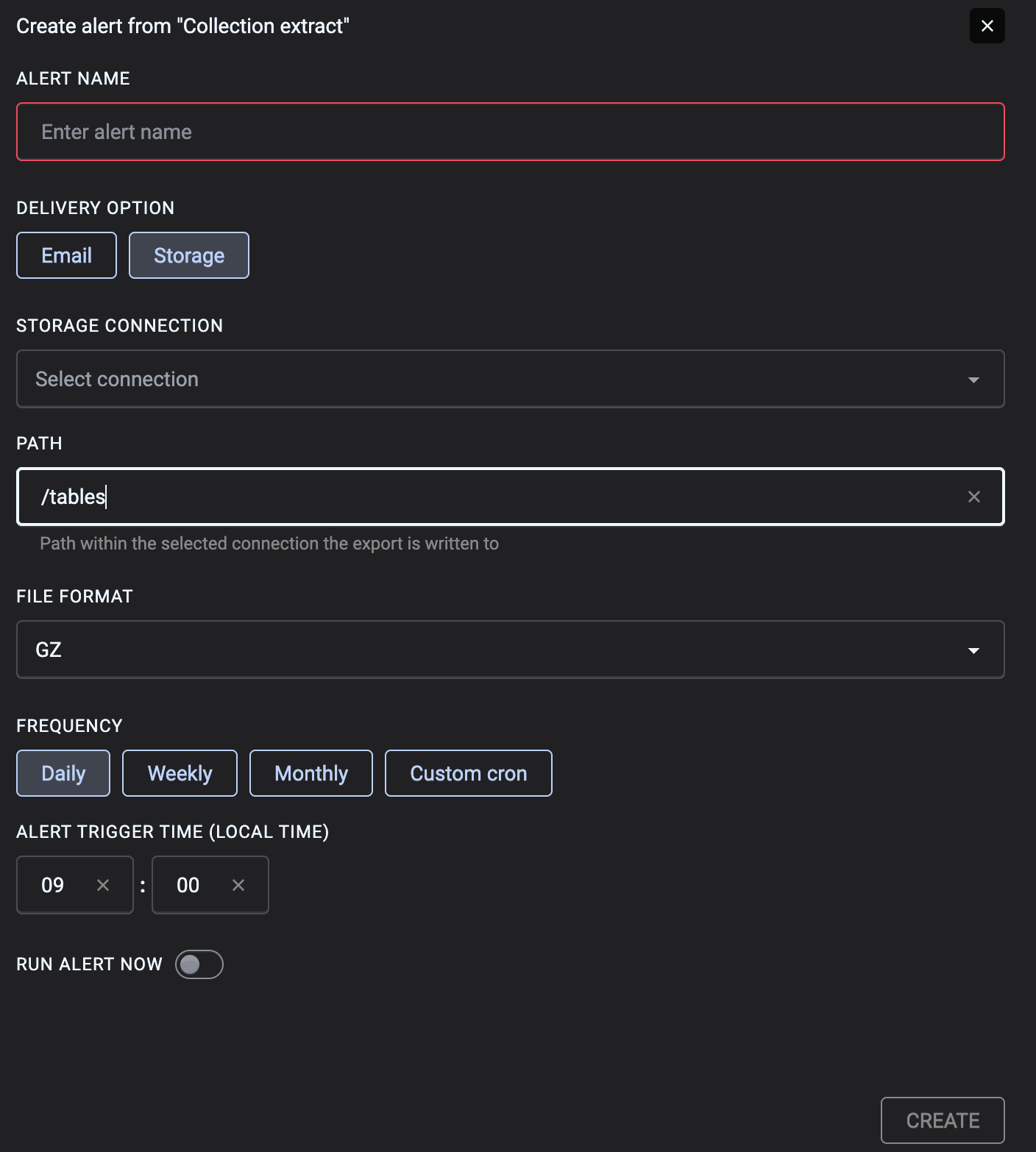
Set the alert to the following name: snowflake_[env]_table_sync
-
Use the following names for the column alerts:
-
snowflake_[env]_column_tbl_sync
-
snowflake_[env]_column_vw_sync
-
-
Use the following name for the term alert
-
snowflake_[env]_term_sync
-
-
-
Set the path to /tables
-
use /columns for the column alerts. The same folder can be used to store both column files
-
use /terms for the term alert.
-
-
Set the file format to GZ
-
Set a delivery frequency.
-
Select run now
-
Click Save