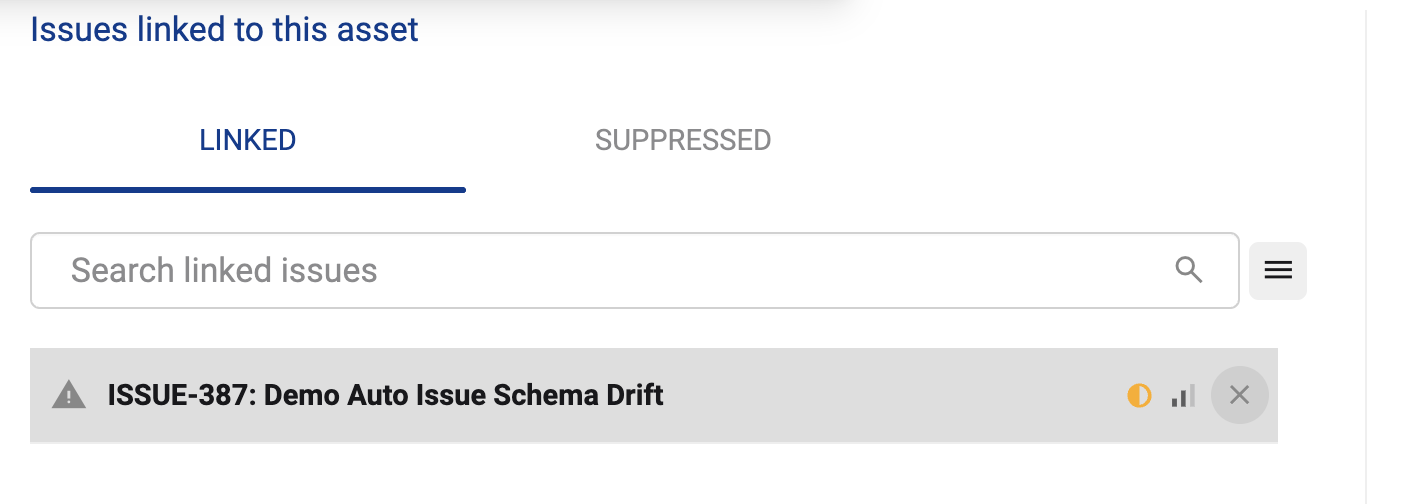
Updated in Version 6.0
You can create and manage issues about data in K.
Issues can be created:
-
From a Data or Content asset
-
From a Data Quality Test.
-
Not linked to any asset or Tes
The benefit of raising an issue linked to an asset or test is that it will automatically link the issue to the asset or test. In the case of an issue linked to a test, all assets linked to the data quality test will be linked to the issue as well.
If you integrate K with Issue management tools like JIRA, issues in K can by synchronised with issues in those tools.
How to raise a new issue from a Data or Content Asset
-
Open an Asset profile page (e.g. a report or table). On the page:
-
Click on the Add button
-
Click on the Add Issue button
-
-
The manage issue pop-up box will open letting you manage issues:
-
Click Create a new issue
-
Fill in the issue details
-
Name
-
Description
-
Status
-
Priority
-
Assignee
-
DQ Dimension
-
-
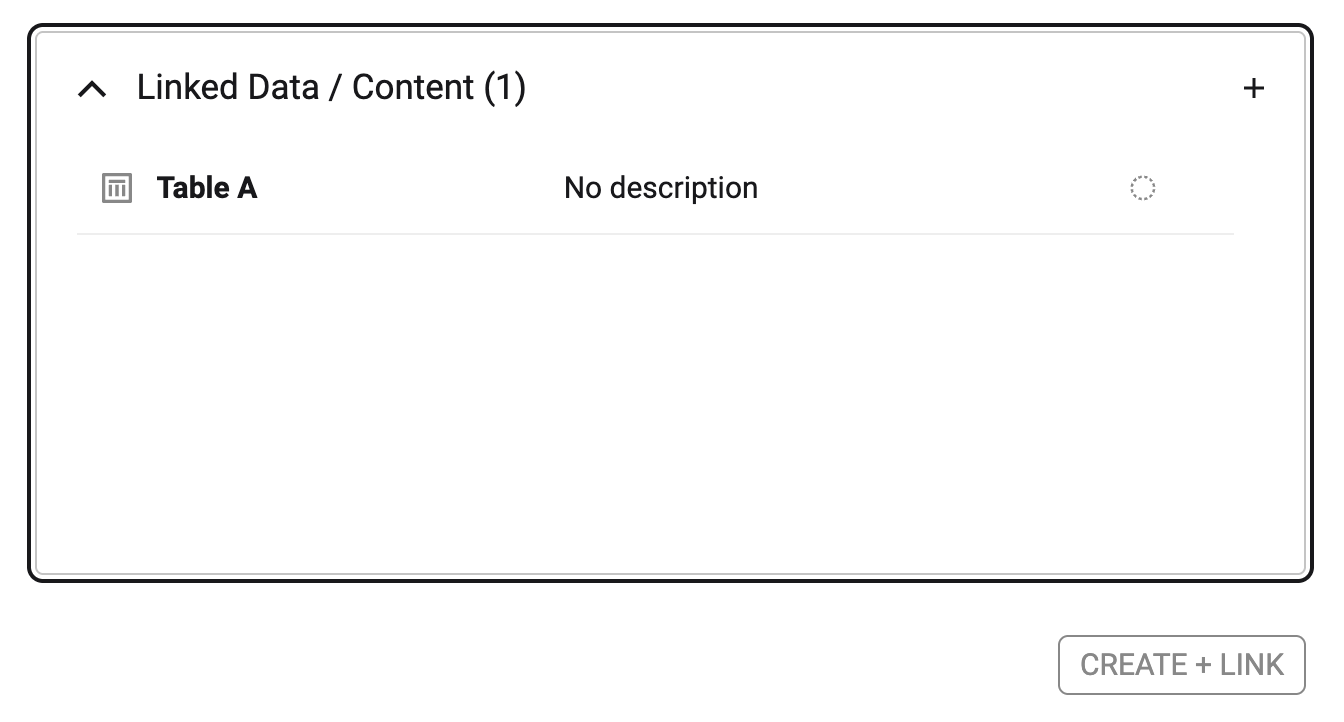
To add additional data assets, click on the + icon
-
To delete any data assets that should not be linked, click on the x icon
-
-
After you click Create, a snack bar will pop up confirming the new issue was created successfully
How to raise a new issue from a Data Quality Test
-
Open a Data Quality Test page. On the page:
-
Click on the Add button
-
Click on the Add Issue button
-
-
The manage issue pop-up box will open letting you manage issues:
-
Click Create a new issue
-
Fill in the issue details
-
Name
-
Description
-
Status
-
Priority
-
Assignee
-
DQ Dimension
-
-
To add additional data assets, click on the + icon
-
At the bottom of the issue box, all linked Data/Content that will also be linked to this issue will be displayed
-
To add additional data assets, click on the + icon
-
To delete any data assets that should not be linked, click on the x icon
-
-
After you click Create, a snack bar will pop up confirming the new issue was created successfully
How to raise a standalone issue
From the Home page
-
On your home page click the Add button
-
Select Add Issue
-
A pop-up box will open letting you create a new issue:
-
Fill in the issue details
-
Name
-
Description
-
Status
-
Priority
-
Assignee
-
DQ Dimension
-
-
To add additional data assets, click on the + icon
-
At the bottom of the issue box, all linked Data/Content that will also be linked to this issue will be displayed
-
To add additional data assets, click on the + icon
-
To delete any data assets that should not be linked, click on the x icon
-
-
After you click Create, a snack bar will pop up confirming the new issue was created successfully
From the Issue Dashboard
-
Go to the Insights. Select Issue Dashboard
-
Click Create Issue
-
A pop-up box will open letting you create a new issue:
-
Fill in the issue details
-
Name
-
Description
-
Status
-
Priority
-
Assignee
-
DQ Dimension
-
-
To add additional data assets, click on the + icon
-
At the bottom of the issue box, all linked Data/Content that will also be linked to this issue will be displayed
-
To add additional data assets, click on the + icon
-
To delete any data assets that should not be linked, click on the x icon
-
-
After you click Create, a snack bar will pop up confirming the new issue was created successfully
Adding an existing issue to an Asset or DQ Test
From the profile page of any Asset or DQ Test
-
Click the Add button. Select Add Issue
or
-
Go to the quality tab. Click the Add button in the Issue section
Once the manage issue pop-up appears search for an existing issue to add to the asset or DQ test.
Note: When you link an existing issue to a Data Quality Test, the issue is only linked directly to the test itself and not all of the underlying data assets that the Data Quality Test is linked to.
Removing an issue from an Asset or DQ Test
From the profile page of any Asset or DQ Test
-
Click the Add button. Select Add Issue
or
-
Go to the quality tab. Click the Add button in the Issue section
Once the manage issue pop-up appears click on the remove button on the issue you want to remove