
NEW IN VERSION 6.1
The following page will provide details on how to connect your BI tool (e.g. Power BI) to K.
Data from K’s search engine can be used as a data source for your Report, Dashboard and more.
Only BI tools that support GET method can be used to connect directly to K.
POST method is currently under review for an upcoming release.
Creating an API Key
Requires K Admin role
-
Go to Settings
-
Under integrations, Select API Keys
-
Select Create API Key
-
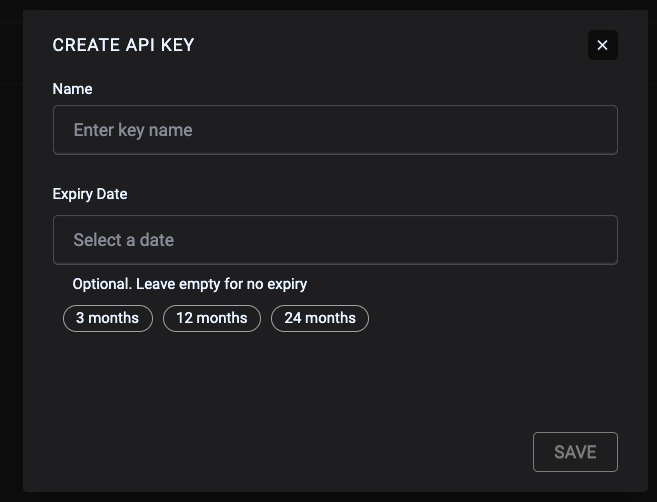
In the Create API Key modal, give the API key a name and select an expiry (optional but recommended)
-
Store the API key securely
Note: The API key is only shown this one time. A new API key will need to be regenerated if it is forgotten.
Generating the Query
-
Go to Search and construct your data set by applying Filters and adding Columns
-
Once your data set is ready, click on Actions then select Connect BI Tool
-
A model will appear with the Query to be used by your BI tool. It will look like something below
{
  "params": {
    "q": "*",
    "fq": [
      "is_deleted:(false) AND is_reference:(false) AND is_hidden_in_k:(false) AND is_hidden_in_source:(false) AND -asset_subtype:(\"QUERY\")"
    ],
    "fl": "name,location,asset,change_status,asset_subtype,business_name,collection_type,collection,external_url,id,description,collection_category,collection_classification,collection_domain,trust,owners,stewards",
    "rows": 100,
    "start": 0
  }
}
A quick breakdown of what is included in the query.
|
Field |
Purpose |
|
q |
Search text — * matches everything |
|
fq |
Filters — here it excludes deleted, reference, hidden, and QUERY-type assets |
|
fl |
The fields returned per record |
|
rows |
Page size — set high (e.g. 100) to pull the full result set in one call |
|
start |
Offset, used for paging if needed |
-
Copy the above code to your local editor
Constructing your BI tool query
Once you have the above query, it is time to construct the query for your BI tool to use.
The following examples are provided.
Power BI
Connecting using Power BI Desktop
Power BI online does not currently support API connection methods.
Power BI Desktop’s point-and-click Web connector can’t send a POST body, so this step uses a Blank Query with M code instead.
-
Open Power BI Desktop.
-
Get Data → Blank Query.
-
In the query editor, go to Home → Advanced Editor.
-
Replace everything in the editor with the M code below, substituting your
-
host (e.g acme.kada.ai)
-
query
-
api_key
-
let
    url = "https://<your_host>/api/v2/index/search/select",
    payload = "<your_query>",
    source = Json.Document(
        Web.Contents(
            url,
            [
                Headers = [#"Content-Type"="application/json", #"Authorization"="ApiKey <your_api_key>"],
                Content = Text.ToBinary(payload)
            ]
        )
    )
in
    source
-
Click Done
The K data set comes through as a JSON payload. You will need to shape the results to make it usable.
-
After clicking Done in the Advanced Editor, Power BI evaluates the query and shows the parsed JSON as a record named source in the Queries pane.
-
Click into source, then drill down: click the value next to response, then the value next to docs.
-
Once you’re on the docs list, click To Table, then Expand the record column to turn each field (name, asset, trust, owners, etc.) into its own column.
-
Set data types as needed (e.g. trust as a number) and rename columns for reporting.
-
Rename the query itself (top right of the query settings pane) to something meaningful, e.g. KADA Search Results.
At this point, most columns (name, asset, location, trust, description, etc.) are flat text and ready to use. A handful of columns, though, will show List instead of a value — those come from JSON arrays in the response and need one more step before they behave like normal table columns.
-
Go to Add Column → Custom Column (list columns don’t support a direct “combine” transform, so a custom column is the way to do this).
-
Name it something like Owners (Combined) and use:
Text.Combine(List.Transform([owners], each Text.From(_)), ", ")
-
Repeat for each list column (stewards, collection_domain, collection_classification, collection_category), adjusting the column name referenced.
-
Delete the original list columns and keep the new combined text columns.
Once your list columns are combined, click Close & Apply to load the data into your model.
anticlockwise_arrows Refreshing your Power BI dataset
-
Since this is a standard Web data source, you can set up a scheduled refresh in the Power BI Service the same way you would for any other web query, as long as the API key hasn’t expired.
-
If a key expires or is deleted, refresh will fail with a 403. Ask your Kada Admin to issue a new key and update the header/query parameter in your query.