
Updated in Version 6.0
🚀 Setting up K for the first time? See Onboarding to K for a step-by-step setup guide instead.
Access your Profile Settings by clicking the avatar icon in the bottom-left corner of K. This is your go-to page for updating personal settings after onboarding.
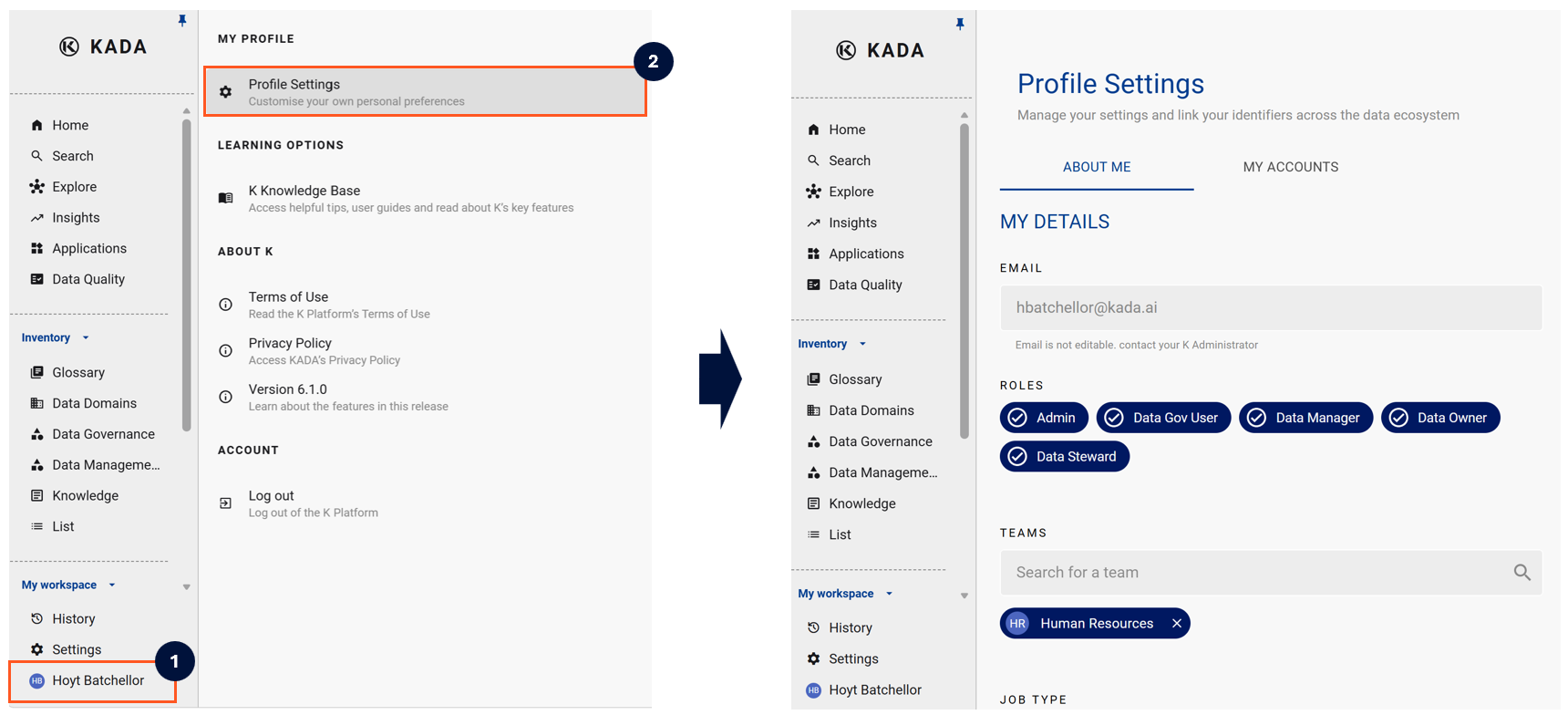
What You Can Update
|
Setting |
What it controls |
|---|---|
|
Roles |
View the K role(s) assigned to your account |
|
Job Type |
Set your job type to help K personalise recommendations |
|
Teams |
The teams you belong to — affects what appears on your Home Page and Data Ecosystem |
|
My Linked Accounts |
The identities you use to access data sources — affects how your usage is attributed |
|
K Preferences |
Display mode (Light / Dark) and lineage visualisation settings |
|
K Daily Briefing |
Whether to receive the daily email summary of changes in your ecosystem |
Roles
Your role determines what you can see and do in K. You can view your assigned role(s) here, but roles are assigned by your Administrator — contact them if you believe your access is incorrect.
See K User Roles for a full breakdown of what each role can access.
Teams, Linked Accounts & Preferences
These settings are covered in detail during first-time setup — see Onboarding to K. You can return to Profile Settings at any time to update them.
⚠️ When linking accounts, only add identities that belong to you. Do not link system or generic accounts. Only Admin Users can remove an incorrectly linked account.
Related