
UPDATED IN VERSION 6.0
This page explains how to use filters to enhance your search experience
This function is available to all users
Adding Filters to Search
-
Select Search in the navigation bar
-
Search for any term e.g. customer
-
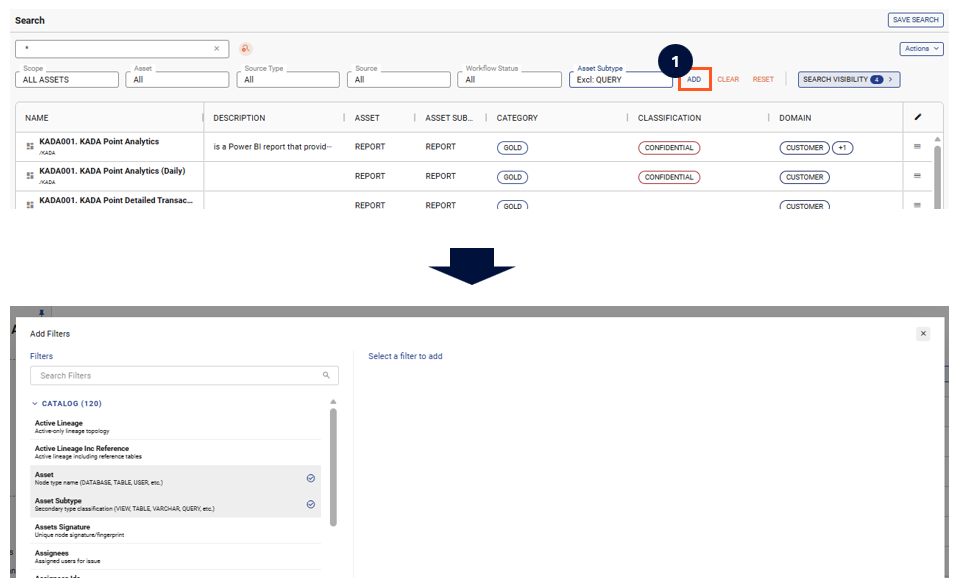
Click Add. The Add Filters modal opens as a two-pane view. Search by name or description, or browse the collapsible categories (Catalog, Collections, Properties). Each filter shows a short description of what it does.
-
Click the check icon next to a filter to add it to the bar — it applies immediately, no need to confirm. Click the check icon again on an added filter to remove it.
-
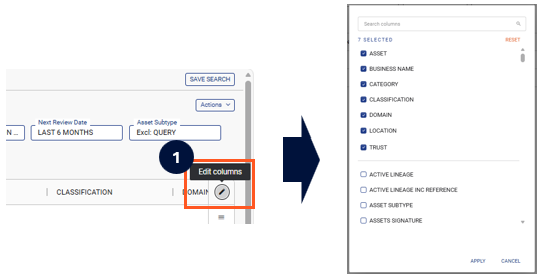
Click Edit icon to add new columns to your search results
-
The columns and filters applied will now be added to your download if you click Download All
Advance Search Examples
|
Use case |
Filters to apply |
Columns to add |
Comments |
|---|---|---|---|
|
Tables without Owners |
Owned: Has an owner or no owners Select Not_owned
|
Owner |
|
|
Tabled owned by a specific person |
Owners: Filter to specific Owners |
Owner |
|
|
Tables without Stewards |
Steward count: Has none, one or many owners. Select None.
|
Steward |
|
|
Table managed by a specific person |
Steward: Filter to a specific Steward. |
Steward |
|
|
Tables with PII detected |
PII Data Detected: Filter to specific PII data detected. |
|
|
|
Columns with PII detected but are not masked |
PII Data Detected: Filter to specific PII data detected.
Masked: Has masking or not. Select No / Unknown. |
|
Requires PII scanner to be run.
Requires masking integration with source (currently only Snowflake supported at present). |
|
Reports without description |
Documented: Has description or not Select Not documented |
|
|
|
Tables that are loaded but unused |
Load frequency: How often the data is loaded Select All except Unknown
Load status: Based on the load frequency, has the data been recently loaded Select All except Unknown
Usage: How often the data is used Select Unused |
|
|