
Updated in Version 6.0
Once you create a Collection, you create instances to fill out the collection.
Each instance is then linked to the relevant data items. You can then link those instances to Data Items in two main ways:
-
Manual
-
Automatic via Business Rules
Option 1) Manually linking a data item
In the data profile side panel, search and add the collection you want to add.
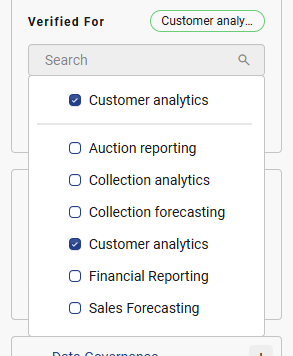
If you cannot find the data item, ask your Data Governance Manager or Data Manager to ensure the collection settings and instance has been created correctly to allow your data item type to be linked.
Option 2) Automatically link data items using rules
This function is currently restricted to Data Governance Managers, Data Managers and K Admin users
Linking rules are a great way to automatically link data items to a collection using business rule written in a regex format (aka Regex Rule). They can create consistency and help save manual time and effort. Data items that no longer meet the Regex Rule will automatically be de-linked from the collection.
-
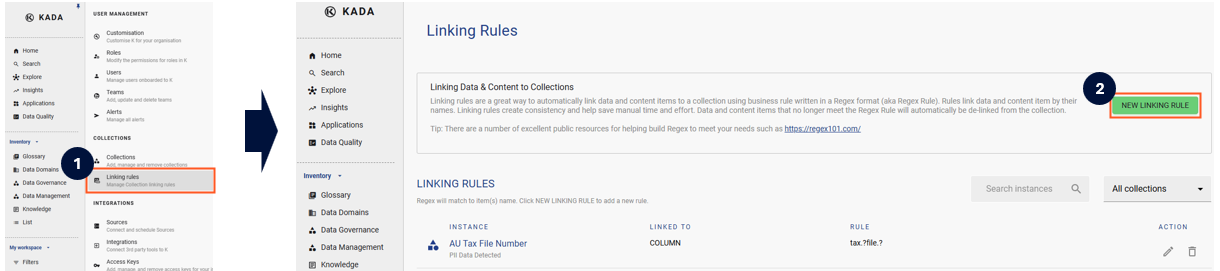
Select Platform Settings in the side bar
-
In the pop-out side panel click under Collections, click on Linking Rules
-
Click on New Linking Rule
-
Complete the form and click Add