
UPDATED IN VERSION 6.1
It is recommended that you configure alerts based on how you manage your data ecosystem:
-
Create an alert when issues are raised on assets that you manage.
-
Create an alert for issues that are assigned to you
K will notify you (via your feed or daily briefing) if an issue has been raised on an asset you are following. Setup an alert for more targeted notifications
6.2 will include the ability to filter assets by issues in specific workflow status. Currently all open issues (issues that are in to do, under investigation, pending, in progress) wil be used as part of the alert.
How to create an alert when issues are raised on assets you manage
-
Open K. Click on Search in the navigation
-
Select the All assets option
-
Change the scope to “My Direct Assets”
-
Add the Open issue count filter. Set the Open issue count to be Greater than 0. Close the filter modal

-
Click Save Search to save this search
-
Give the Search a name e.g. “My assets with open issues”
-
Set the Permissions to Private
-
Click Save
-
-
Go to Saved Search in the navigation
-
Click on the menu on the saved search and select Create alert
-
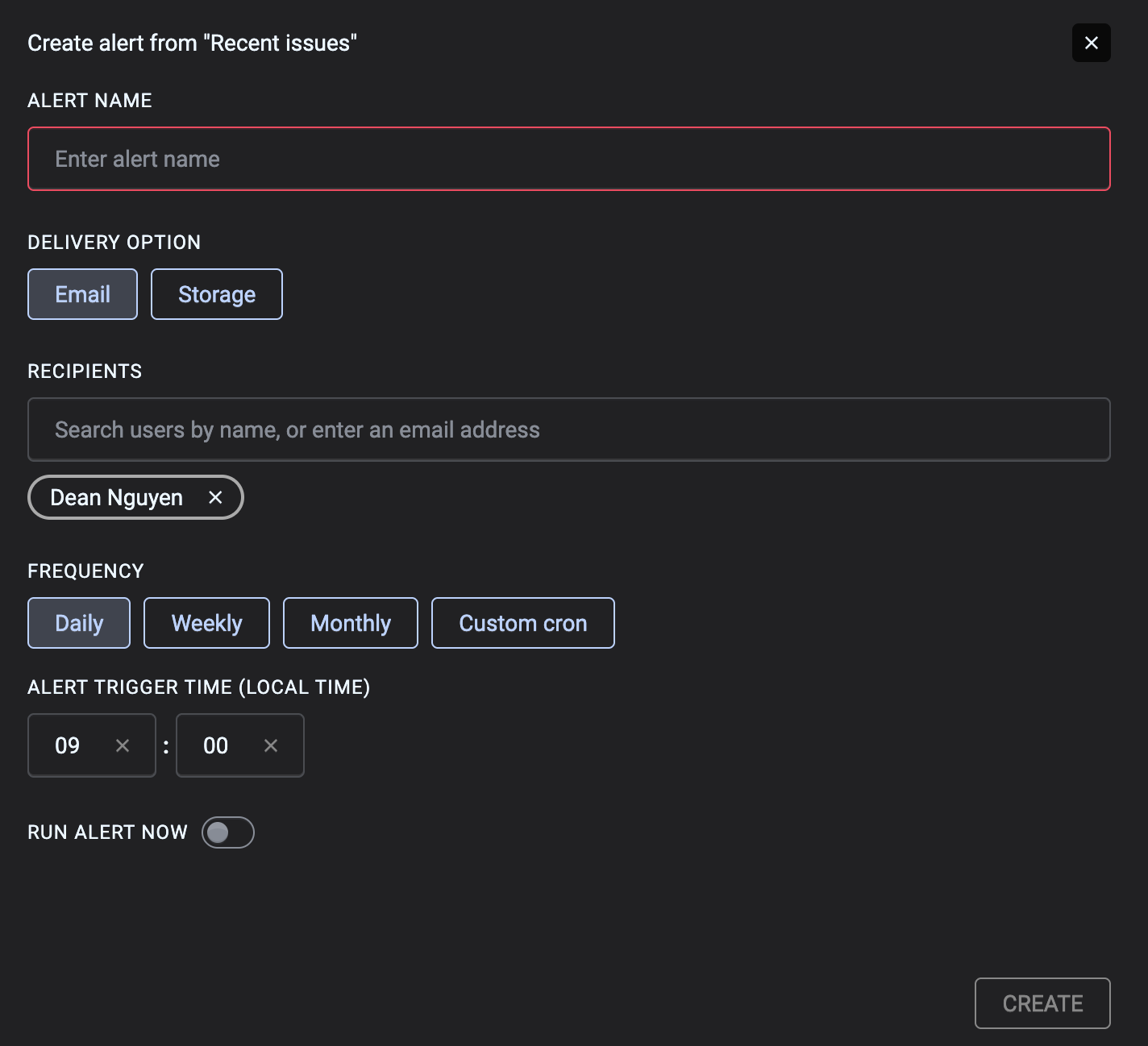
Give the alert a name. It will appear in your email subject
-
Set delivery option to Email
-
Add any additional recipients
-
Set the frequency
-
Set Run alert now to test the alert
-
Alerts are only sent if the search returns 1 or more results. If no assets are returned, the alert will be suppressed
How to create an alert when issues are assigned to you
-
Open K. Click on Search in the navigation
-
Select the All assets option
-
Set Assets to Issue
-
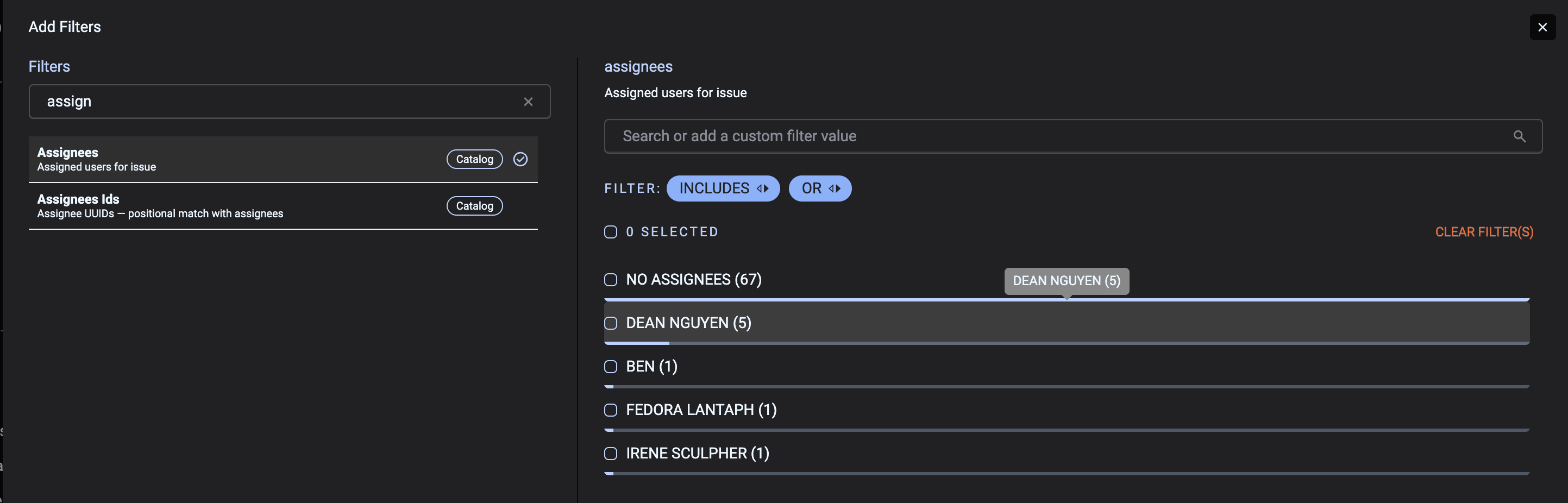
Add the Assignee filter and set the value to you
-
Click Save Search to save this search
-
Give the Search a name e.g. “Issues assigned to me”
-
Set the Permissions to Private
-
Click Save
-
-
Go to Saved Search in the navigation
-
Click on the menu on the saved search and select Create alert
-
Give the alert a name. It will appear in your email subject
-
Set delivery option to Email
-
Add any additional recipients
-
Set the frequency
-
Set Run alert now to test the alert
-