
Updated in Version 6.0
A KDQ Dataset defines the data you want to run quality checks against. Each dataset is linked to a connection and either a full table or a custom SQL query. It is assigned to a Job for scheduling, and linked to an asset in K so that DQ results are surfaced directly on the relevant Data Profile Page.
Prerequisites
-
A KDQ Connection must be configured in the Workspace
-
At least one KDQ Job must be configured
Creating a Dataset
-
Select a Workspace and navigate to the Datasets tab
-
Click Create Dataset
-
Fill in the dataset details:
|
Field |
Description |
|---|---|
|
Connection |
The workspace connection to run this dataset against |
|
Dataset Scope |
Select all records — tests every row in the table. Custom query — define a SQL query to limit scope (e.g. recent rows only, a sample set, or a calculated composite key) |
|
Link asset in K |
The K asset to associate DQ results with — results will appear on this asset's Quality tab |
|
Dataset name |
A clear, descriptive name for this dataset |
|
Dataset description |
A brief summary of what this dataset represents |
|
Job |
The Job this dataset belongs to |
-
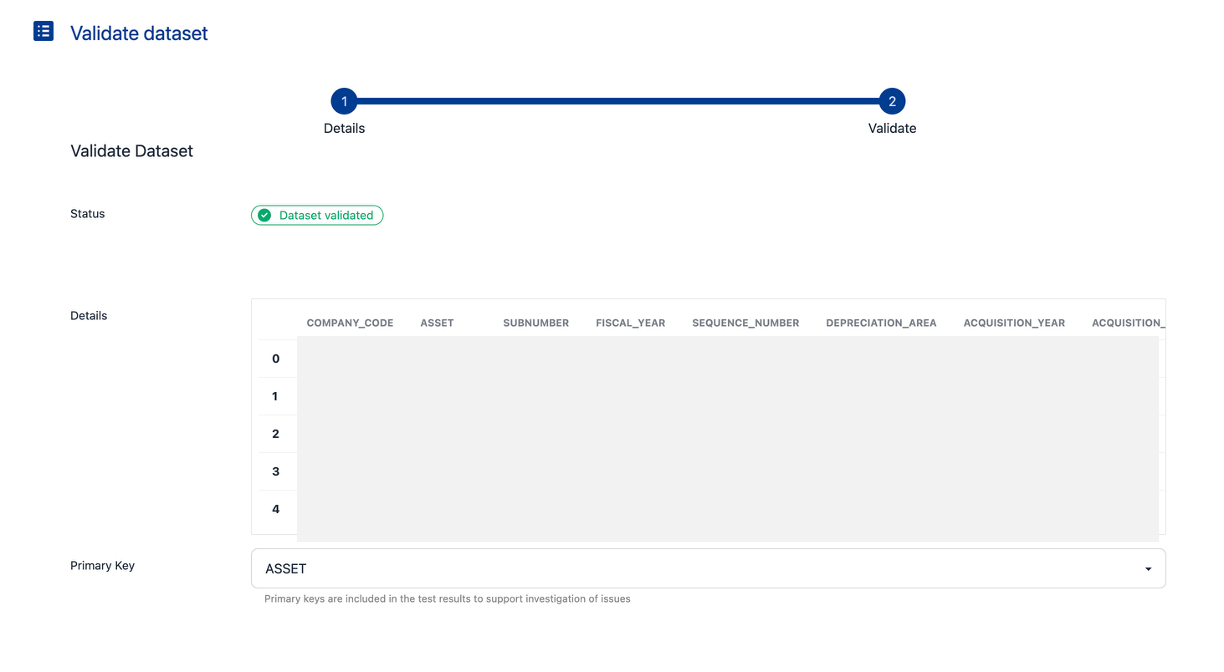
Click Next — KDQ will validate the dataset query against your source
-
After validation, set the Primary Key — the column used to identify failing rows in results
Note: Where the primary key is a composite key calculated at runtime, include it as a derived column in your custom query. If the column does not exist in K, it cannot be used as a test target.
-
Click Save
💡 Next step: Once your dataset is saved, add KDQ Tests to define the quality rules to apply against it.