
Updated in Version 6.0
A KDQ Test is a data quality rule applied to a specific field within a Dataset. Multiple tests can be applied to the same field.
Every test result is synchronised to K and displayed on the associated asset's Quality tab — making DQ outcomes visible to all K users without requiring direct KDQ access.
Configuring a Test
-
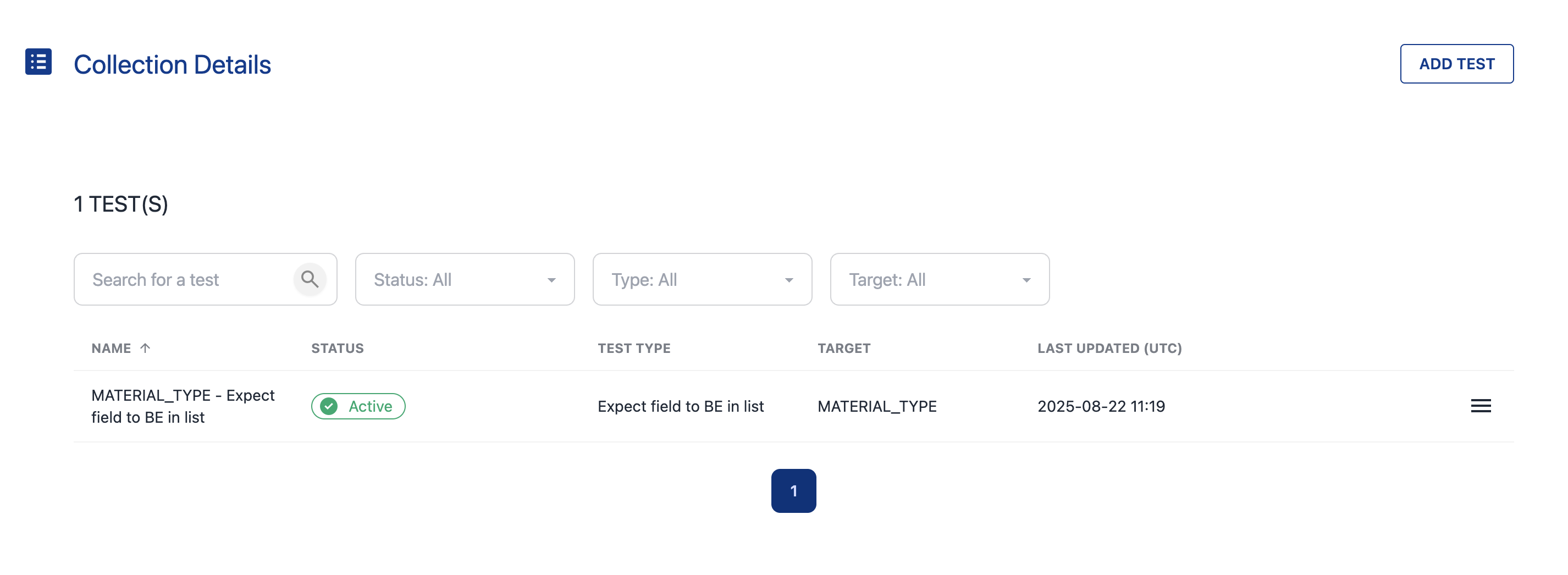
Open a Workspace and select a Dataset
-
Click Add Tests
-
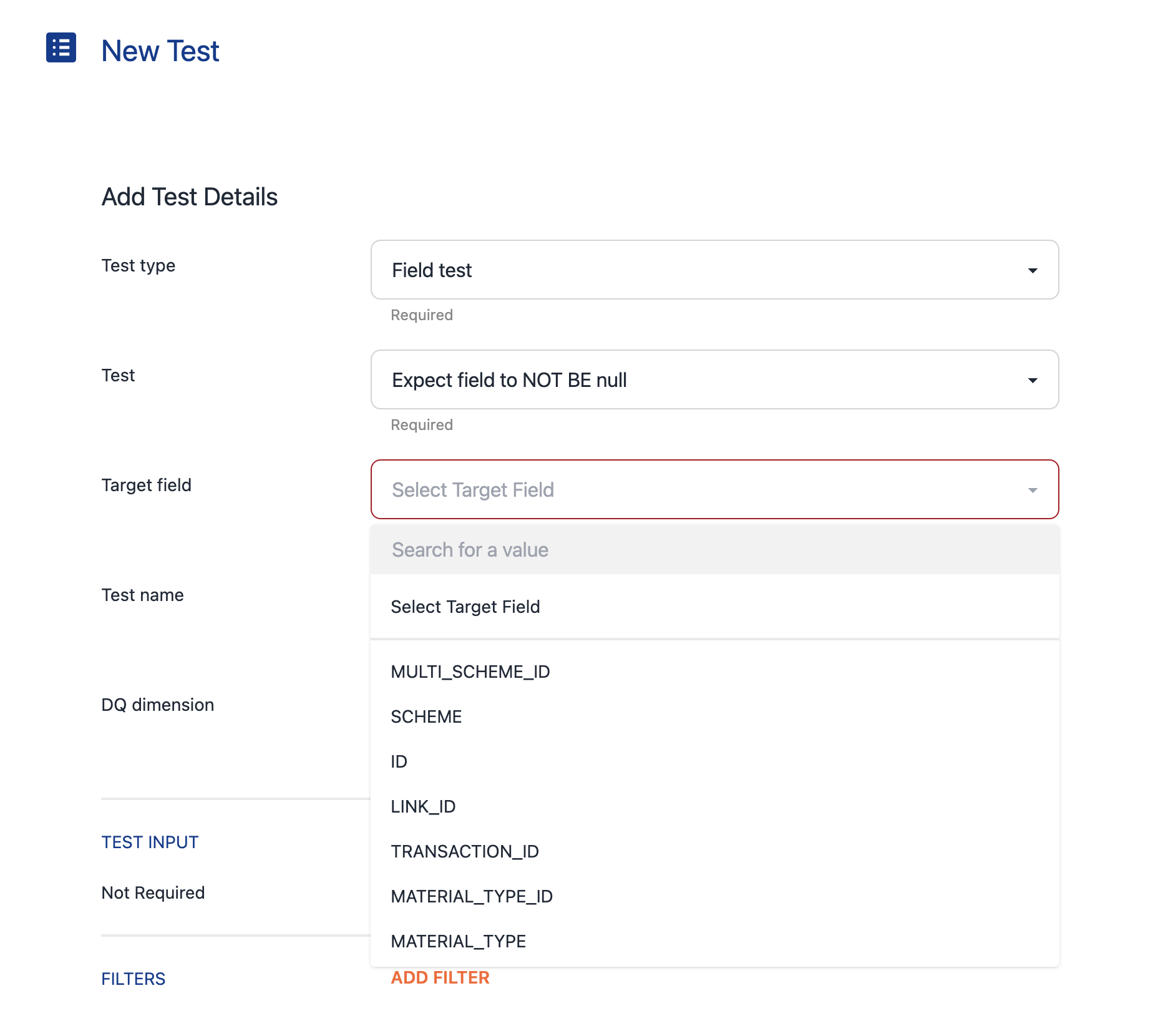
Fill in the test details:
|
Field |
Description |
|---|---|
|
Test type |
Select Field test (table-level tests are being added in a future release) |
|
Test |
The validation rule to apply — new test types are added each release. Contact your KADA account manager to request additional types |
|
Target field |
The column the test applies to |
|
Test name |
A name for this test — this is shown in K on the Quality tab |
|
DQ Dimension |
The data quality dimension this test measures (e.g. Completeness, Uniqueness) — synced to K |
|
Test input |
Additional parameters required by the test Example: A product code field consistency check requires you to add an appropriate REGEX |
|
Filter |
Optional: apply a condition to limit which rows the test evaluates Example: Only apply a NOT NULL check on phone number if address is NOT NULL |
-
Click Next to save the test
Examples
-
NOT NULL check: Test = "Not null", Target field = required column, DQ Dimension = Completeness
-
REGEX pattern check: Test = "Pattern match", add the expected REGEX to Test input, DQ Dimension = Consistency
-
Conditional NOT NULL: Test = "Not null", Filter =
address IS NOT NULLto only check phone number where address is present
💡 Next step: Once tests are configured, publish the workspace and run the tests to see results.