
New in Version 6.1
Only Workspace Admin or higher can add, edit or delete a user from a Workspace
Add Viewers, Rule Creators and Workspace admins to workspaces so that the users can leverage the KDQ capabilities
Adding users to a Workspace
-
Select a workspace that you are assigned to as a Workspace admin
-
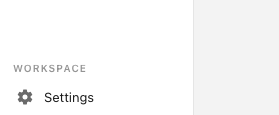
In the left bottom corner, click Workspace settings
-
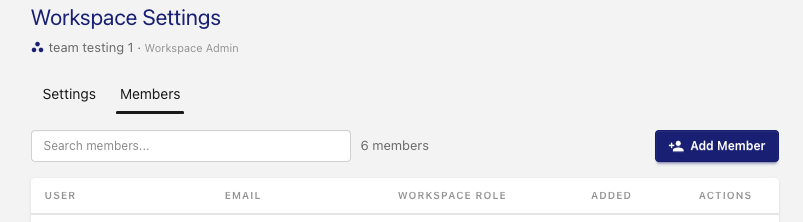
Select the members tab to see all current members of the workspace. Click Add Member
-
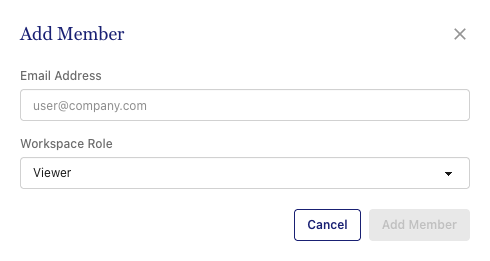
Add the email of the user you want to add and assign them a role. See table below for the role options
|
Role |
Can do |
|---|---|
|
Viewer |
View sources, tables, profiles, rules, and results |
|
Rule Creator |
Everything a Viewer can, plus profile tables and author, test, and manage rules |
|
Workspace Admin |
Everything a Rule Creator can, plus manage sources, members, and workspace settings |
-
Click Add Member to complete the member assignment process.
Adding Platform Administrators to KDQ
If you are a Platform Administrator you can also add other platform administrators to KDQ.
-
Click on your Avatar in the top right corner
-
Go to Platform Users
-
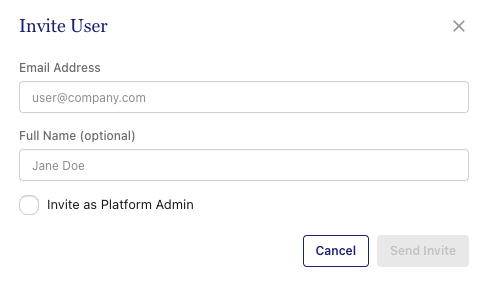
Click Invite Users
-
Add the Users email and name. Select “Invite as Platform Admin”
-
Click Send Invite