
New in Version 6.1
Editing the DQ Test results requires the Rule Creator role or above.
When a rule fails, KDQ Agentic shows you a sample of the actual failing records, not just a count. That sample is generated by the “Sample failures SQL” property in the rule.
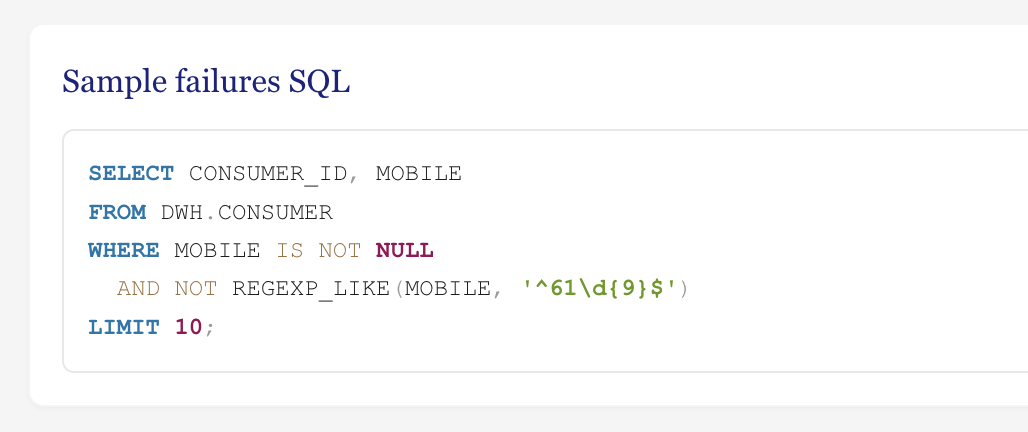
If the default sample doesn't show you what you need — for example, it's missing a context column you'd want to see alongside the failing value — you can edit the “Sample failures SQL” to change what it surfaces.
Change Sample failures SQL
-
Go to the Rules tab and click to open the rule profile
-
Click Edit
-
Scroll to the Sample failures SQL section and edit the code
-
Click on the Inspect Table button at the top to see the table structure if you want to check the names of the columns available to add.
-
-
Edit the code.
Example: Adding consumer_name to the test result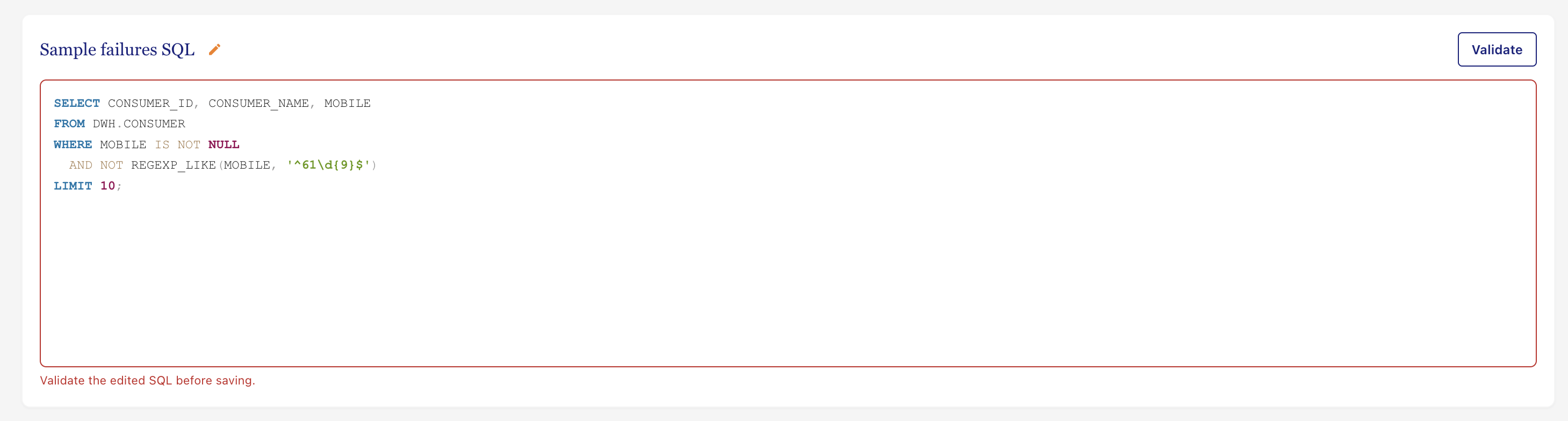
-
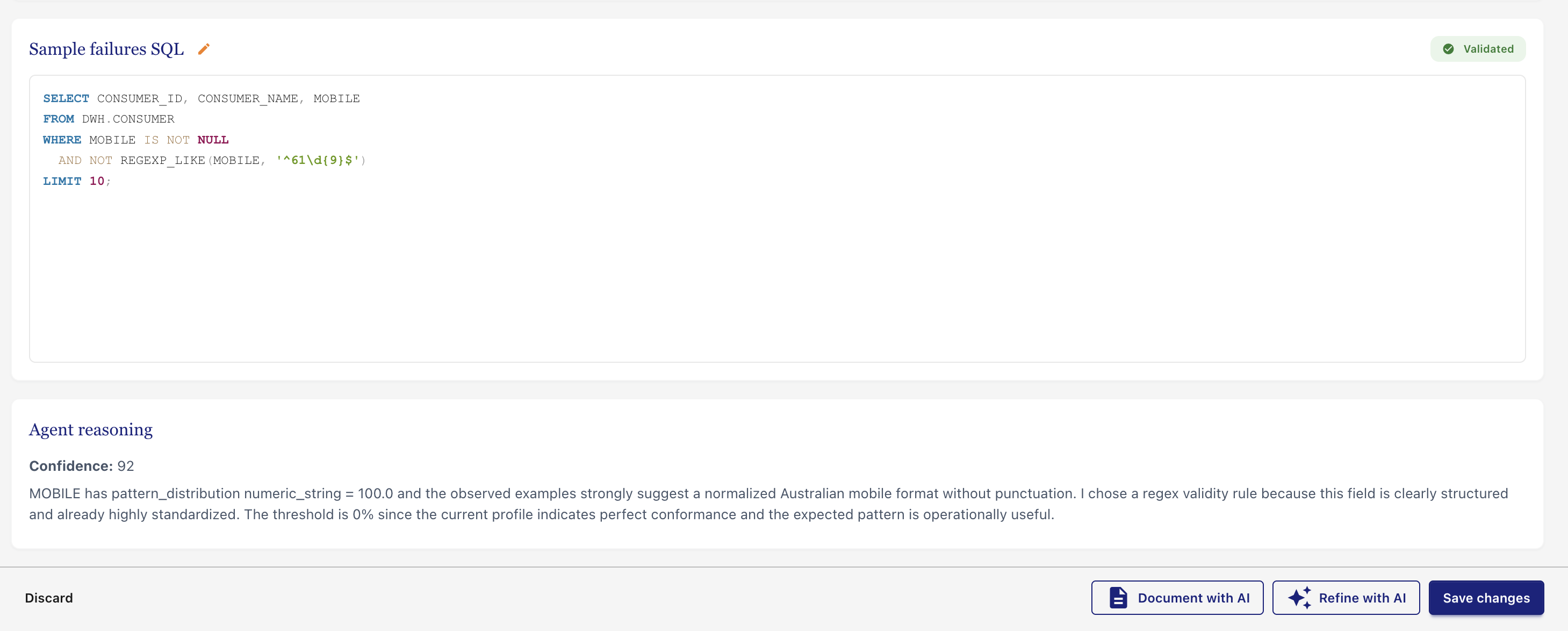
Click Validate to validate the code change
-
After the code has been validated. Click Save changes to save your changes.
-
Go to the Rule Test Run tab and click Run rule to see your changes.