Updated in Version 6.0
There are scenarios where K may not automatically create lineage links. For example:
-
An upstream data source has been loaded as a Manual Source in K
-
Data loaded into K has insufficient metadata to enable automated lineage
Where you know that tables, columns, dataset tables, or dataset fields are connected, you can use the Lineage Mapper application to bulk-create lineage links using matching rules.
Accessing Lineage Mapper
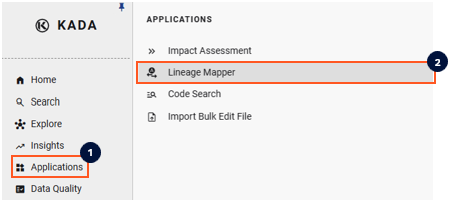
Click on K Applications in the side menu, then select Lineage Mapper.
How to bulk map lineage
-
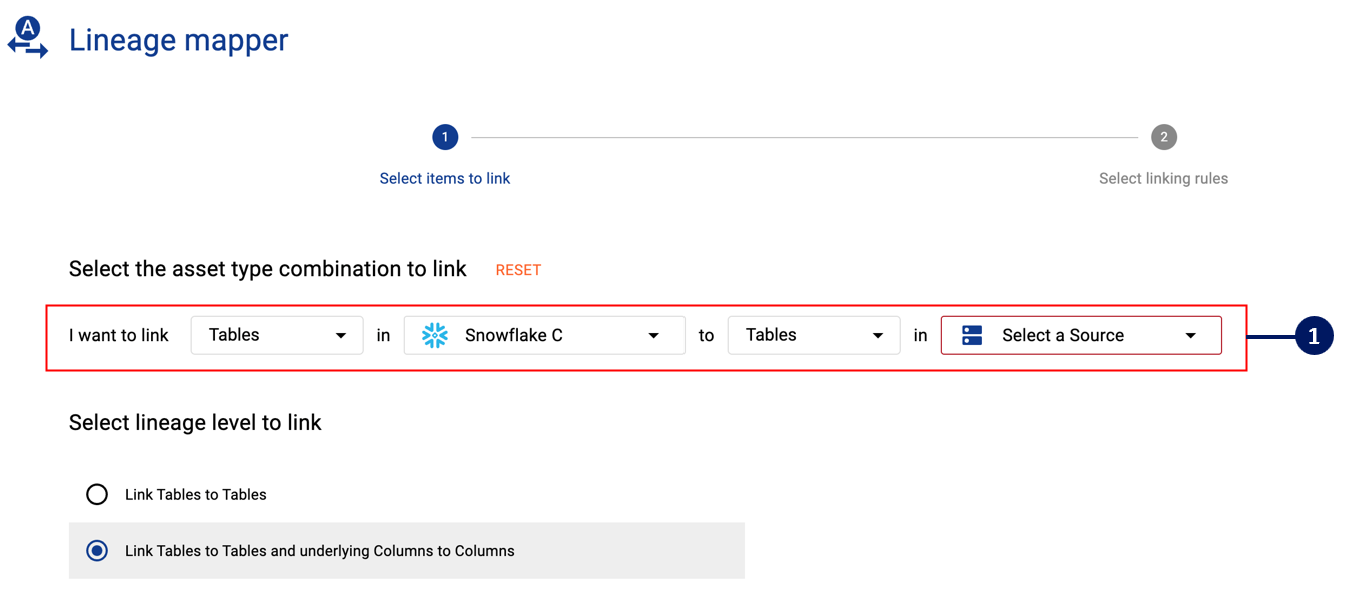
Step 1) Confirm the asset type combination and source you want to link. You can link:
-
Tables / Dataset Tables → Tables / Dataset Tables
-
Columns / Dataset Fields → Columns / Dataset Fields
If linking at the Table level, you can also choose the lineage depth (e.g. whether to also link underlying columns).
-
-
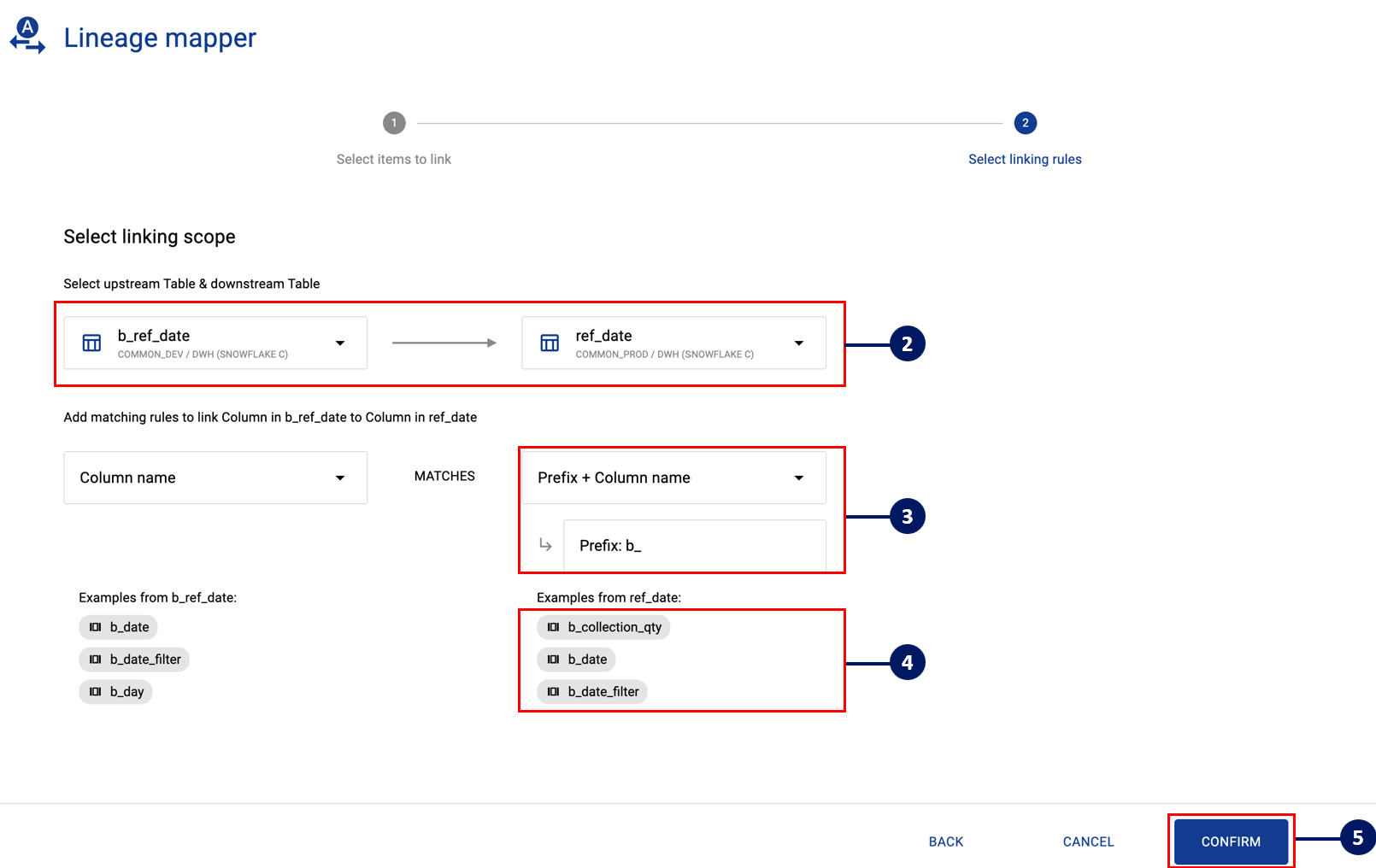
Step 2) Confirm the table, column, or dataset that is to be linked.
-
Step 3) Confirm how names should be matched. You can specify that the column or table name follows one of these formats:
-
Name
-
<prefix> + Name
-
Name + <suffix>
-
<prefix> + Name + <suffix>
-
-
Step 4) Review the examples shown — the first three asset names are surfaced to help you verify the name formatting is correct.
-
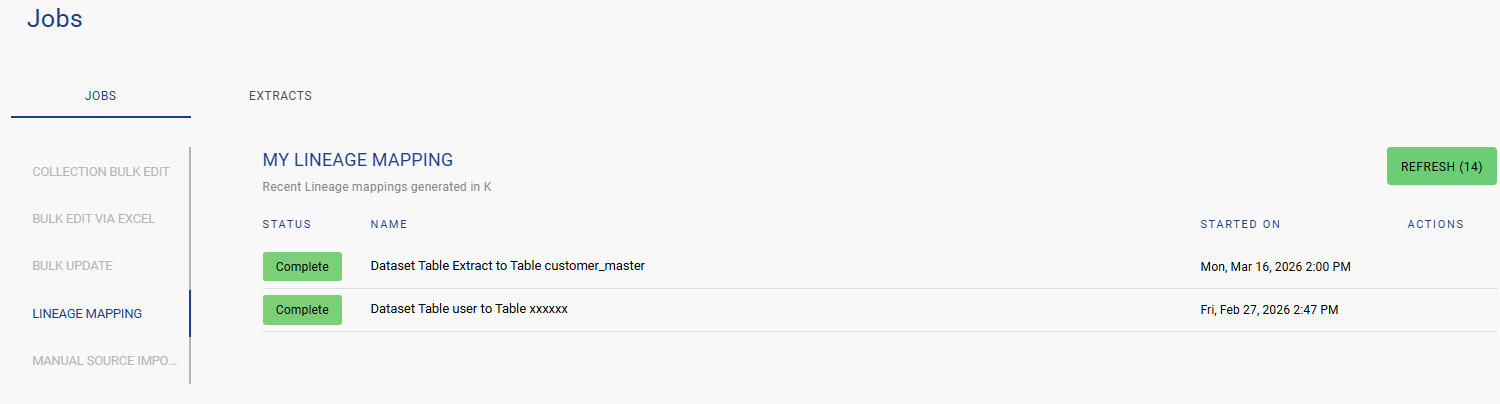
Step 5) Click Confirm. You will be taken to My Applications → Jobs → Lineage Mapping to monitor the job.
-
While the job is running, click the Cross icon to cancel it.
-
Once completed, the mapping cannot be reversed — any errors will need to be corrected manually.
-
-
Step 6) You will be taken to the Jobs Page→ Lineage Mapping page where you can see the progress of your Lineage Mapping Job.
-
While the job is running, you can click the Cross icon to cancel the job
-
After the job has been completed, you will not be able to ‘reverse’ the mapping job. Any changes or errors will need to be manually edited one at a time.
-
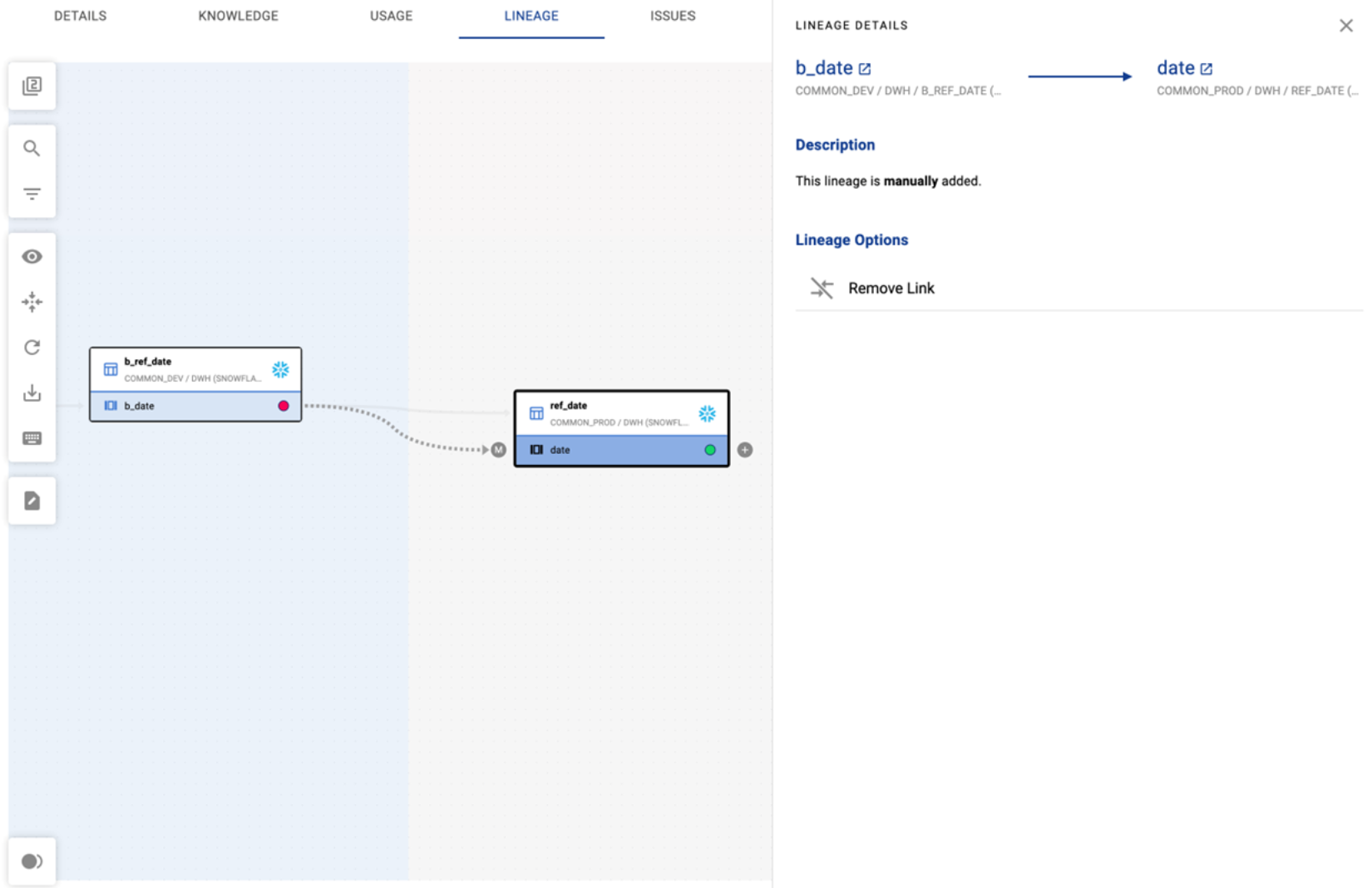
What does a manual lineage link look like?
Manual lineage links are displayed with a dashed line and an (M) symbol, making them easy to distinguish from automatically detected lineage.