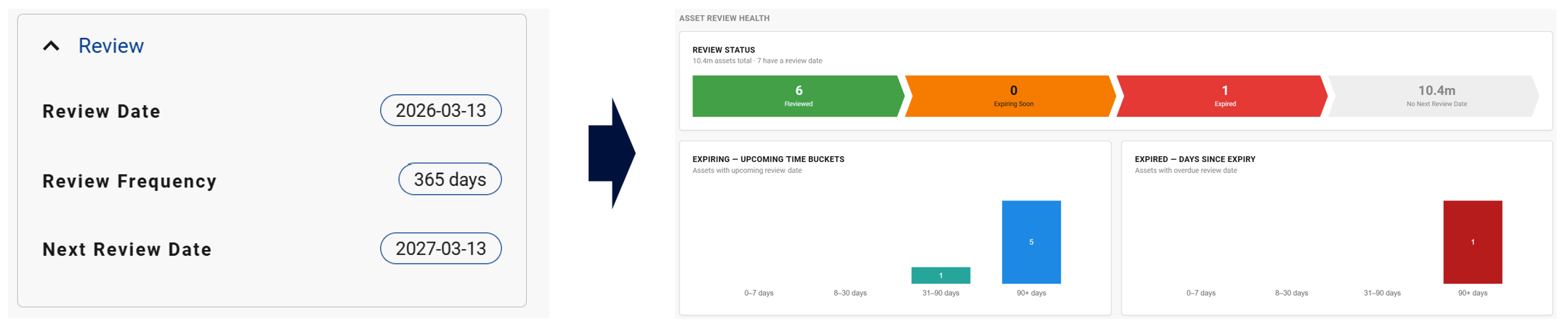
NEW IN RELEASE 6.1
There are two types of Governance Dashboards:
-
Asset Governance Dashboards: Filtered to only show data assets
-
Collection Governance Dashboards: Filtered to show assets based on collections
Through the governance dashboards, you can view key governance insights about your data ecosystem.
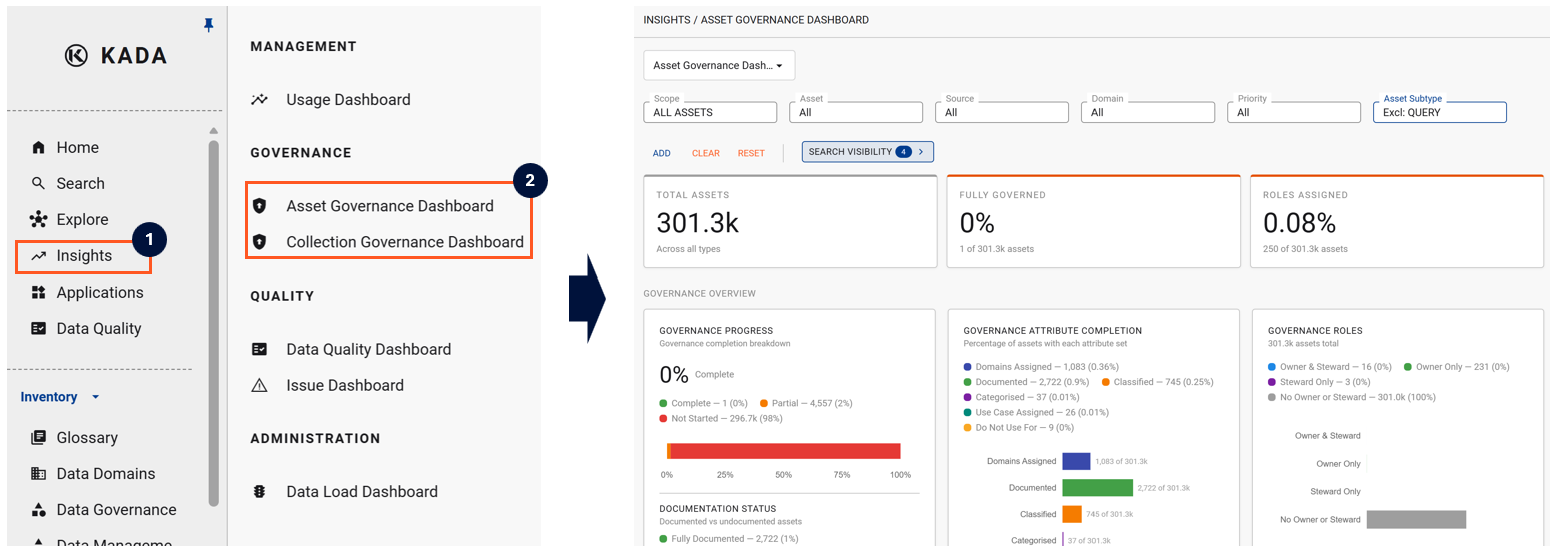
You can drill through on any of the graphs to see the underlying assets through the search view. Using this method, you can also quickly set up regular alerts to help monitor the underlying assets.
Customising your Dashboard
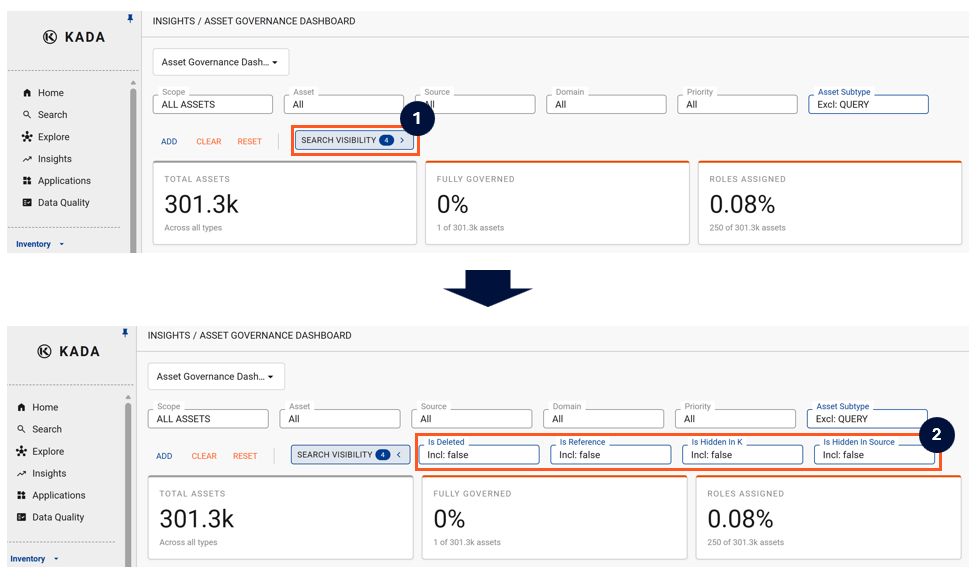
The top part of your dashboard has a number of filters that you can drill down and refine. Similar to the Search pages, you can choose to add additional filters.
When you change your filter settings, K will remember your last filter settings and retain them. Click reset to change the filters back to the default options
By default, there are a number of standard filters that have been set. These include:
-
Deleted: False (exclude all deleted assets)
-
Reference: False (do not include reference assets)
-
Hidden in K: False (assets that your Data Governance Managers and Admin users have chosen to hide and not have displayed in K by default)
-
Hidden in Source: (assets that are hidden in the Source system)
To view and change these default settings, click the Search Visibility button.
Governance Overview
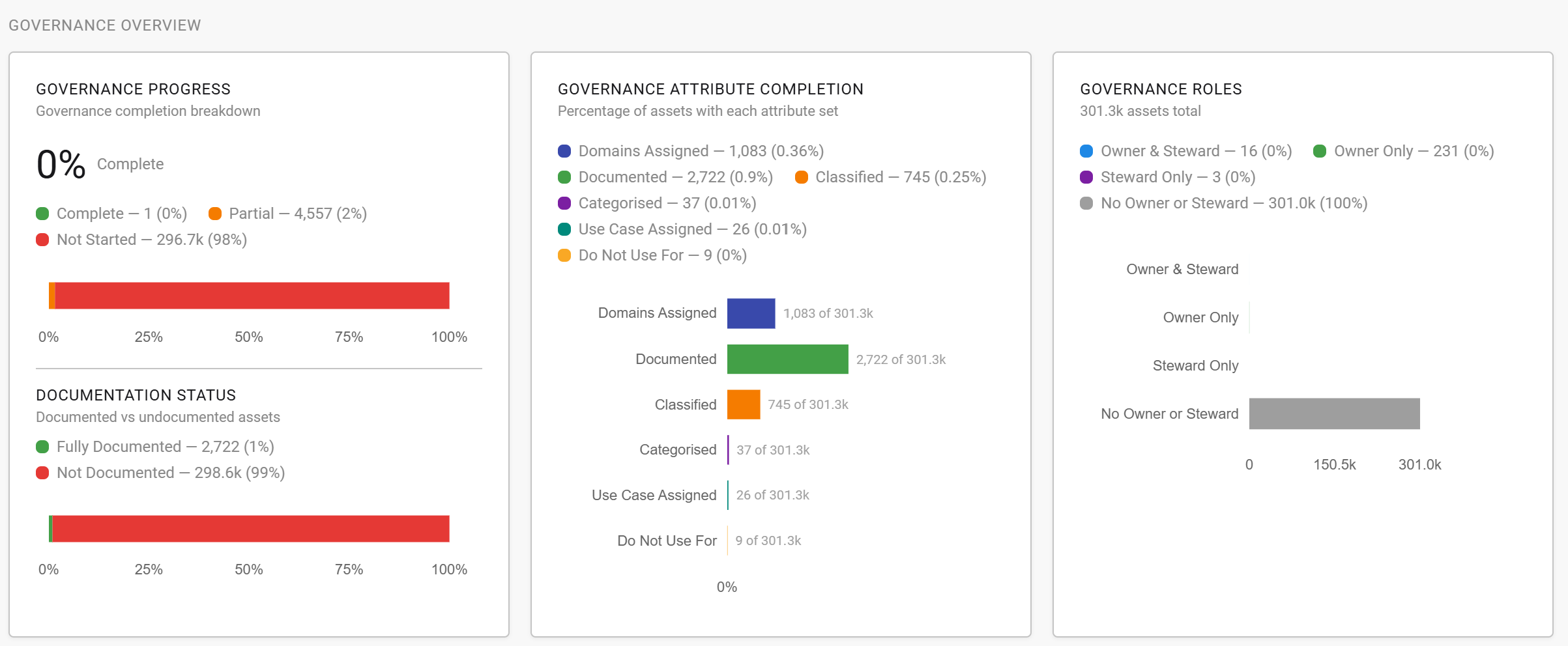
In the Governance Overview section, you can view high level metrics around the overall governance progress for the filtered assets/collection.
A Data Asset governance status is marked as complete when all of the following attributes have been completed:
-
Data Owner or Data Steward assigned
-
Domain assigned
-
Description of data asset has been documented
-
Classified
-
Categorised
-
Use case has been specified (either ‘Verified For’ or ‘Do Not Use’)
Workflow Status
Through the workflow status, you can easily monitor which data assets have been fully certified or those that are still in progress.

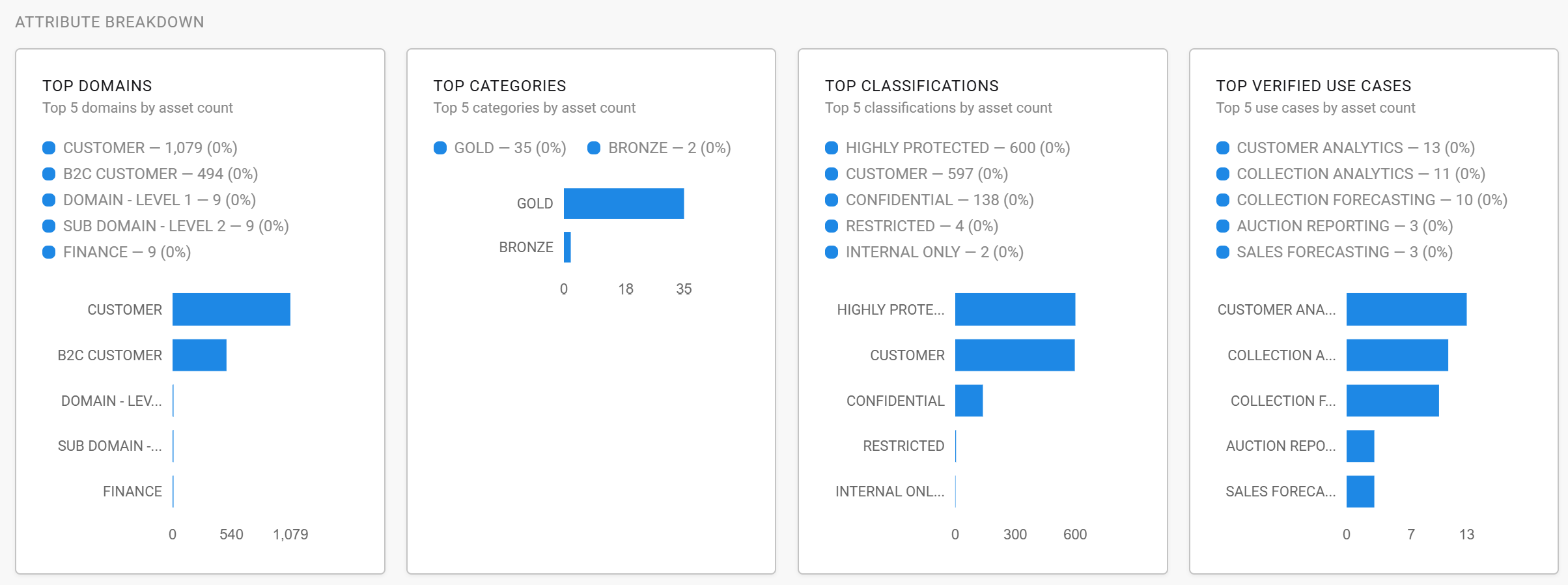
Attribute Breakdown
For the main data governance attributes, you can see a breakdown of the Top 5.
If you’d like to see the full list, you will need to either:
-
Navigate to the Collection to see the full list of instances and linked assets; or
-
Use Ask Kto extract a full list of governance details
Priority Status
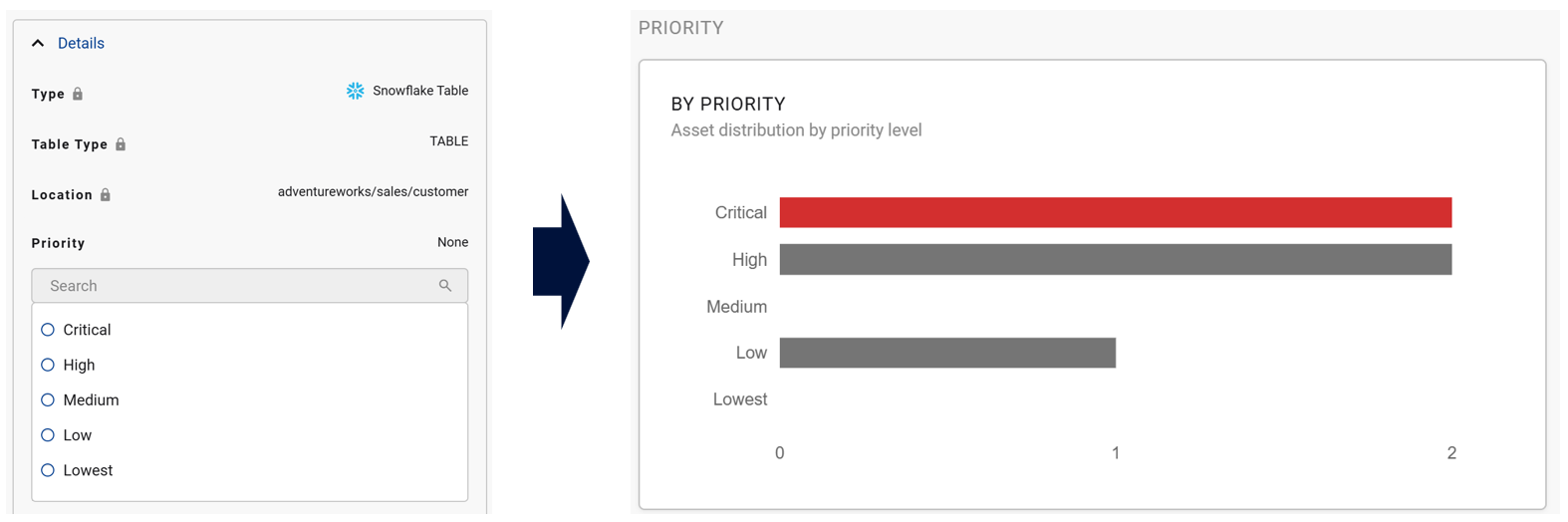
For assets that you have chosen to assign a priority level, you can use the By Priority section to track and view your Critical priority assets.
Asset Review Health
Based on the Review Date that’s been specified for the data asset, you can use the Asset Review Health section to monitor which data assets are coming up for review soon or have already expired.