UPDATED IN VERSION 6.1
A linked search is a great way for you to locate a data asset by linking the search to a secondary data object type.
For example:
-
Searching for a table name by searching for a column name
-
Searching for a column by searching within a schema, database or table
Accessing Linked Search
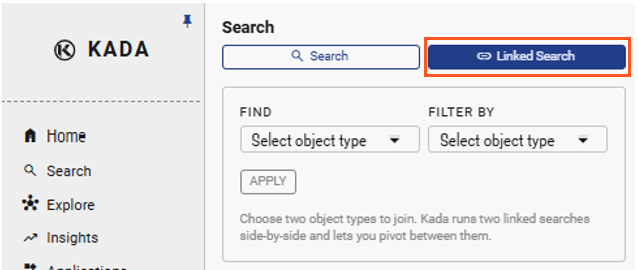
You can access linked search by clicking on Linked Search in the pop-up panel
How to use Linked Search
There are 4 key steps to perform a linked search
Step 1) Confirm the object type search parameters
-
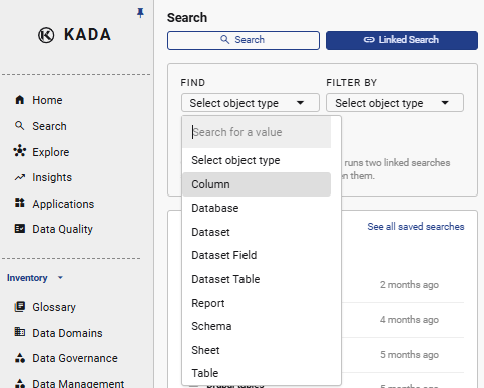
You need to first confirm the type of asset you want to find
-
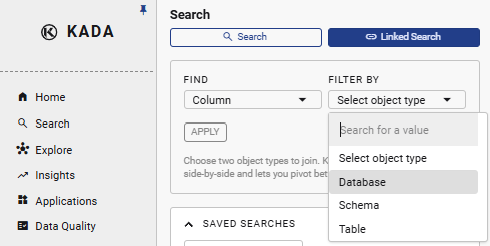
Based on what you select (e.g. column), K will then provide a list of available object types that you can search by. For example, if you want to locate a column, then you can search by: Table, Schema or Database
Step 2) Confirm what filters search you want to link to the object search
-
Based on the object type you have selected, a dynamic list of filters will appear
-
After you select the filter, click Apply to take you to the Linked Search page

Step 3) Refine the filter you want to apply to your search object
-
Update the filters and search names.
-
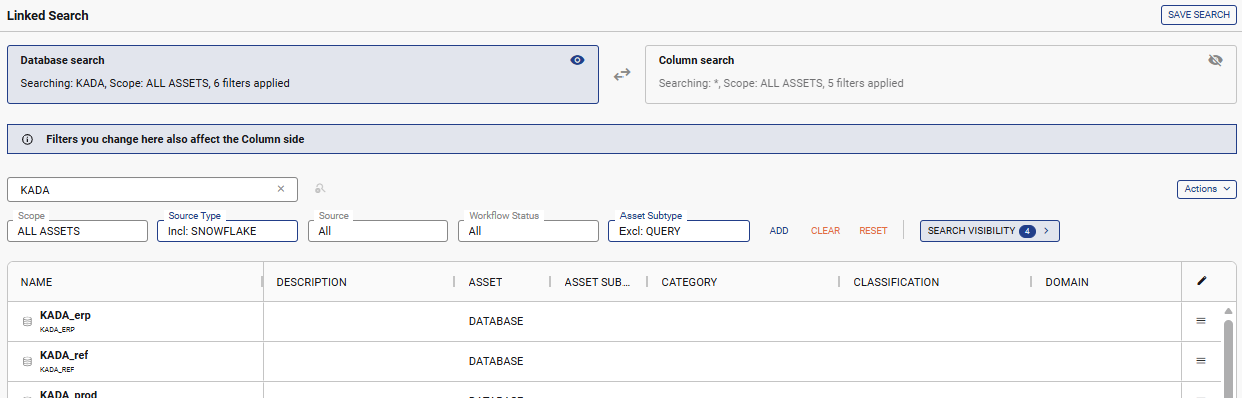
In the below example the ‘Database’ filter has been refined to only include Databases with the name ‘KADA’ and the Source is ‘Snowflake’
-
Through these filters, the column search will automatically be refined to only include columns from the databases listed in this database search view.
Step 4) Click on Object Search to refine search results
-
Refine your object search by adding search word and filters
-
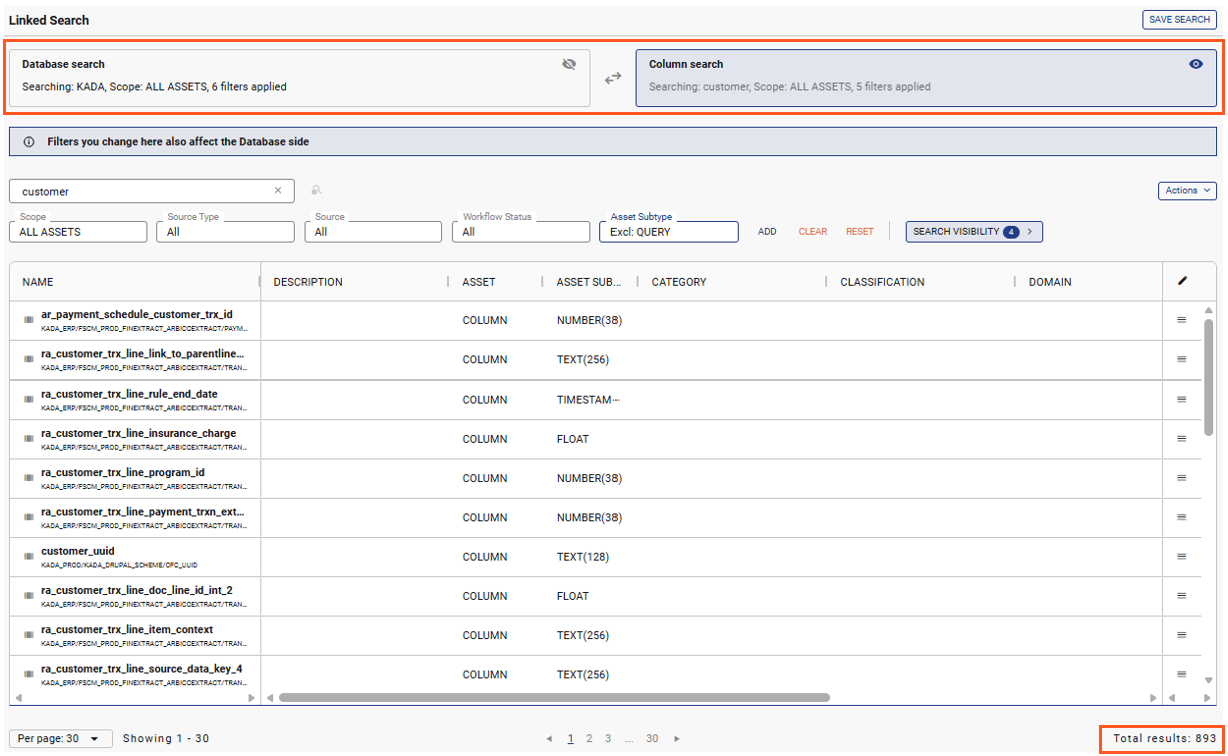
In the below example, ‘Customer’ was added to the search term. Based on the below linked search settings a total of 893 columns were identified from 8 tables
-
Database filters: KADA (name) and Snowflake (source)
-
Object filter: Customer (name)
-
Tip: You can continually toggle between the two search views to refine your search results
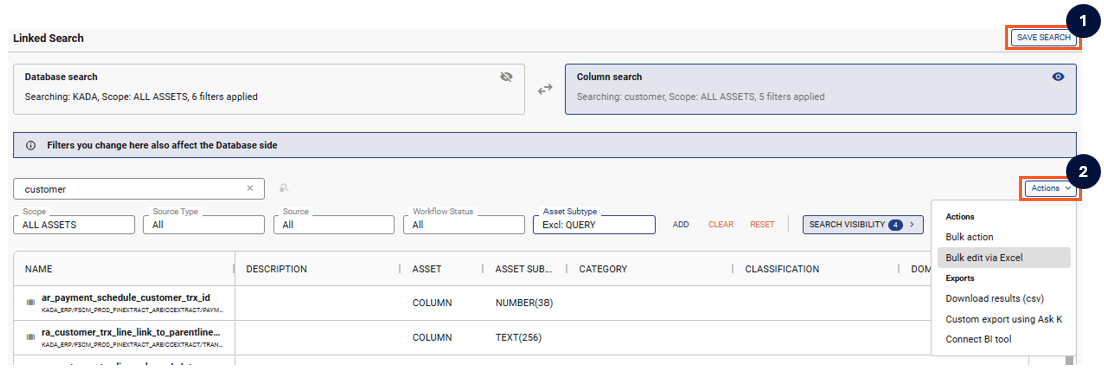
Performing Bulk Action or Bulk Update on Linked Search Results
To perform a bulk action, you can either:
-
Click Save Search and access Bulk Action features anytime through the Saved Search page; or
-
Click Actions and select Bulk action or Bulk edit via Excel
The bulk update will not impact and returned data assets from the secondary data object search that was used to refined the Primary data object search.