
UPDATED IN VERSION 6.1
There may be some search settings that you use often. You can save these as a saved search in K, and manage them anytime through the Saved Searches page.
This page explains how to view, edit, and delete your saved searches, and how to send scheduled extracts of your search results by email using the Alerts feature.
Visit Search Filter Tips to understand how to create a saved search.
Accessing and editing saved searches
-
Access the Saved Search Page through the side panel
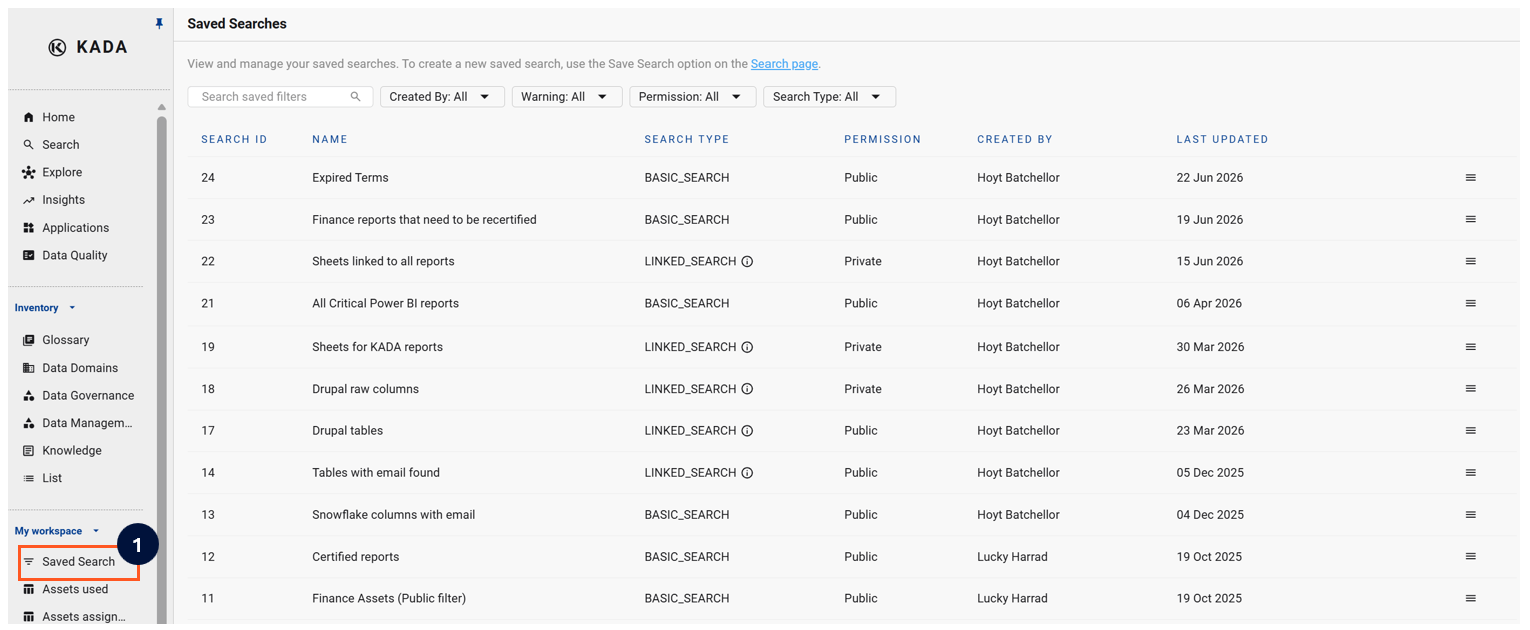
-
The page displays all Private searches you created and Public searches that other K users may have created
-
To edit the settings, click on the Menu icon and click Edit
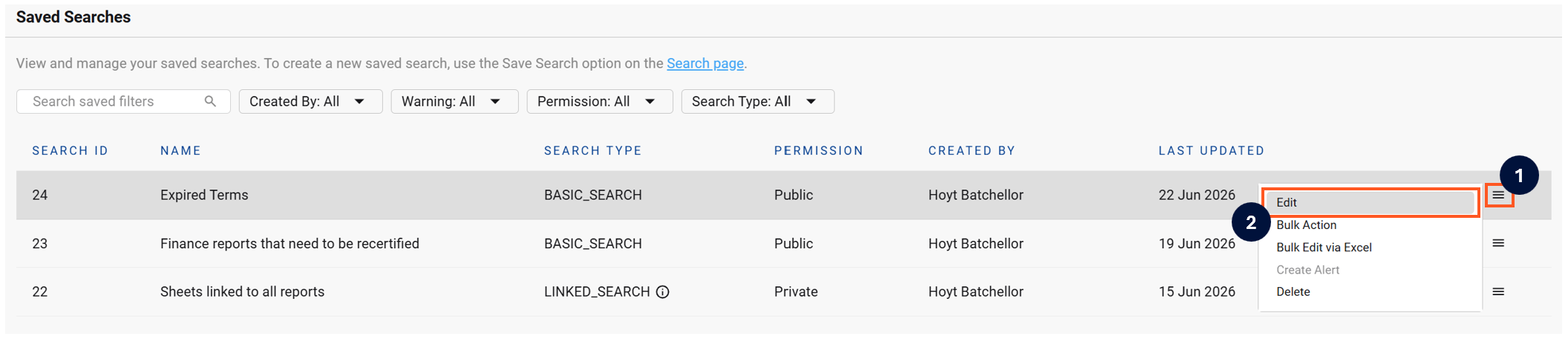
-
The top left corner will show that you are in editing mode and it also lists:
-
The name of the Saved Search setting you are editing
-
Whether the saved search you are editing is a Public or Private the Saved Search
-
-
After you have finished editing, click Save

Creating an Alert for a saved search
K Alerts send scheduled extracts of your filtered search results to your email and any specified recipient. The benefits of K alerts include:
-
Reports sent via K Alerts can be easily shared with non-K users (e.g. A saved search that lists data assets owned by a specific Data Owner)
-
Scheduling reports to trigger BAU operational processes (Weekly scheduled extract of all data assets with open governance issues to trigger follow-up activity)
You can schedule an alert by clicking on the Menu Icon and clicking Create Alert
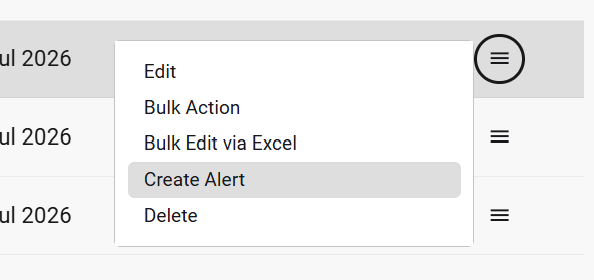
Visit Alerts for more information about how to create and manage an alert.
Triggering Bulk Actions from saved searches
Through the menu icon, you can access both the Bulk Action and Bulk Edit via Excel feature.
To learn more about these features, visit the Performing Tasks in Bulk page