UPDATED IN VERSION 6.1
K offers a powerful google like search function that lets you quickly locate your data items.
Sometimes, the search return may return long list of data items. Filters are a great way to narrow your search results.
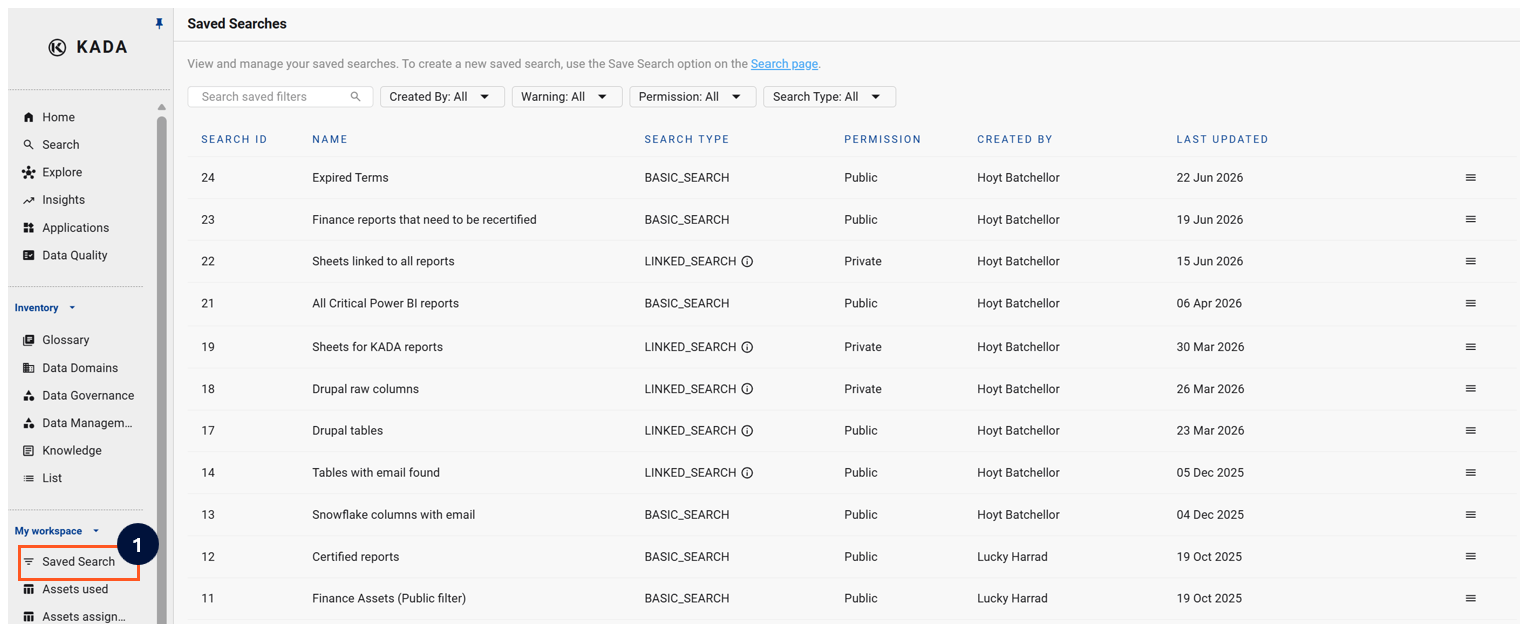
After you have refined your search filter setting, you can Save the search filter settings for quick access at a later date through the Saved Search Page.
You can also view How to customise search with filters for step-by-step instructions
Default filters
By default, there are a number of standard filters that have been set. These include:
-
Deleted: False (exclude all deleted assets)
-
Reference: False (do not include reference assets)
-
Hidden in K: False (assets that your Data Governance Managers and Admin users have chosen to hide and not have displayed in K by default)
-
Hidden in Source: (assets that are hidden in the Source system)
To view and change these default settings, click the Search Visibility button.

Adding additional filters
There are a number of additional filter options available that you can customise per search. For example, you may want to include Collection filters to help you quickly locate and export all data assets that are part of a collection.
-
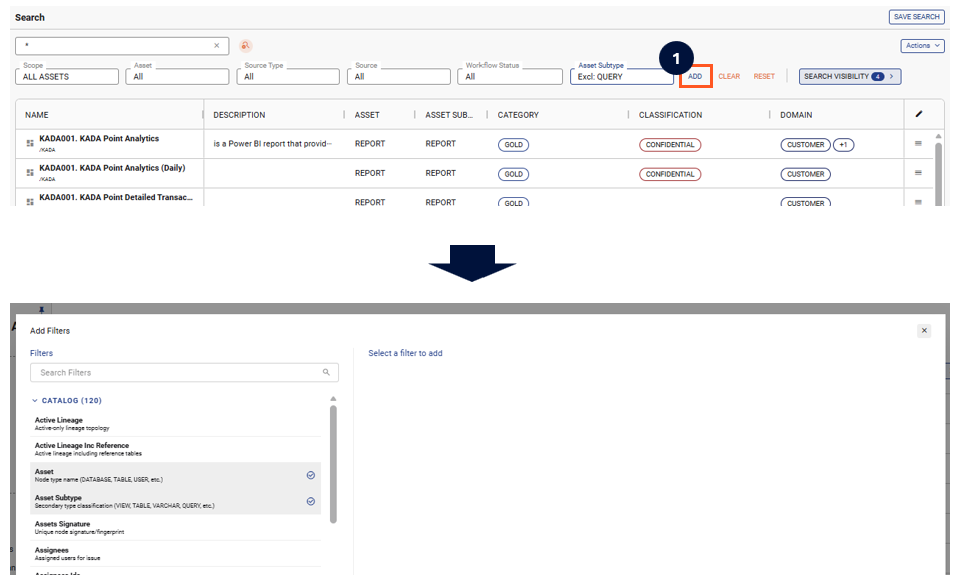
Click on the 'Add' button
-
The Add Filters modal opens as a two-pane view. Search by name or description, or browse the collapsible categories (Catalog, Collections, Properties). Each filter shows a short description of what it does.
-
Click the check icon next to a filter to add it to the bar — it applies immediately, no need to confirm. Click the check icon again on an added filter to remove it.
-
Select a filter row to choose its value in the detail pane. The value applies to the filter bar immediately.
-
Close the modal to return to the Search page
Collection hierarchy tip: When you select a parent collection instance in the My Collection Instances filter (or a Domain / other collection filter), K automatically includes its child instances too — you don't need to select each one individually.
Using search in Filters
Sometimes you may want to search for a specific value in the filter.
Enter the value you want to search by to see what filter values match.
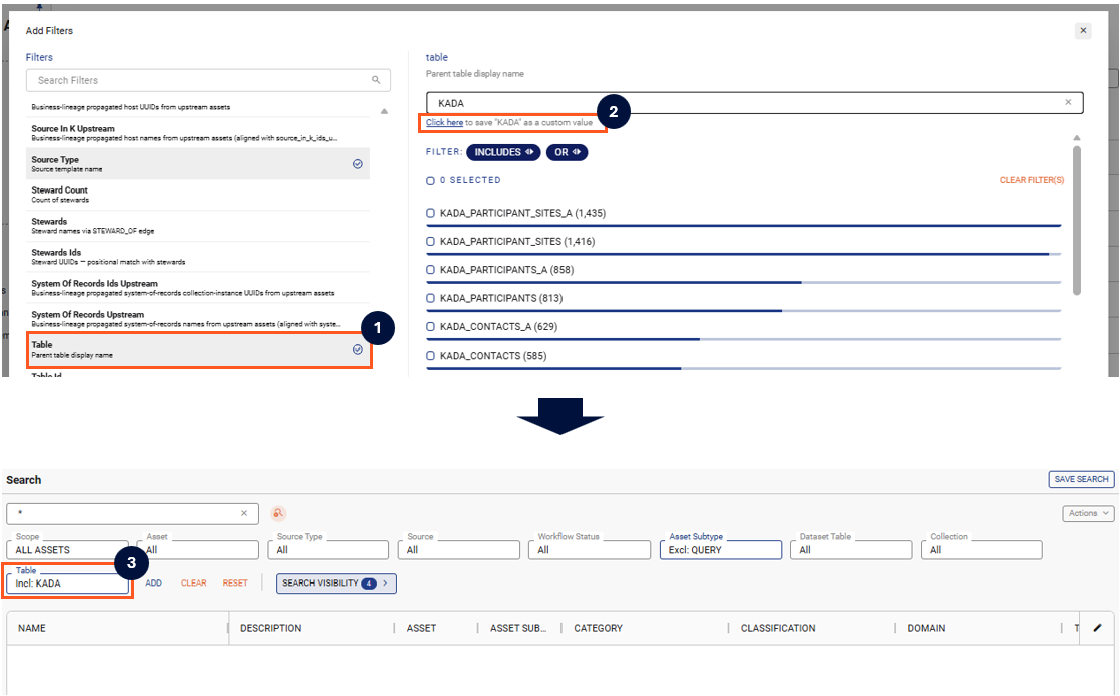
Currently only exact match is supported. You cannot use wildcard in the filter search.
For example, in the below scenario
-
After selecting the ‘Table’ filter
-
KADA has been entered and saved as the Custom Value
-
KADA is not an exact match and will return 0 results
Searching for Date Ranges
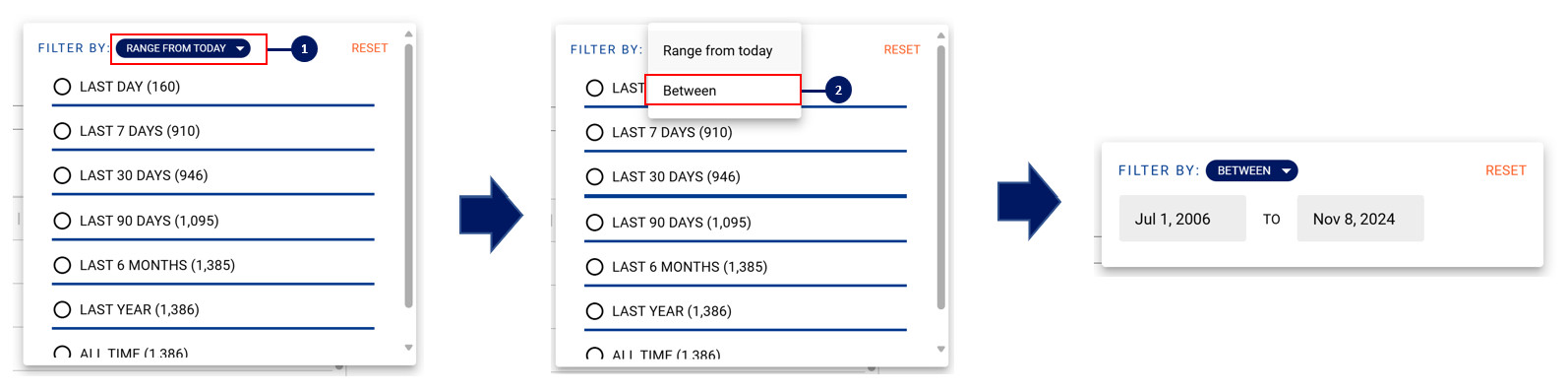
For date type filters, there is an additional filter feature where you can choose to filter between a date range.
Saving your Filter Settings
After you have edited all your preferred filters, click on Save Search, to save these search settings.
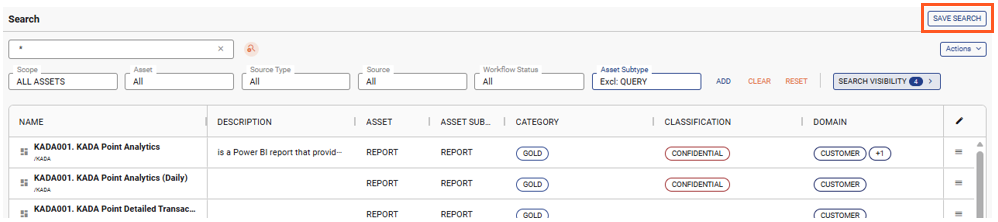
When you click on Saver As, a new pop up will appear letting you specify the new Filter Name and the Permissions setting.
-
Private: Only you as the creator can see and access this saved filter
-
Public: Anyone can see and access the filter via the filters page
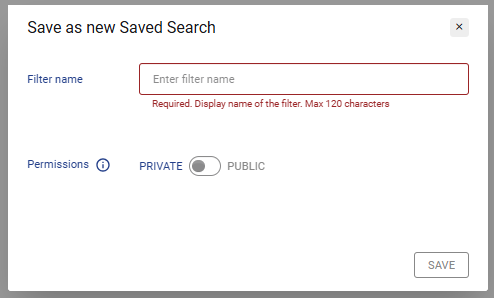
After you click Save, your new filter will appear on the Saved Search page.