
Updated in Version 6.0
This page will take you through the Side Navigation menu and how to quickly navigate to key K pages and features. To understand what each feature does and how they work together, see K Features.
About the Side Navigation menu
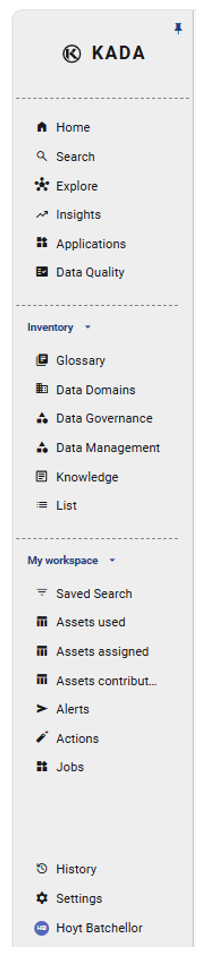
-
Home: Your personal view that includes your personalised Feed and lets you quickly access data assets that you follow
-
Search: Google-like search with custom filters
-
Explore: Search through different asset types
-
Insights: Available to Data Managers and Data Governance users to view tailored Dashboards
-
Applications: Purpose-built tools within K: Ask K (data Q&A), Code Search (search source code), Impact Assessment (upstream/downstream impact), and Import Bulk Edit (bulk changes via Excel templates).
-
Data Quality: Access Data Quality tests and KDQ module
Inventory
This section to quickly search through the range of Collections that help you manage your data. These include:
-
Glossary: View the different business definitions that teams have created
-
Data Domains: Search through data assets by their domain
-
Data Governance / Data Management collections: View data assets grouped by custom collections that your Data Governance Managers have created
-
Knowledge: View knowledge that data workers and data managers have contributed to the ecosystem
-
Lists: View data lists created by other K users
My Workspace
This section helps you quickly access data assets or previous actions that you have used or performed
-
Saved Search: Access past saved search filter settings
-
Assets that you have used, assigned or contributed to
-
Alerts: Schedule searches/filters to deliver results automatically by email
-
Actions: Bulk actions you have saved, scheduled or actioned
-
Jobs: View previous jobs (e.g. extracts) you have triggered in the K platform
Other pages
-
History: View pages that you have visited
-
Settings: Available to Data Governance Managers and K Admin users to manage K Platform Settings
-
User Profile: Customise your own settings
Key Pages at a Glance
|
Page |
Overview |
|---|---|
|
Your personal starting point in K and keeps you informed of recent changes relevant to you and a quick way to access data assets that you follow. |
|
|
Commonly accessed via the Search page, the source of knowledge for any data asset. Key tabs include: Overview, Usage, and Quality. |
|
|
Tailored dashboards for Data Managers and Data Governance users. Dashboards include Usage, Governance, Data Quality, Issue, and Data Load Dashboards Note: Business Users and Data Workers do not see this section. |
|
|
K's Search & Filters function makes finding data as easy as searching Google. You can search across all asset types — tables, reports, dashboards, pipelines, code, and more. |
|
|
Data Applications |
Purpose-built tools within K: Code Search (search source code), Impact Assessment (automatically assess upstream/downstream impact), and Import Bulk Edit (bulk changes via importing Excel templates). |
|
Access via your avatar icon — update preferences, manage linked accounts, configure your K Daily Briefing, and review your K access level. |