
There may be some search settings that you frequently use. You can save these common search and filter settings in K and access them anytime through the Filters page.
This page will explain some of the useful features available through the Filters page and how to send scheduled extracts of your search results to your email and any specified recipient via the Alerts feature.
Visit Search Filter Tips to understand how to create a saved Filter.
Accessing and editing saved searches
-
Access the Filters Page through the side panel
-
The filters page displays all Private filters that you have saved or Public filters that other K users may have created
-
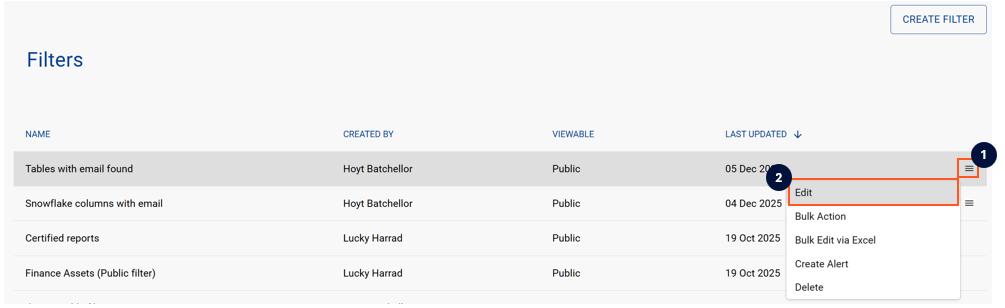
To edit the filter settings, click on the Menu icon and click Edit
-
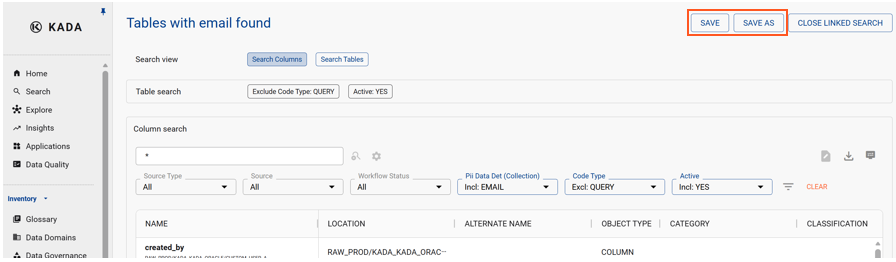
When you access a pre-saved filter and make changes to the filter or search settings, you can choose to either:
-
Save: Update the current saved filter settings
-
Save As: Create a new saved filter
-
Creating an Alert for a saved filter
K Alerts send scheduled extracts of your filtered search results to your email and any specified recipient. The benefits of K alerts include:
-
Reports sent via K Alerts can be easily shared with non-K users (e.g. A pre-saved Filter that lists data assets owned by a specific Data Owner)
-
Scheduling reports to trigger BAU operational processes (Weekly scheduled extract of all data assets with open governance issues to trigger follow-up activity)
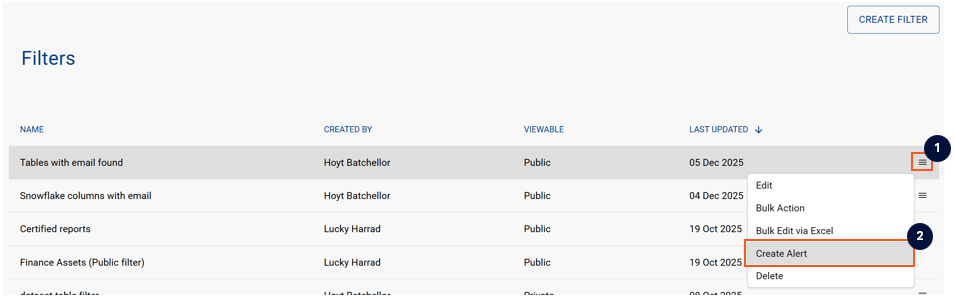
You can schedule an alert by clicking on the Menu Icon abd clicking Create Alert
Visit Alerts for more information about how to create and manage an alert.