K’s unified Search Experience enables business and technical users in your organisation to find the right data asset across databases, reporting platforms, ML feature stores, ETL tools, and more — all from a single interface.
There are 4 main ways you can easily locate your data assets in K:
-
Locate data assets recently used/created via My Workspace
-
Use a google like Search function
-
Explore commonly searched items
-
Access your past saved search filters settings through Filters Page
-
Search your Collections via Inventory
1. My Workspace
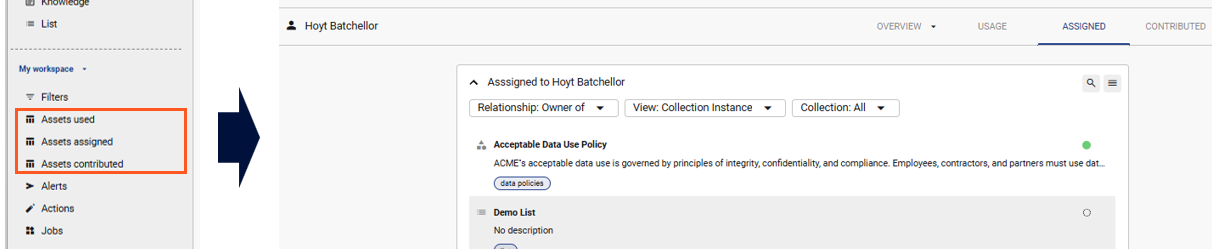
In the My Workspace you can view assets that you have:
-
Recently used
-
Assigned to you as an owner or steward
-
Contibuted knowledge to e.g. updated description or linked a collection/instance
2. Using the Search FunctionWhen you first click on Search, a pop-up panel will appear where you can quickly type in your search term.
-
Try typing * for a generic wildcard search
-
You can also change the search settings by clicking on the settings icon
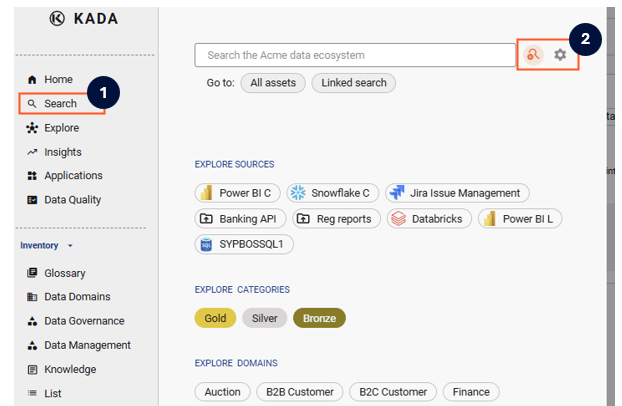
K also has the capability to do Linked Searches. A linked search lets you find associated parent asset or child assets. For example, you might want to locate all tables that have a column called 'Phone'.
Through the Search Results Page, you can access a number of additional K Features including bulk actions and saved filters. Search results are ranked using K’s Trust Score, which ensures the most suitable, up-to-date, and relevant assets are promoted to the top.
Visit Search Filter Tips for more information on how to make the most of the Search Page, including how to save your favourite common search filter settings.
3. Explore commonly searched items
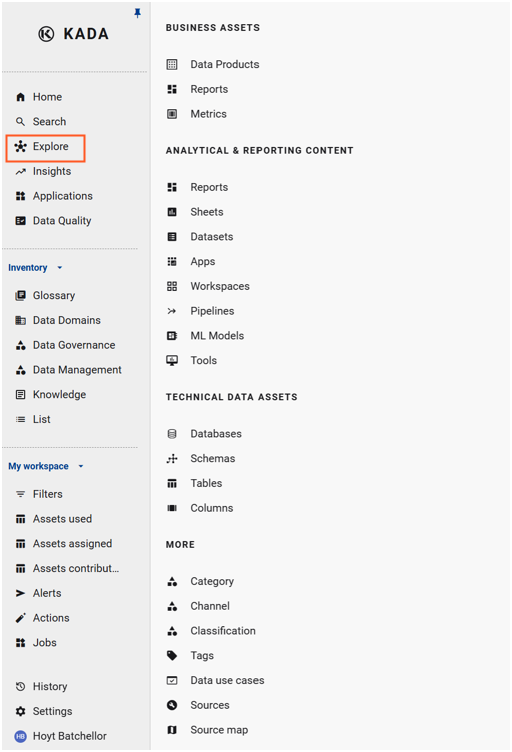
Using the Explore section you can click on a range of commonly searched asset types, including sources and tags.
4. Accessing saved searches through the Filters Page
Filters can be applied across dimensions such as asset type (e.g. Table, Report, Dataset), data source or tool, owner or steward, tags and classifications, and data quality status.
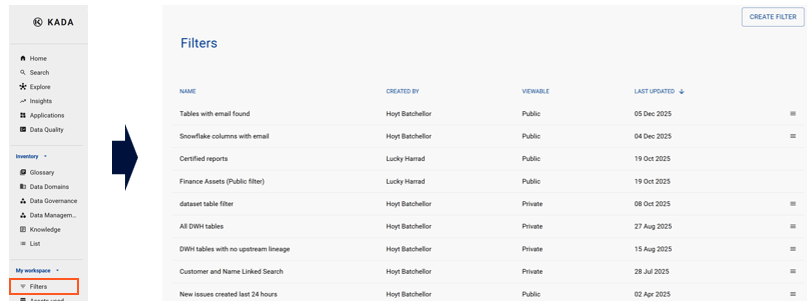
After you save your Search Filters setting, you can access it anytime through the Filters Page.
-
The filters page displays all search filters that you have saved.
-
Filters can be saved as either:
-
Private: Only you as the creator can see and access this saved filter
-
Public: Anyone can see and access the filter via the filters page
-
-
You can identify whether the filter is Public or Private via the 'Viewable' column
Saved filters can be easily shared with colleagues, making it simple to distribute curated views of the data ecosystem across teams.
5. Search your Collections via Inventory
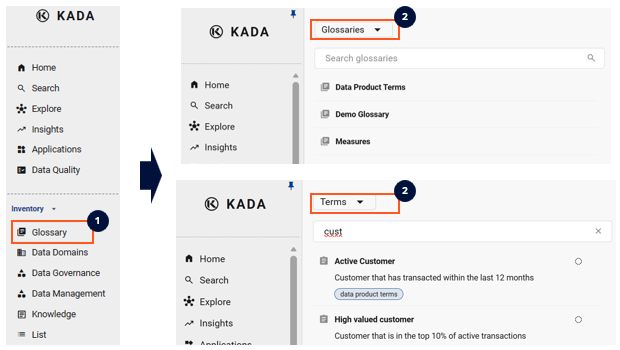
To quickly search through the range of Collections that help you manage your data, use the Inventory. By default, the inventory search setting defaults to the instance which can also be toggeled to the collection level.