
This page will walkthrough the setup of dbt core (self hosted dbt) in K.
Integration details
|
Scope |
Included |
Comments |
|---|---|---|
|
Metadata |
YES |
|
|
Tests |
YES |
|
|
Lineage |
YES |
|
|
Usage |
YES |
|
|
Sensitive Data Scanner |
N/A |
|
Step 1) Extract from dbt
-
Generate the Manifest using the dbt compile command for each project. This will ensure the manifest file contains compiled SQL. The following docs (and filenames are expected):
-
Must contain compiled SQL which is generated following DBT run / compile
-
filename:
<project_id>_manifest_YYYYMMDDhhmmss.json
-
(Optional) Generate the Catalog file using the dbt docs generate command:
-
file name:
<project_id>_catalog.json
-
Run results are generated after each dbt run:
-
file name:
<project_id>_run_results_YYYYMMDDHHmmss.json
-
Use an orchestration tool like Airflow to align the filenames and push the docs (manifest, catalog, run_results) to the landing folder created in Step 3.
The inclusion of the project_id in the filename is to support multiple dbt projects.
Step 2) Add dbt Core as a New Source
-
Select Platform Settings in the side bar
-
In the pop-out side panel, under Integrations click on Sources
-
Click Add Source and select DBT_CORE
-
Select Load from File and add your dbt core details and click Next
-
Fill in the Source Settings and click Next
-
Name: Give the dbt source a name in K
-
Host: Enter the dbt server name
-
Project Mapping: A mapping is required to map dbt projects ids to KADA source hosts. Example
{
    "projectid_1234": "af33141.australia-east.azure",
    "anotherprojectid_9283": "af33141.australia-east.azure"
}
Payload containing key, value pairs:
-
key - dbt project id. This can be found in the manifest.json file under metadata > project_id
-
value - host of the database matching the KADA onboarded source’s host.
This can be found in Platform Admin > Sources > Edit source > See host name.
-
-
-
Click Finish Setup
Step 3) Configure the dbt extracts
-
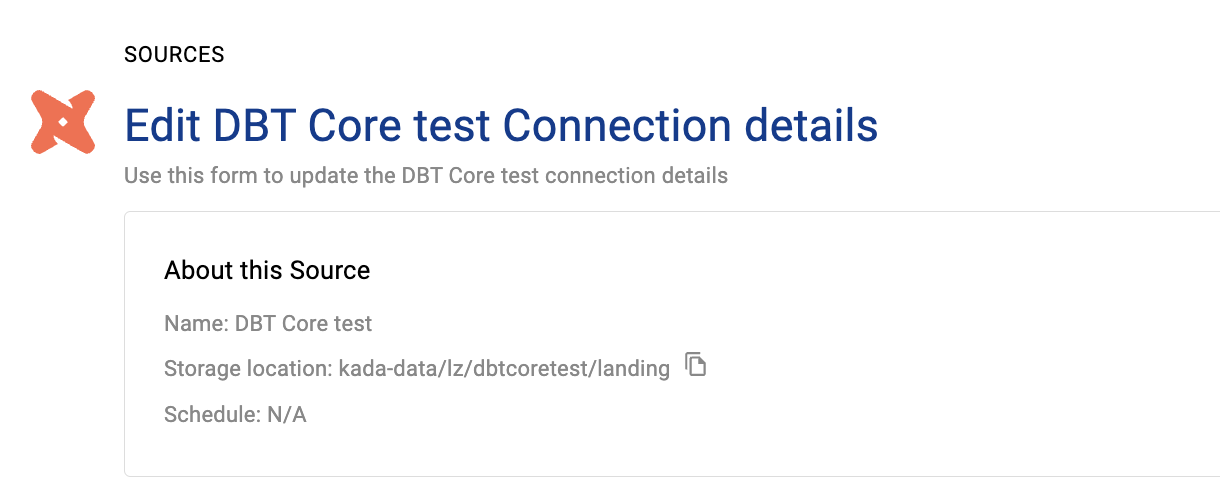
Click Edit on the dbt core source you just created
-
Note down the storage location
-
Schedule the dbt extracts to land in this directory.
For details about how to push files to landing — see the Collectors documentation.
Step 4) Schedule the dbt core source load
-
Select Platform Settings in the side bar
-
In the pop-out side panel, under Integrations click on Sources
-
Locate your new dbt core Source and click on the Schedule Settings (clock) icon to set the schedule
Step 5) Push your extracts to K
-
Complete the following steps to load your latest manifest.json file
-
Push your manifest.json, catalog.json, mapping.json and run_results.json files to the K landing directory.
-
For example, you can use Azure Storage Explorer if you want to initially do this manually.
-
Step 6) Manually run an ad hoc load to test dbt core setup
-
Select Platform Settings in the side bar
-
In the pop-out side panel, under Platform Settings click on Sources
-
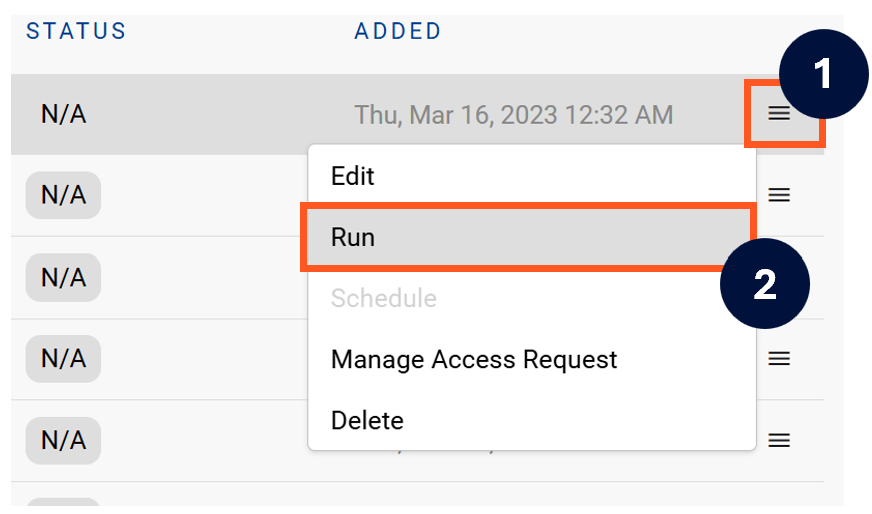
Next to the Source click on the menu icon and select Run
-
After the manual run is triggered, a pop up bar will appear containing a link that can take you to the Monitor tab where you can check the progress of the job.
Troubleshooting failed loads
-
If the job failed at the extraction step
-
Check the error. Contact KADA Support if required.
-
Rerun the source job
-
-
If the job failed at the load step, the landing folder failed directory will contain the file with issues.
-
Find the bad record and fix the file
-
Rerun the source job
-