
This page will guide you through the setup of Fivetran in K using the direct connect method.
Integration details
|
Scope |
Included |
Comments |
|---|---|---|
|
Metadata |
YES |
|
|
Lineage |
YES |
|
|
Usage |
NO |
Usage currently not captured for Fivetran pipelines |
|
Sensitive Data Scanner |
N/A |
|
Known limitations
-
Not all sources and destinations are included in the metadata extraction. Improvements are planned to provide wider coverage.
Step 1) Create an API Key
-
Log into your Fivetran account and go to Settings
-
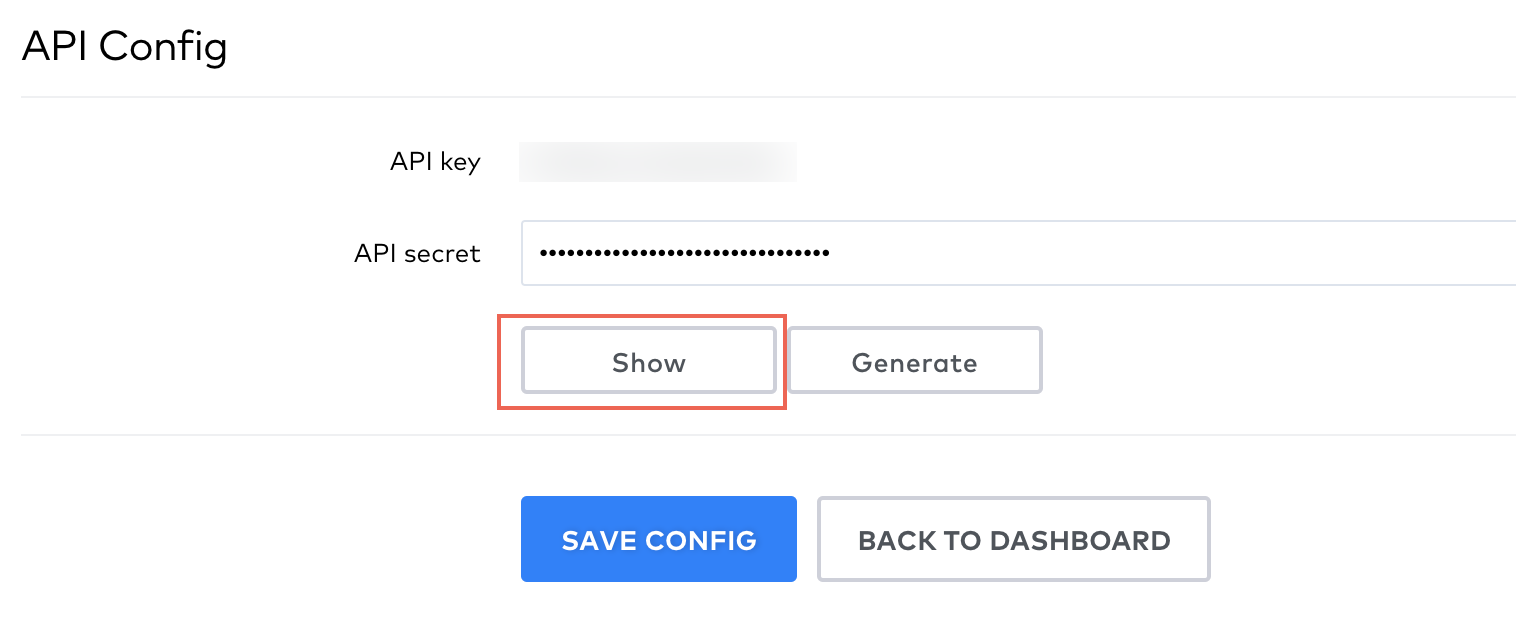
Go to the API Config section to find the API Key and Secret
-
Copy the API Key and Secret for the next step
Step 2) Add Fivetran as a New Source
-
Select Platform Settings in the side bar
-
In the pop-out side panel, under Integrations click on Sources
-
Click Add Source and select Fivetran
-
Select Direct Connect and add your Fivetran details and click Next
-
Fill in the Source Settings and click Save & Next
-
Name: Give the Fivetran source a name in K
-
Host: Can be any unique value. For example add
fivetran.com/[fivetran account name] -
Update the Host / Database mapping (refer to the Host / Database Mapping ). This step can be completed after the initial load via the guided workflow.
-
-
Add your Key (client ID) and Secret (client Secret) copied from Step 1 and click Save
-
Test your connection and click Save
-
Click Finish Setup
Step 3) Schedule Fivetran source load
-
Select Platform Settings in the side bar
-
In the pop-out side panel, under Integrations click on Sources
-
Locate your new Fivetran source and click on the Schedule Settings (clock) icon to set the schedule
Note that scheduling a source can take up to 15 minutes to propagate the change.
Step 4) Manually run an ad hoc load to test Fivetran setup
-
Select Platform Settings in the side bar
-
In the pop-out side panel, under Platform Settings click on Sources
-
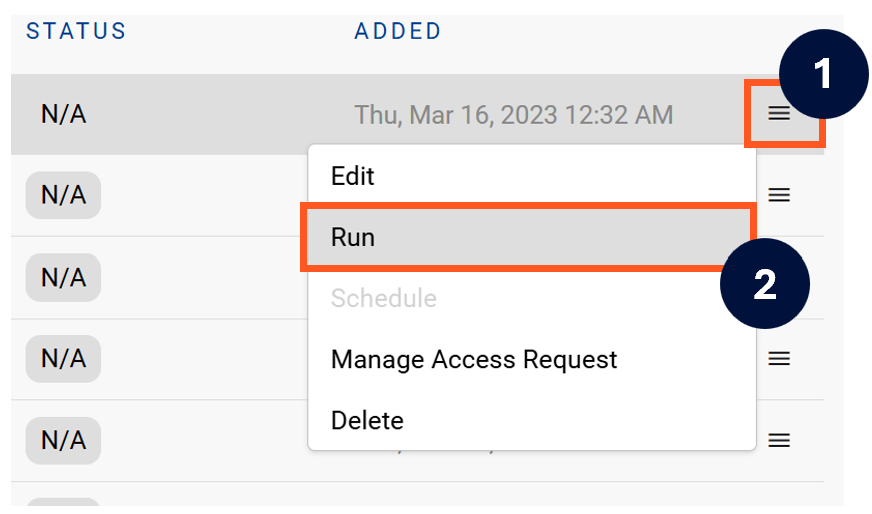
Next to the Source click on the menu icon and select Run
-
After the manual run is triggered, a pop up bar will appear containing a link that can take you to the Monitor tab where you can check the progress of the job.
Troubleshooting failed loads
-
If the job failed at the extraction step
-
Check the error. Contact KADA Support if required.
-
Rerun the source job
-
-
If the job failed at the load step, the landing folder failed directory will contain the file with issues.
-
Find the bad record and fix the file
-
Rerun the source job
-