
This page will walkthrough the setup of MySQL in K using the direct connect method.
Integration details
|
Scope |
Included |
Comments |
|---|---|---|
|
Metadata |
YES |
See below |
|
Lineage |
YES |
|
|
Usage |
YES |
|
|
Sensitive Data Scanner |
N/A |
|
Known limitations
-
Supported MySQL versions include 5.7x & 8.0x
Step 1: Setup access to MySQL
Log into your MySQL instance and create a user with access to the following tables:
-
INFORMATION_SCHEMA.VIEWS -
INFORMATION_SCHEMA.TABLES -
INFORMATION_SCHEMA.COLUMNS -
INFORMATION_SCHEMA.KEY_COLUMN_USAGE
After this step you should have the following information:
-
MySQL host details
-
Username
-
Password
Step 2: Enabling logging (if desired)
Enabling logging is important for processing lineage and usage. Skip this step if you only want to load in Metadata.
See more information about logging here: MySQL Log Destinations
Note this study Impact of General Query Log on MySQL Performance and the performance impact of enabling logging.
Enable global logging:
SET GLOBAL log_output = 'TABLE';
SET GLOBAL general_log = 'ON';
Change logging tables from reading CSV files to MyISAM Engine for performance:
SET @old_log_state = @@GLOBAL.general_log;
SET GLOBAL general_log = 'OFF';
ALTER TABLE mysql.general_log ENGINE = MyISAM;
ALTER TABLE mysql.slow_log ENGINE = MyISAM;
ALTER TABLE mysql.general_log ADD INDEX (event_time);
ALTER TABLE mysql.slow_log ADD INDEX (start_time);
SET GLOBAL general_log = @old_log_state;
Step 3: Create the Source in K
Create a MySQL source in K.
-
Select Platform Settings in the side bar
-
In the pop-out side panel, under Integrations click on Sources
-
Click Add Source and select MySQL
-
Select Direct Connect and add your MySQL details
-
Name: Give the MySQL source a name in K.
-
Host: Enter a hostname for your MySQL instance
-
Use SSL: Set this ON
-
-
Add Connection Details and click Save & Next
-
Host: Add your MySQL host
-
Username: Add your MySQL username from Step 1
-
Password: Add your MySQL password from Step 1
-
-
Test your connection and click Next
-
Click Finish Setup
Step 4: Schedule MySQL source load
-
Select Platform Settings in the side bar
-
In the pop-out side panel, under Integrations click on Sources
-
Locate your new MySQL Source and click on the Schedule Settings (clock) icon to set the schedule
Step 5: Manually run an ad hoc load to test MySQL
-
Select Platform Settings in the side bar
-
In the pop-out side panel, under Platform Settings click on Sources
-
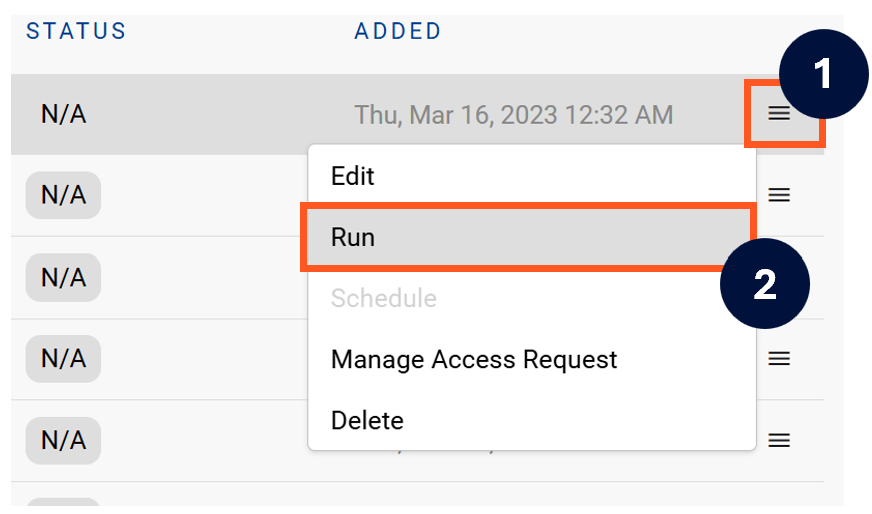
Next to the Source click on the menu icon and select Run
-
After the manual run is triggered, a pop up bar will appear containing a link that can take you to the Monitor tab where you can check the progress of the job.
Troubleshooting failed loads
-
If the job failed at the extraction step
-
Check the error. Contact KADA Support if required.
-
Rerun the source job
-
-
If the job failed at the load step, the landing folder failed directory will contain the file with issues.
-
Find the bad record and fix the file
-
Rerun the source job
-